---
updatedAt: 2026-11-10T13:15:58.000Z
agentTools:
projectIndex: https://docs.getmontecarlo.com/llms.txt
---
# Azure SQL Database
## What is Azure SQL Database?
[Azure SQL Database](https://azure.microsoft.com/en-us/products/azure-sql/database) is a fully managed relational database service provided by Microsoft Azure. It offers high availability, scalability, and built-in intelligence, making it ideal for applications requiring robust data management and security. Users benefit from reduced maintenance overhead, automatic backups, and seamless integration with other Azure services, enabling efficient data handling and analytics.
## Why Connect Azure SQL Database to Monte Carlo?
Integrating Monte Carlo with your Azure SQL Database allows you to monitor your data and tables. Monte Carlo can detect anomalous volume changes out of the box. With the ability to run SQL queries on your Azure SQL database tables and views, you can create advanced monitors to analyze the data in your tables and views. For a full list of supported monitor types see [Monitor Support](https://docs.getmontecarlo.com/docs/azure-sql-database#monitor-support).
After connecting Azure SQL Database here is what you can expect to see out of the box:
**Volume**
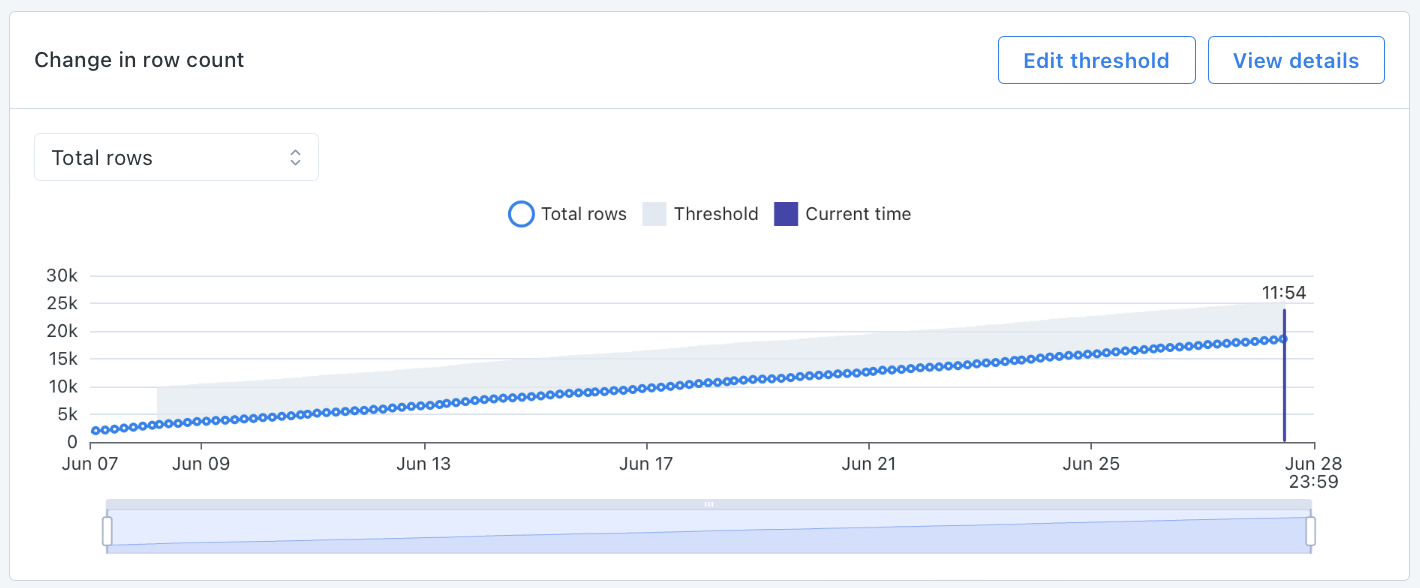
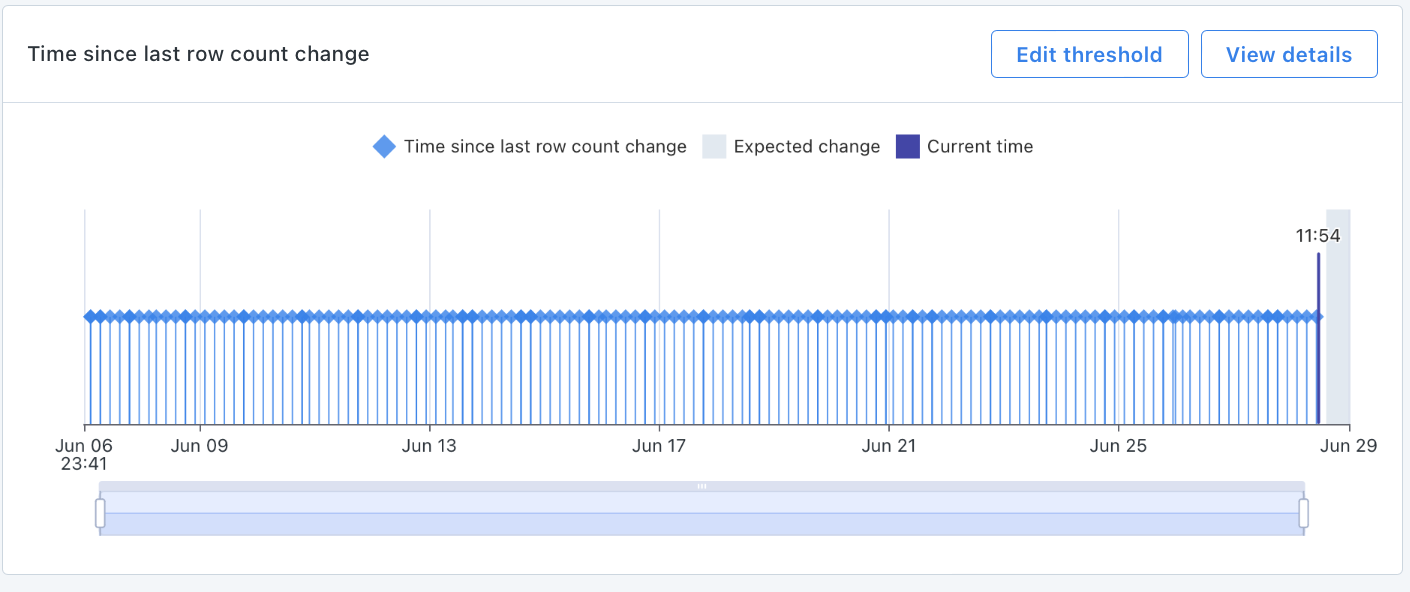
Our volume monitors are active out of the box. By collecting metadata on your tables each hour, Monte Carlo's machine learning algorithm can set automatic thresholds to alert when a table has gone too long without a change in size or when an abnormal amount of rows are added or deleted.
## Monitor & Lineage Support
Below are the monitors & lineage for the Azure SQL Database integration today. Please reach out to your Monte Carlo representative if you have requirements for additional monitors.
| Category | Monitor / Lineage Capabilities | Support |
| :----------------- | :----------------------------- | :------------------- |
| Table Monitor | Freshness | ✅ \* |
| Table Monitor | Volume | ✅ |
| Table Monitor | Schema Changes | :white\_check\_mark: |
| Metric Monitor | Metric | ✅ |
| Metric Monitor | Comparison | :white\_check\_mark: |
| Validation Monitor | SQL Custom | :white\_check\_mark: |
| Validation Monitor | Validation | :white\_check\_mark: |
| Job Monitor | Query performance | |
| Lineage | Lineage | |
\*Freshness monitors are created using the volume (row count) metric based on the time since last row count change.
## Connecting to Azure SQL Database
Now that we know the value connecting Azure SQL Database to Monte Carlo can bring, here are the necessary steps to set up the integration.
> 📘 Prerequisites
>
> To create a readonly service account, you will need access to a SQL admin user.
> ❗ Authentication
>
> The Azure SQL Database integration supports SQL authentication (login and password) only. Microsoft Entra ID authentication methods — including Service Principal (client ID and secret) and Managed Identity — are not supported.
This guide explains how to create a read-only service account for Monte Carlo in your Azure SQL Database.
To review all steps necessary to integrate your SQL database with Monte Carlo, please see [here](https://docs.getmontecarlo.com/docs/overview-transactional-databases).
### Connect end to end with Claude or Terraform
**Want a guided setup?** With the [Monte Carlo Agent Toolkit](https://docs.getmontecarlo.com/docs/agent-toolkit), run the following command and Claude walks you through every step:
```
/monte-carlo-onboarding connect Azure SQL Database
```
See [Providing credentials with Claude](https://docs.getmontecarlo.com/docs/azure-sql-database#providing-credentials-with-claude) for details.
**Want it all as code?** With the Monte Carlo Terraform provider, one `terraform apply` creates the credentials, warehouse and connection. See [Providing credentials with the Terraform provider](https://docs.getmontecarlo.com/docs/azure-sql-database#providing-credentials-with-the-terraform-provider) or the [`montecarlo_azure_sql_database_credentials`](https://registry.terraform.io/providers/monte-carlo-data/montecarlo/latest/docs/resources/azure_sql_database_credentials) resource in the registry.
**Prefer the UI?** Create the service account below, then provide its credentials in the onboarding wizard.
## Create a read-only service account
Connect to the `master` database as the SQL admin and run:
```sql SQL
CREATE LOGIN montecarlo WITH PASSWORD = '<password>';
```
Connect to the Dedicated SQL Pool database as the SQL admin and run:
```sql
CREATE USER montecarlo FROM LOGIN montecarlo;
EXEC sp_addrolemember 'db_datareader', 'montecarlo';
```
**How can I validate Monte Carlo has access to my assets?**
After completing the Azure SQL integration setup, your Azure SQL assets should appear in the Monte Carlo Assets page between a few minutes and one hour. If you don't see your assets after this time period, you can run a validation test to troubleshoot the connection:
1. Navigate to Settings → Integrations
2. Find your Azure SQL integration and click on it
3. Select the specific connection you want to test
4. Click the Test button from the connection menu
This validation test will help identify any configuration issues that might be preventing your assets from appearing.
When running the validation test, you should see all green checkmarks. If any errors are encountered, the system will provide specific steps to resolve them.
## Providing credentials with the Terraform provider
The Terraform provider is in beta. It is versioned `0.x`, so pin its minor version.
The [Terraform provider](https://docs.getmontecarlo.com/docs/terraform-provider) takes the same details as the wizard. `montecarlo_azure_sql_database_credentials` holds the connection details and the service account's password, and `montecarlo_warehouse` and `montecarlo_connection` put them on a deployment:
```hcl
resource "montecarlo_warehouse" "azure_sql_database" {
name = "production-azure-sql-database"
connection_type = "azure-sql-database"
deployment_id = var.deployment_id
}
resource "montecarlo_azure_sql_database_credentials" "azure_sql_database" {
host = "example-server.database.windows.net"
port = 1433
db_name = "analytics"
user = "monte_carlo"
password_wo = var.azure_sql_database_password
password_wo_version = 1
}
resource "montecarlo_connection" "azure_sql_database" {
name = "production-azure-sql-database"
warehouse_id = montecarlo_warehouse.azure_sql_database.id
credentials_id = montecarlo_azure_sql_database_credentials.azure_sql_database.id
}
```
`deployment_id` is the deployment the connection runs on: your collection agent's, or the **Cloud** deployment under **Settings > Deployments** if Monte Carlo connects from its cloud. Keep the password in a variable set from an uncommitted `*.tfvars` file or the environment; as a write-only argument it is never stored in the Terraform state or plan, which needs Terraform 1.11 or later. See [`montecarlo_azure_sql_database_credentials`](https://registry.terraform.io/providers/monte-carlo-data/montecarlo/latest/docs/resources/azure_sql_database_credentials) in the registry for every argument.
## Providing credentials with Claude
With the [Agent Toolkit](https://docs.getmontecarlo.com/docs/agent-toolkit), run `/monte-carlo-onboarding connect Azure SQL Database` and Claude does the Monte Carlo steps through the MCP server. The password never passes through the chat: Claude gives you the command or the Terraform, and you run it on your machine. [Connecting a warehouse with the onboarding skill](https://docs.getmontecarlo.com/docs/agent-toolkit#connecting-a-warehouse-with-the-onboarding-skill) explains each step Claude takes.
## Excluded Schemas
The following system created schemas are excluded from our metadata collection:
* INFORMATION\_SCHEMA
* sys
* sysdiag
* pdw
* db\_owner
* db\_accessadmin
* db\_securityadmin
* db\_ddladmin
* db\_backupoperator
* db\_datareader
* db\_datawriter
* db\_denydatareader
* db\_denydatawriter
* guest
## FAQs
**What hosting solutions are supported?**\
This integration supports any instance that is reachable from one of our hosting options. Please see the [networking docs](https://docs.getmontecarlo.com/docs/networking) for more detail.
**Does the integration support Microsoft Entra ID (Azure AD) authentication, such as Service Principal or Managed Identity?**\
No. Only SQL authentication (login and password) is supported, as described in [Create a read-only service account](https://docs.getmontecarlo.com/docs/azure-sql-database#create-a-read-only-service-account).