
Added
New: Track metrics before turning on alerts
8 months ago
You can now track a metric over time without triggering alerts.
What's New:
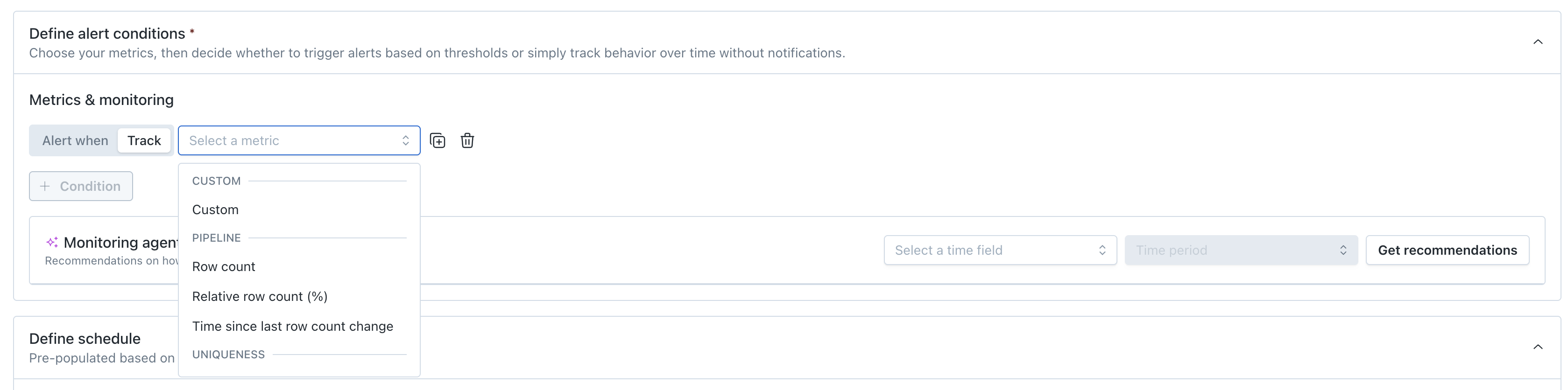
- Track metrics before turning on alerts
Metric, Custom SQL, and Comparison monitors now support a Track mode. When defining alert conditions, you can choose "Track" to run the monitor and collect the metric over time without setting thresholds or triggering notifications.
NOTE: Save the monitor in “Enabled” status (not as a draft) to start it running.
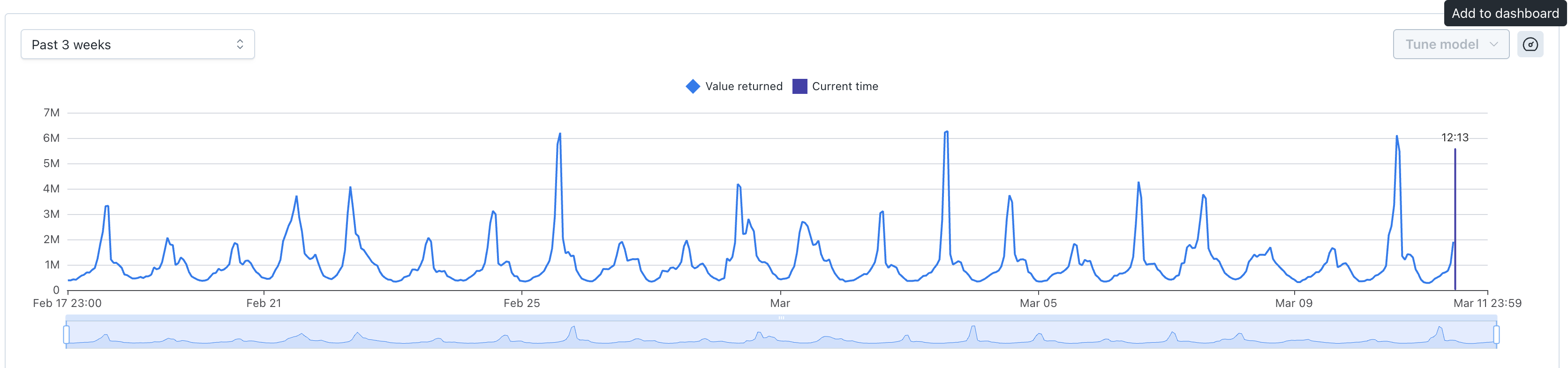
- Track metrics on your custom dashboard
You can now add any chart to a custom dashboard using the dashboard icon on the chart (top right). This lets you keep an eye on the signals you care about in one place. Charts can be added from:- Monitor results
- Asset results
- Data profiling results (Yes, now you can observe profiling metrics over time)
Why this matters
In some cases you want to observe a signal (null %, row count, any custom metric) before deciding what should actually alert. Track mode lets you build confidence in the data before operationalizing it.
With Track mode and dashboards you can:
- Observe metrics before setting thresholds
- Validate assumptions without creating alert noise
- Keep a persistent place to check data health
- Turn tracked signals into alerts when you’re ready