
Starburst (public preview)
Overview
This guide explains how to set up a Starburst integration with Monte Carlo.
Starburst Galaxy is a fully managed data lakehouse platform built on Trino that enables querying data across many different systems through a single interface. Organizations use Starburst to unify access to data stored in platforms such as Iceberg, Delta Lake, Hive, and other data sources.
Starburst Enterprise (SEP) is a distributed SQL analytics platform built on Trino that enables fast, secure access to data across diverse sources without moving it. It allows organizations to query data where it lives—across data lakes, warehouses, and databases.
Monte Carlo's Starburst integration treats Starburst as the single metadata surface across these sources. Monte Carlo collects catalogs, schemas, tables, columns, and view definitions directly through Starburst's Trino-compatible metadata system, providing a unified view of data assets without requiring connections to each underlying data store.
For environments using Starburst Data Products, Monte Carlo can also retrieve Data Product definitions to support metadata collection and limited lineage.
Feature Support
| Category | Monitor / Lineage Capabilities | Support |
|---|---|---|
| Table Monitor | Freshness (via opt-in volume monitor) | ✅ |
| Table Monitor | Volume (opt-in) | ✅ |
| Table Monitor | Schema Changes | ✅ |
| Table Monitor | JSON Schema Changes | ❌ |
| Metric Monitor | Metric | ✅ |
| Metric Monitor | Comparison | ✅ |
| Validation Monitor | Custom SQL | ✅ |
| Validation Monitor | Validation | ✅ |
| Job Monitor | Query performance | ❌ |
| Lineage | Lineage | 🟨* |
*Starburst lineage is limited to table to view and table to Data Product lineage. No multi-hop lineage or table to table lineage
More information on monitors in Monte Carlo.
Starburst Prerequisites
Permissions
Monte Carlo requires permissions to extract metadata and, optionally, run SQL monitors against Starburst. Access is provided via username and password credentials.
Notes / Recommendations
- We recommend creating a dedicated service account for Monte Carlo rather than using personal credentials.
- If deploying behind an IP allowlist or private network, ensure Monte Carlo has network access to the cluster and REST API endpoints. See IP Allowlisting for the IP addresses to allowlist for your deployment.
Installation
This section guides you through setting up a Starburst integration with Monte Carlo, using either Starburst Galaxy or Starburst Enterprise.
PrerequisitesBefore proceeding, ensure you have:
- A Monte Carlo account with permissions to add integrations
- Admin access to your Starburst account (to create users and grant permissions)
- Network connectivity between Monte Carlo and your Starburst cluster
Step 1a: Starburst Galaxy Setup
1. Create a service account in Starburst Galaxy
We recommend creating a dedicated service account for Monte Carlo rather than using personal credentials.
Create a role for Monte Carlo
Create a role with the minimum permissions Monte Carlo needs:
- Log into Starburst Galaxy as an account admin
- Navigate to Access control → Roles and privileges
- Click Add role
- Enter a role name (e.g.,
monte_carlo_role) - Add a description (e.g., "Read-only access for Monte Carlo data observability")
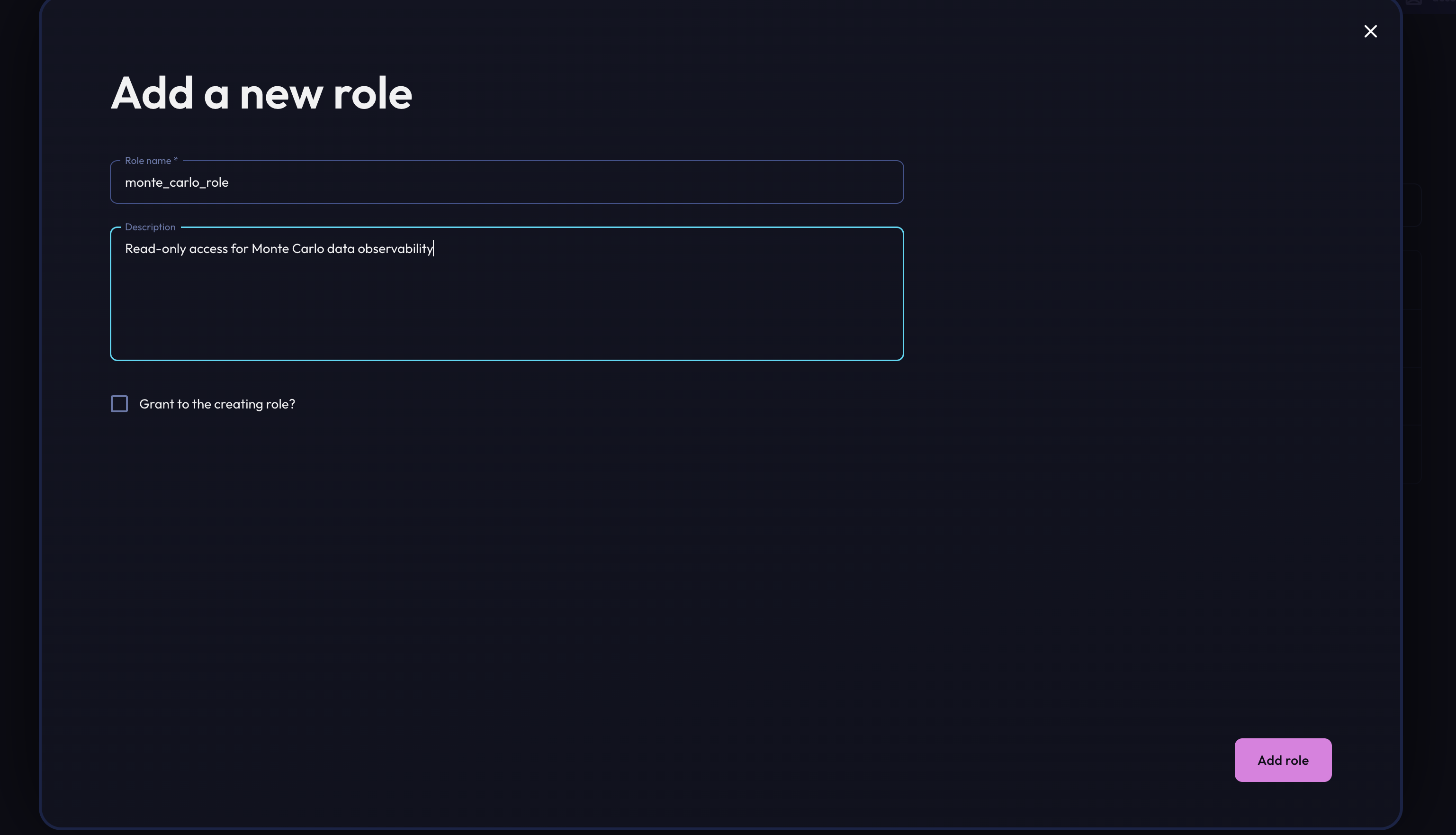
- Click Add Role to create the role
Grant permissions to the role
| Area | Permission / Role | Purpose | |
|---|---|---|---|
| Metadata Collection | Ability to query information_schema.schemata, information_schema.tables, information_schema.columns | Collect catalogs, schemas, tables, and column metadata for Monte Carlo | |
| Optional SQL Monitors | Ability to SELECT from tables for which freshness or volume monitors are configured | Enable opt-in SQL monitors for freshness and volume | |
| Network / Connection | Ability to reach Starburst cluster over HTTPS (port 443) | Required for both SQL and REST API access |
Grant the Monte Carlo role access to the catalogs and schemas you want to monitor:
- In Access control → Roles and privileges, select the
monte_carlo_role - Click Add privilege
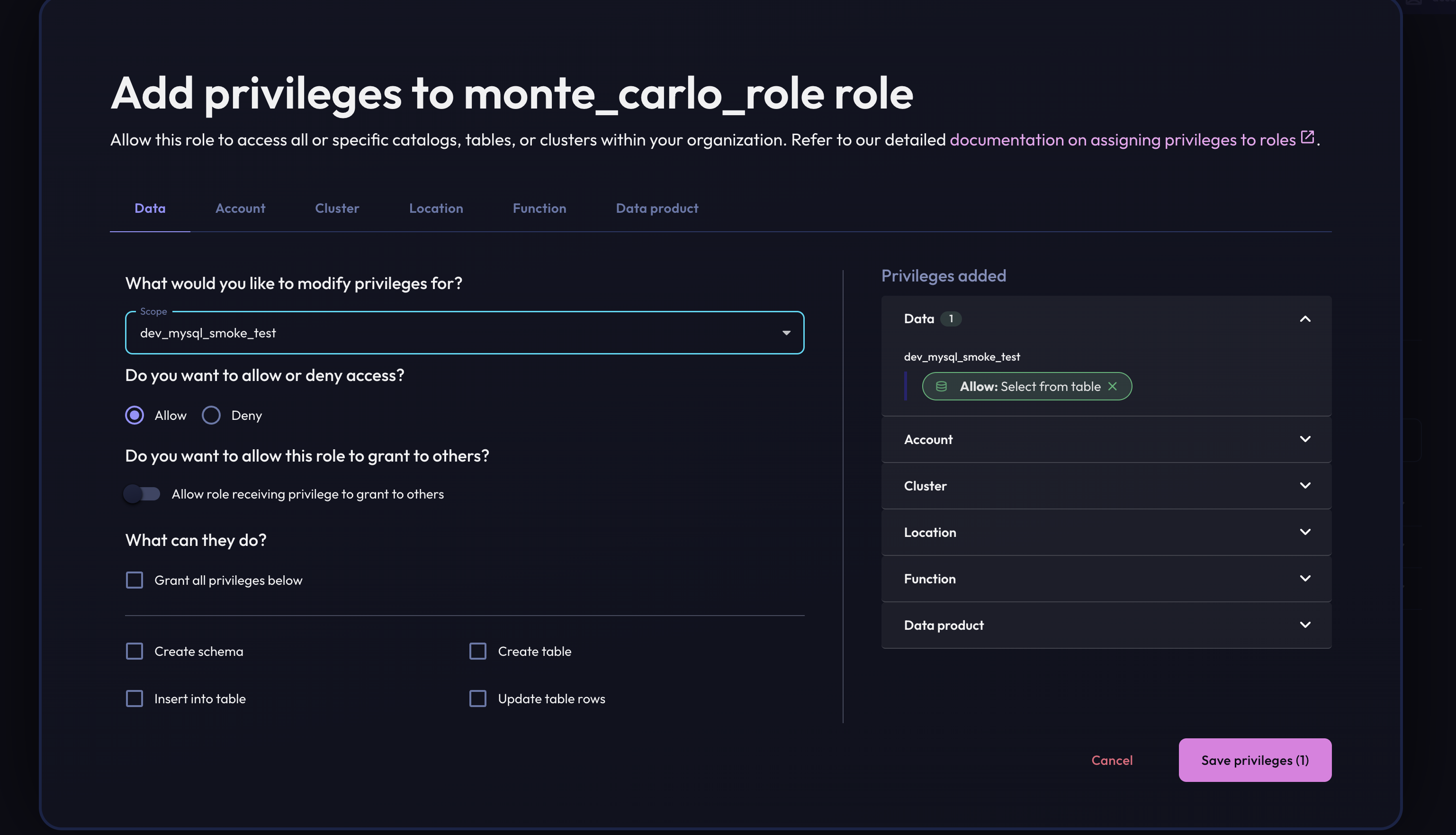
- For each catalog you want Monte Carlo to monitor, add the following privileges:
| Entity Type | Entity | Privilege | Purpose |
|---|---|---|---|
| Catalog | <catalog_name> | Select from table | Allows reading table data for SQL monitors |
Repeat for each catalog you want to monitor.
Create the user
- Navigate to Access → Service Accounts
- Click Add user
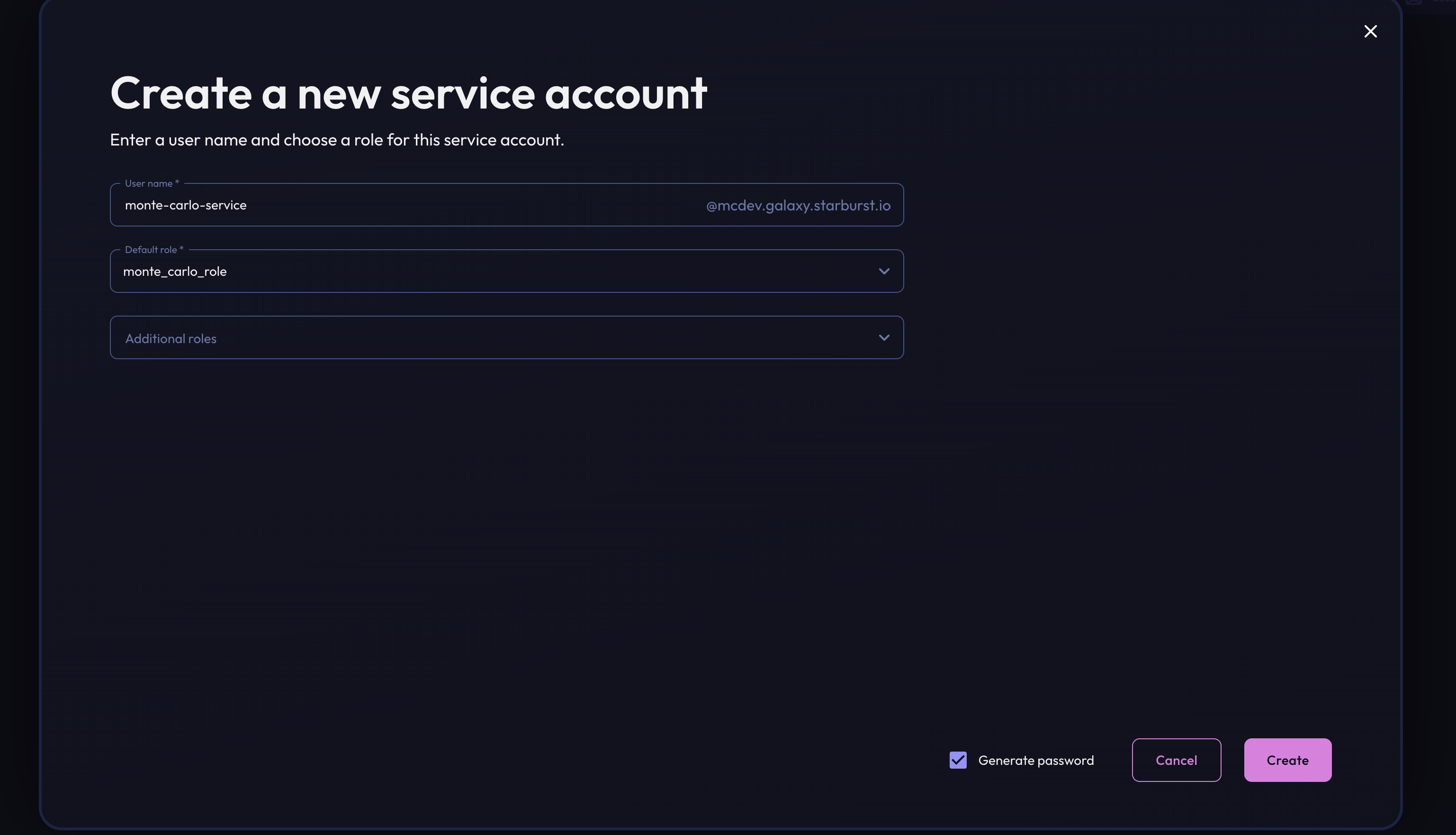
- Enter a username (e.g.,
monte-carlo-service) and email address - Set the default role to the
monte_carlo_rolecreated previously - Generate a secure password
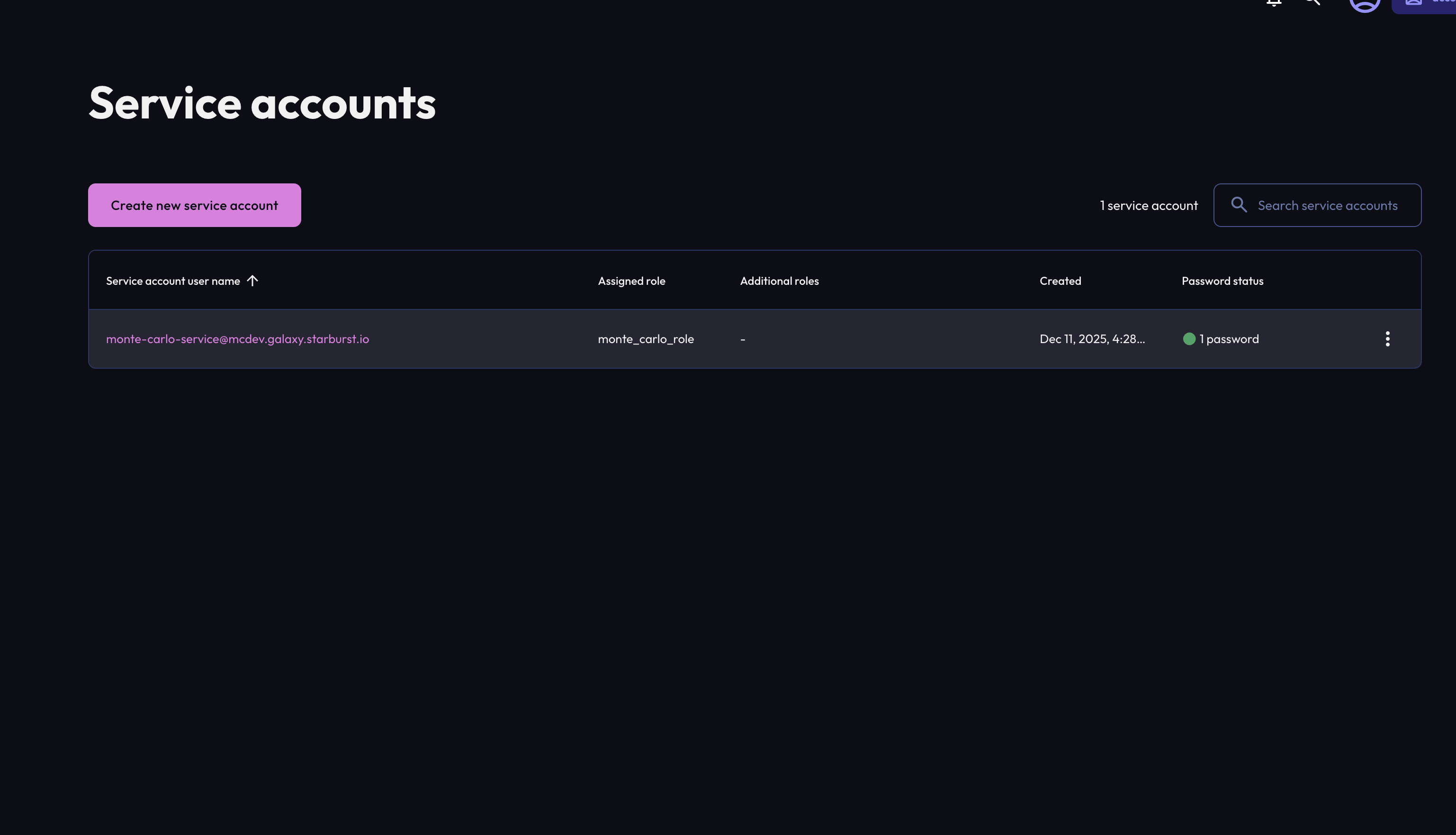
- Click Create to create the user
2. Gather connection information
You will need the following information from your Starburst Galaxy account:
| Field | Description | Where to Find |
|---|---|---|
| Host | Your Starburst Galaxy cluster hostname | Found in your cluster's connection information in the Galaxy UI (e.g., mycluster.trino.galaxy.starburst.io) |
| Port | HTTPS port for connections | Default is 443 |
| Username | Your Starburst Galaxy username | Your service account username |
| Password | Password for the username | Your service account password |
For example, to locate your cluster hostname and port in Starburst Galaxy:
- Log into galaxy.starburst.io
- Navigate to your cluster
- Click Partner connect
- Click Connection Info to view connection details
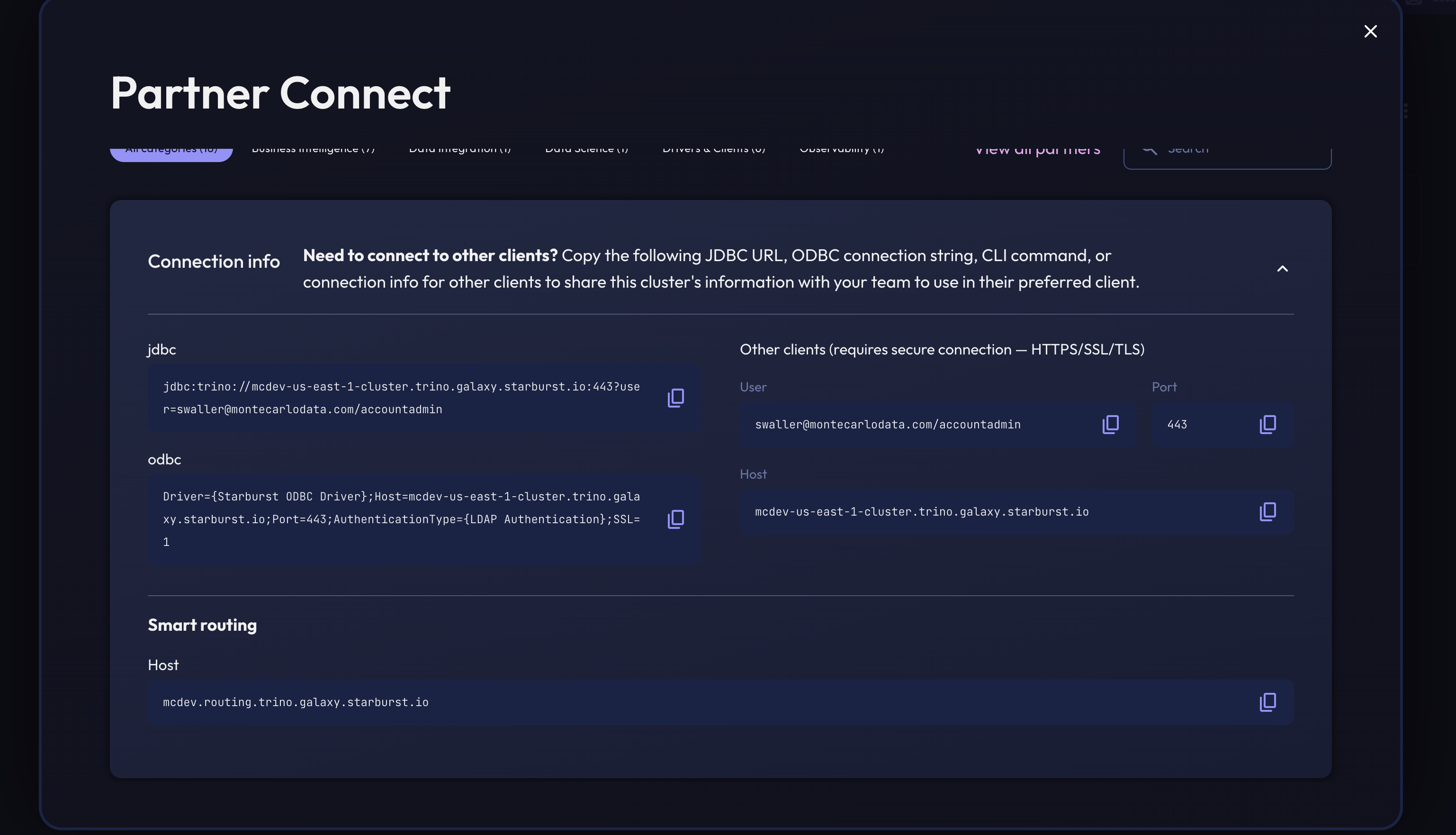
- Copy the hostname and port from the connection string
The username and password will already have been generated in previous steps.
Step 1b: Starburst Enterprise Setup
Starburst Enterprise servers are much more tailored to your enterprise's needs and will vary in terms of setup. In general, to integrate with an SEP Instance, Monte Carlo requires a user that can login via Username/Password that has permissions to query the desired catalogs and connectivity between the Monte Carlo collection service and your SEP environment.
| Area | Permission / Role | Purpose | |
|---|---|---|---|
| Metadata Collection | Ability to query information_schema.schemata, information_schema.tables, information_schema.columns | Collect catalogs, schemas, tables, and column metadata for Monte Carlo | |
| Optional SQL Monitors | Ability to SELECT from tables for which freshness or volume monitors are configured | Enable opt-in SQL monitors for freshness and volume | |
| Network / Connection | Ability to reach Starburst cluster over HTTPS (port 443) | Required for both SQL and REST API access |
Step 2: Add Starburst Integration in Monte Carlo
You can add the Starburst integration using the Monte Carlo UI or CLI.
UI
Both Starburst Galaxy and Starburst Enterprise can be added via the UI.
Navigate to Settings then Integrations. On that page click add and select Starburst.
For Starburst Enterprise, click the Radial button for Starburst enterprise and input the connection details in the form.
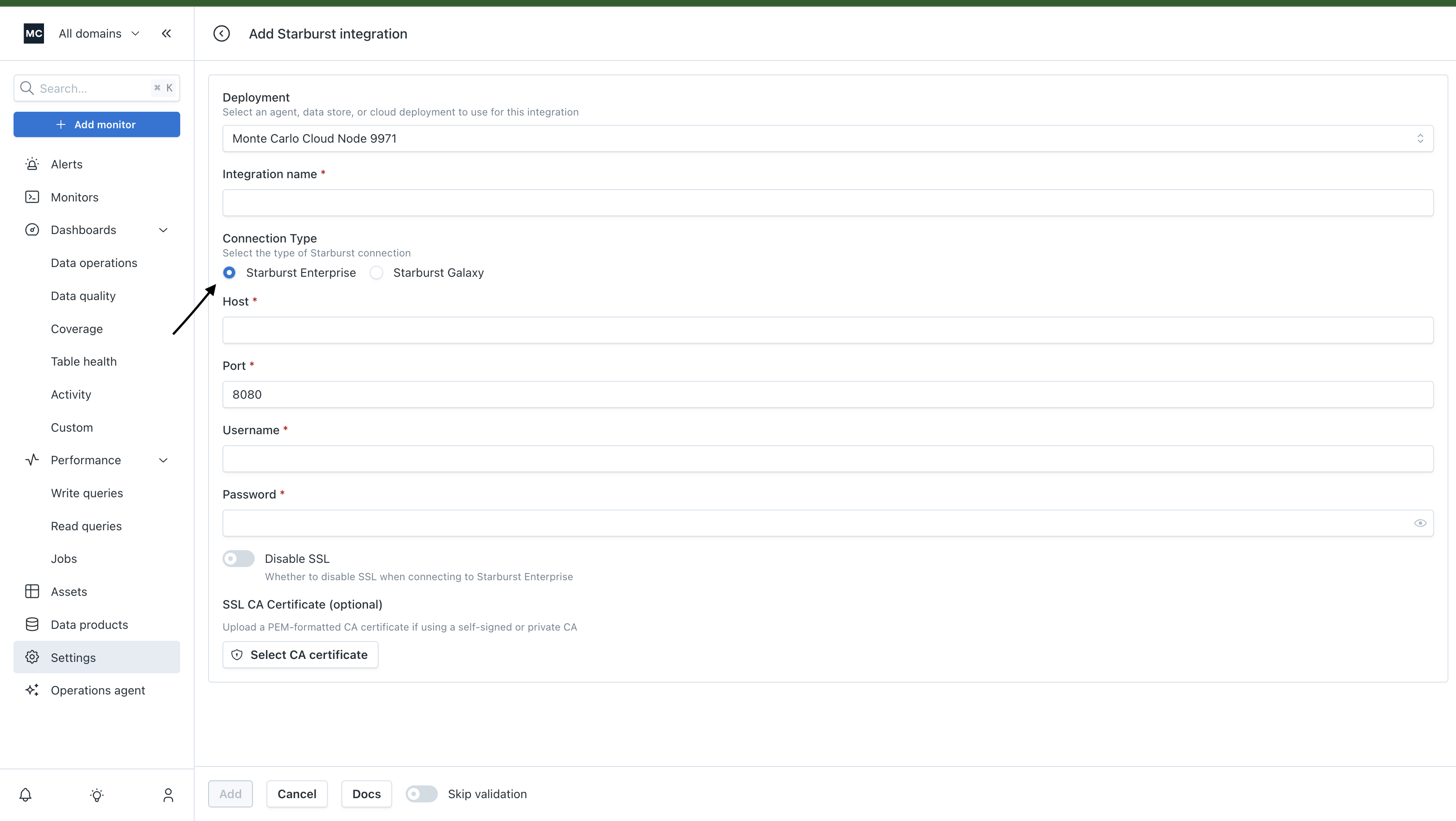
For Starburst Galaxy, click the Radial button for Starburst galaxy and input the connection details in the form.
CLI
CLI SetupIf you haven't installed the Monte Carlo CLI, follow the CLI setup guide first.
Starburst Galaxy
Run the following command, replacing the placeholder values with your connection information:
Usage: montecarlo integrations add-starburst-galaxy [OPTIONS]

  Setup a Starburst Galaxy integration. For metadata, and custom SQL monitors.

Options:
  --name TEXT             Friendly name for the created integration (e.g.
                          warehouse). Name must be unique.  [required]
  --connection-name TEXT  Friendly name for the connection.
  --port INTEGER          HTTP port.  [default: 443]
  --host TEXT             Hostname.  [required]
  --user TEXT             Username with access to the database.  [required]
  --password TEXT         User's password. If you prefer a prompt (with hidden
                          input) enter -1.  [required]
  --agent-id UUID         ID for the agent. To disambiguate accounts with
                          multiple agents. This option cannot be used with
                          'dc-id'.
  --collector-id UUID     ID for the data collector. To disambiguate accounts
                          with multiple collectors. This option cannot be used
                          with 'agent-id'.
  --skip-validation       Skip all connection tests. This option cannot be
                          used with 'validate-only'.
  --validate-only         Run connection tests without adding. This option
                          cannot be used with 'skip-validation'.
  --auto-yes              Skip any interactive approval.
  --option-file FILE      Read configuration from FILE.
  --help                  Show this message and exit.
Example:
montecarlo integrations add-starburst-galaxy \
  --name starburst-galaxy \
  --host mycluster.trino.galaxy.starburst.io \
  --port 443 \
  --username [email protected] \
  --password -1
Starburst Enterprise
Run the following command, replacing the placeholder values with your connection information:
montecarlo integrations add-starburst-enterprise [OPTIONS]

  Setup a Starburst Enterprise integration. For metadata, and custom SQL
  monitors.

Options:
  --name TEXT             Friendly name for the created integration (e.g.
                          warehouse). Name must be unique.  [required]
  --connection-name TEXT  Friendly name for the connection.
  --port INTEGER          HTTP port.  [default: 443]
  --host TEXT             Hostname.  [required]
  --user TEXT             Username with access to the database.  [required]
  --password TEXT         User's password. If you prefer a prompt (with hidden
                          input) enter -1.  [required]
  --agent-id UUID         ID for the agent. To disambiguate accounts with
                          multiple agents. This option cannot be used with
                          'dc-id'.
  --collector-id UUID     ID for the data collector. To disambiguate accounts
                          with multiple collectors. This option cannot be used
                          with 'agent-id'.
  --skip-validation       Skip all connection tests. This option cannot be
                          used with 'validate-only'.
  --validate-only         Run connection tests without adding. This option
                          cannot be used with 'skip-validation'.
  --auto-yes              Skip any interactive approval.
  --ssl-ca FILE           Path to the file that contains a PEM-formatted CA
                          certificate. This option cannot be used with 'ssl-
                          disabled'.
  --ssl-disabled BOOLEAN  A boolean value that disables usage of TLS. This
                          option cannot be used with 'ssl-ca', 'ssl-cert', and
                          'ssl-key'.
  --option-file FILE      Read configuration from FILE.
  --help                  Show this message and exit.
Example:
montecarlo integrations add-starburst-enterprise \
  --name starburst-enterprise \
  --host mycluster.trino.starburst.io \
  --port 8443 \
  --username [email protected] \
  --password -1 \
  --ssl-ca "path-to-ca-file"
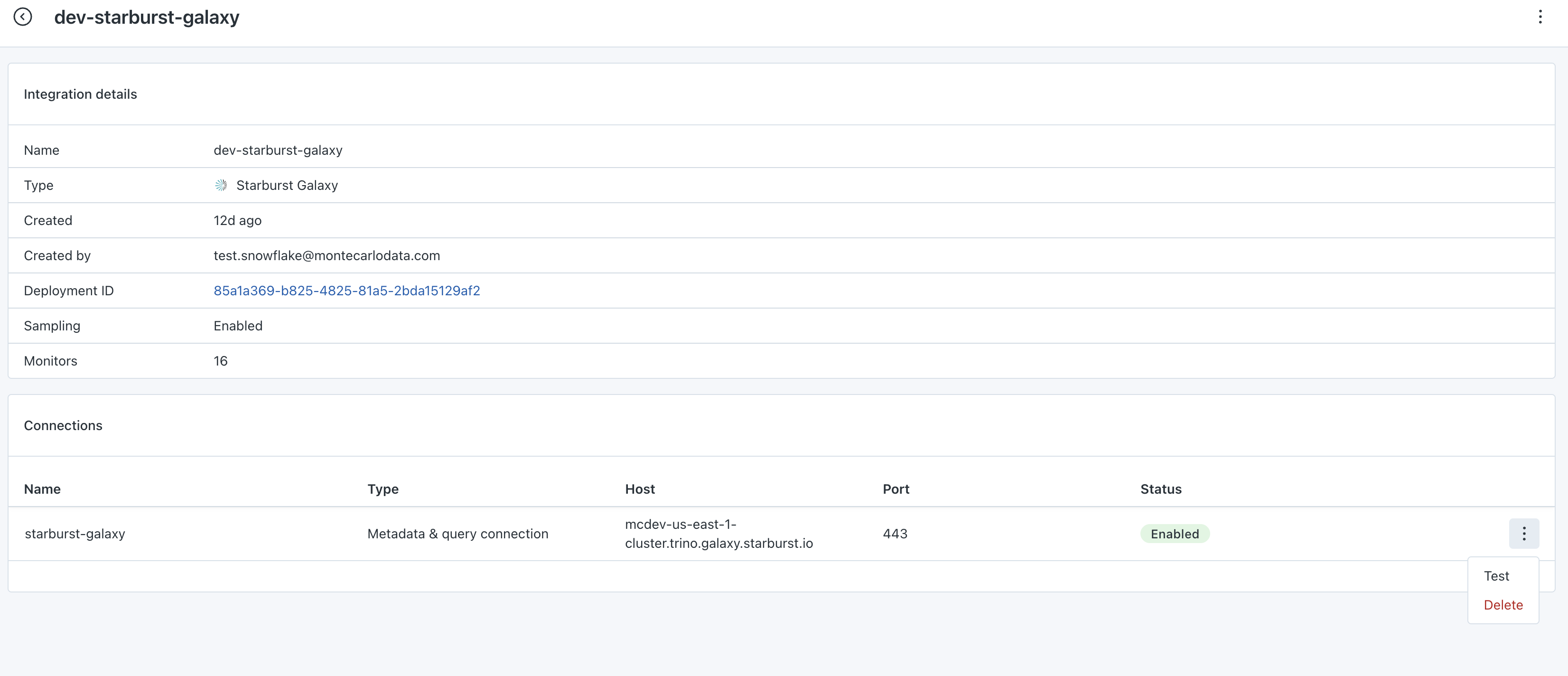
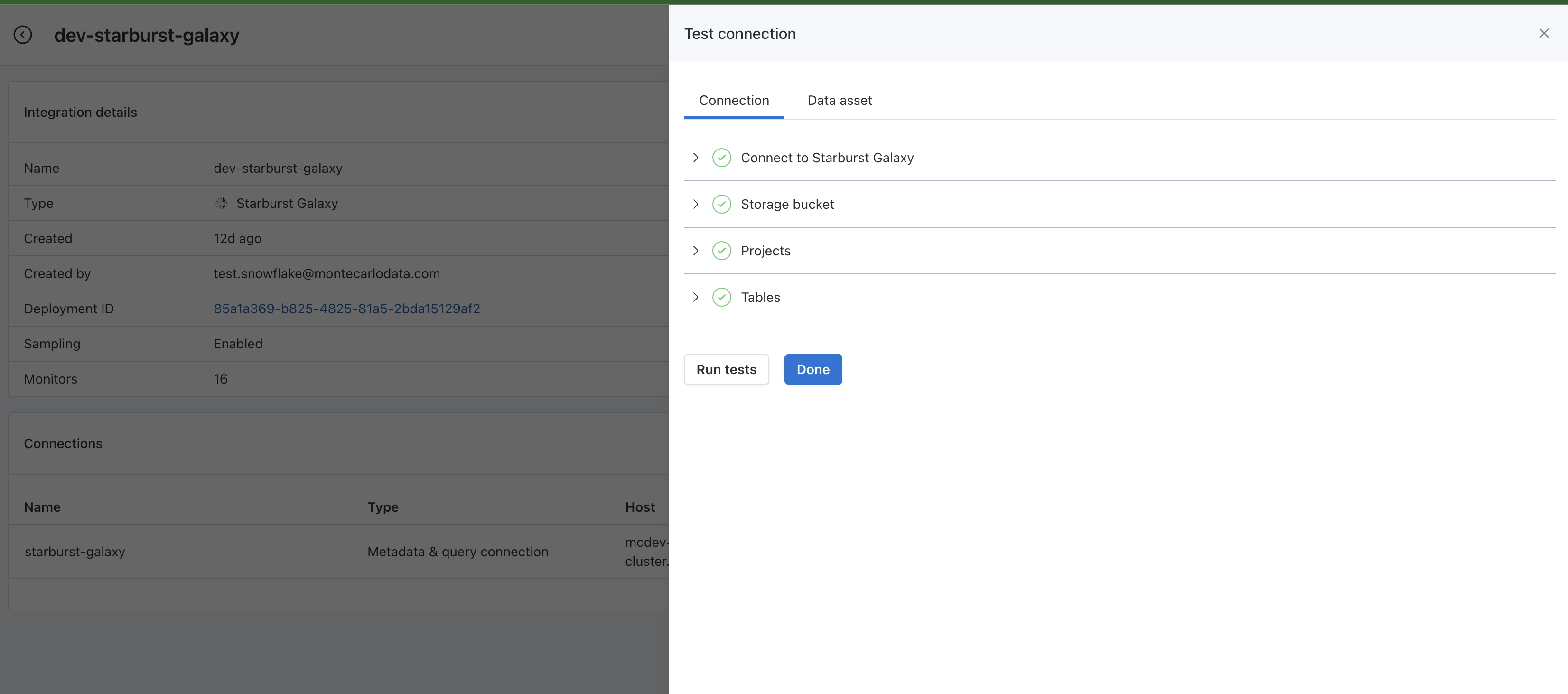
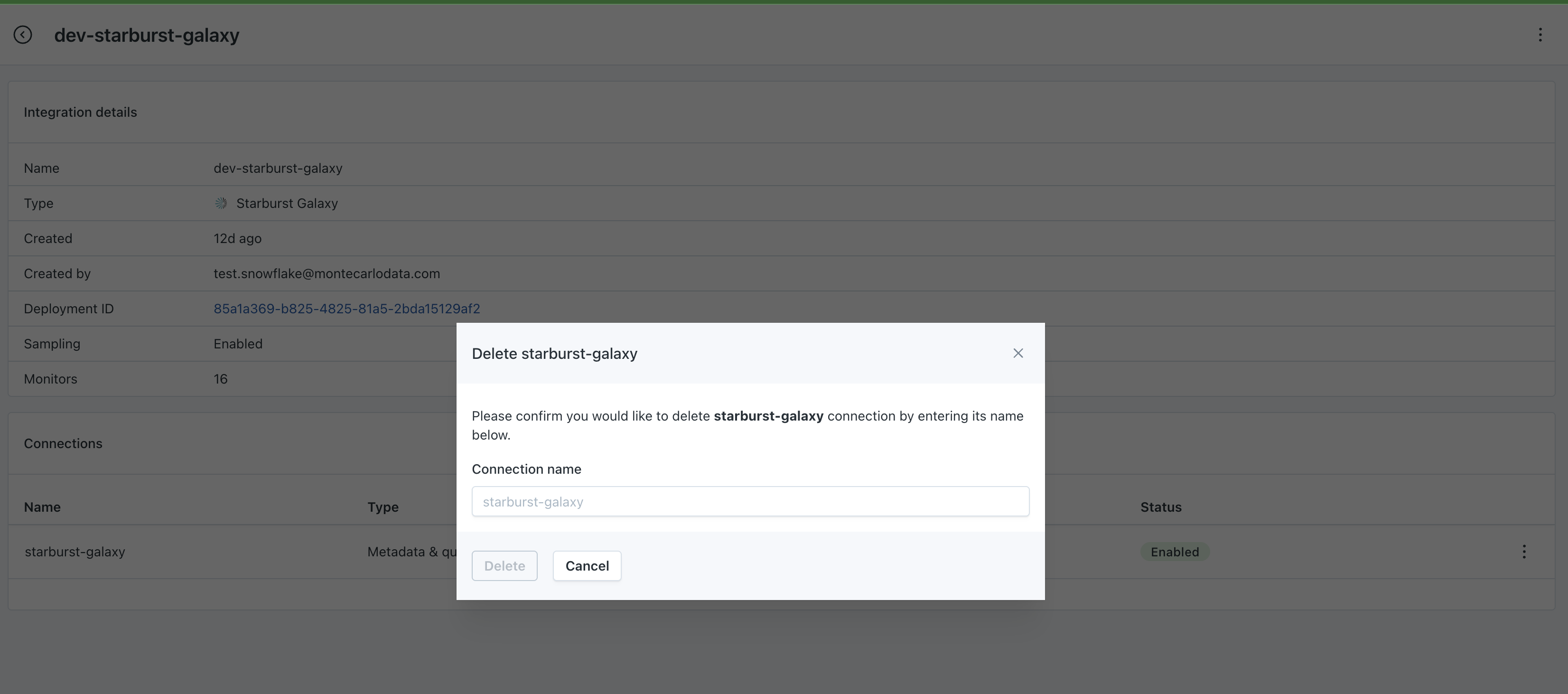
After configuring your integration, you can see details, run validations, and delete the connection on the integrations page

Step 3: Configure monitors (optional)
Freshness and volume monitoring for Starburst requires creating SQL monitors. Unlike some other integrations, these are not enabled automatically.
To set up Freshness and Volume Monitors:
- Navigate to the table you want to monitor in Monte Carlo
- Click Monitors
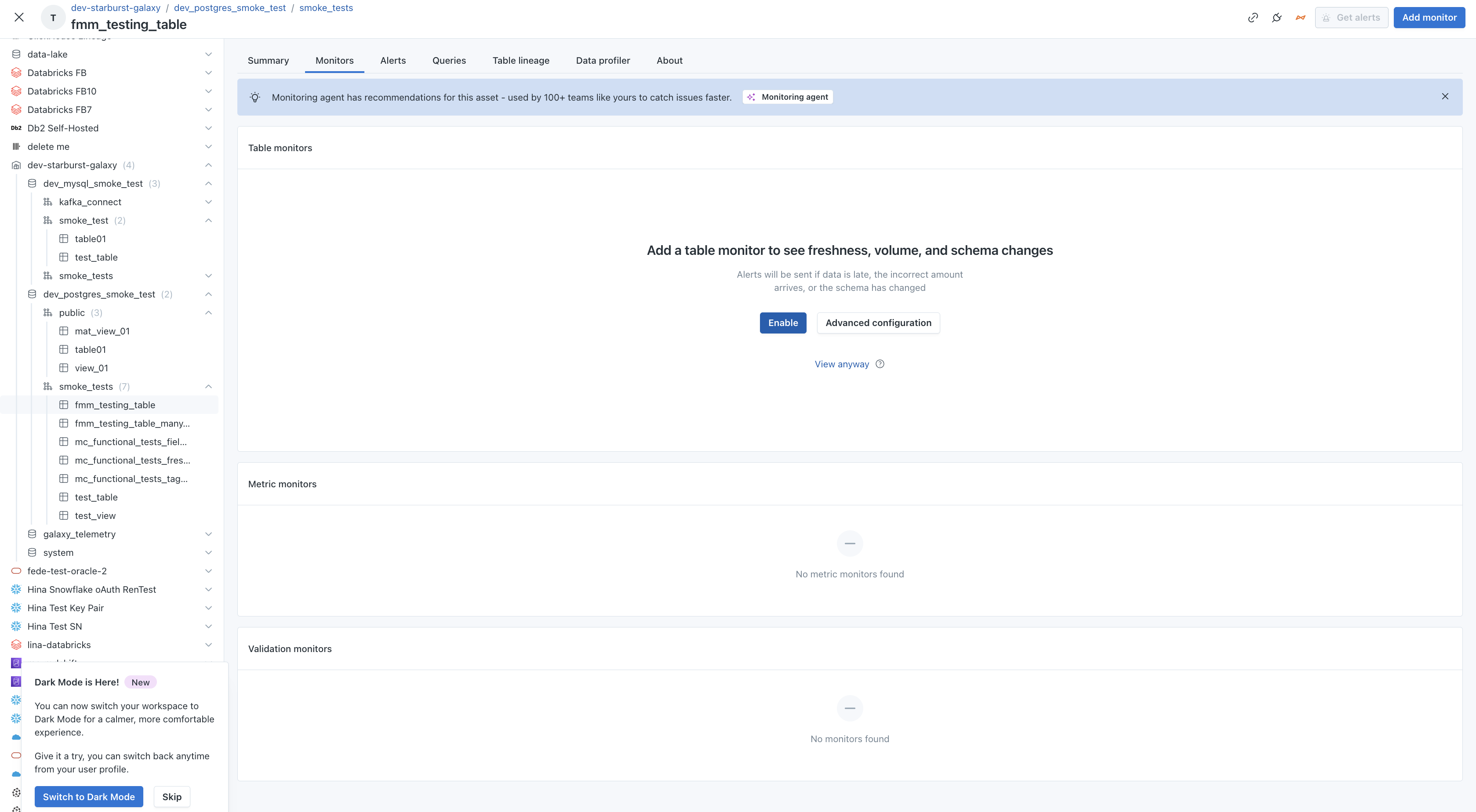
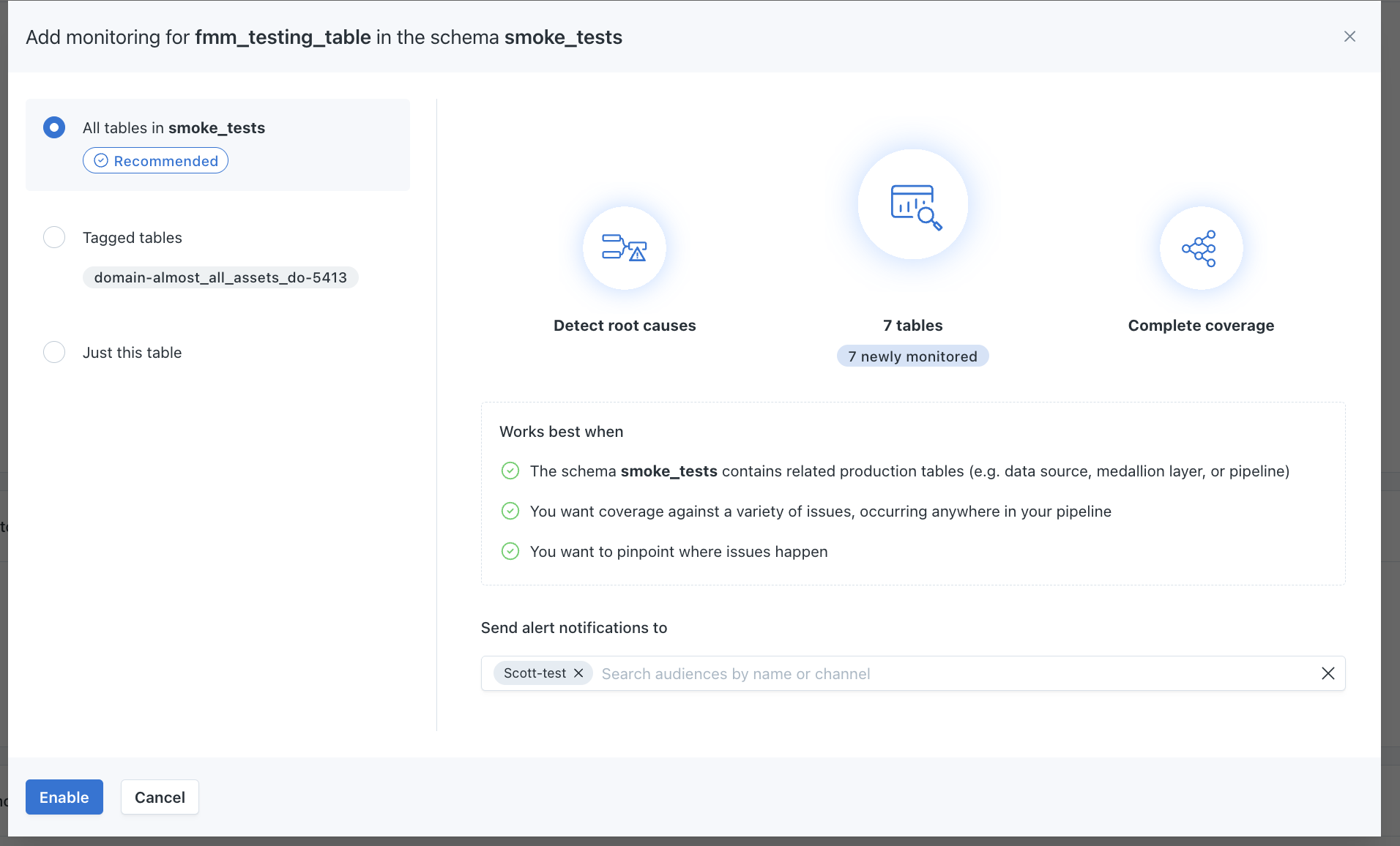
- Click Enable
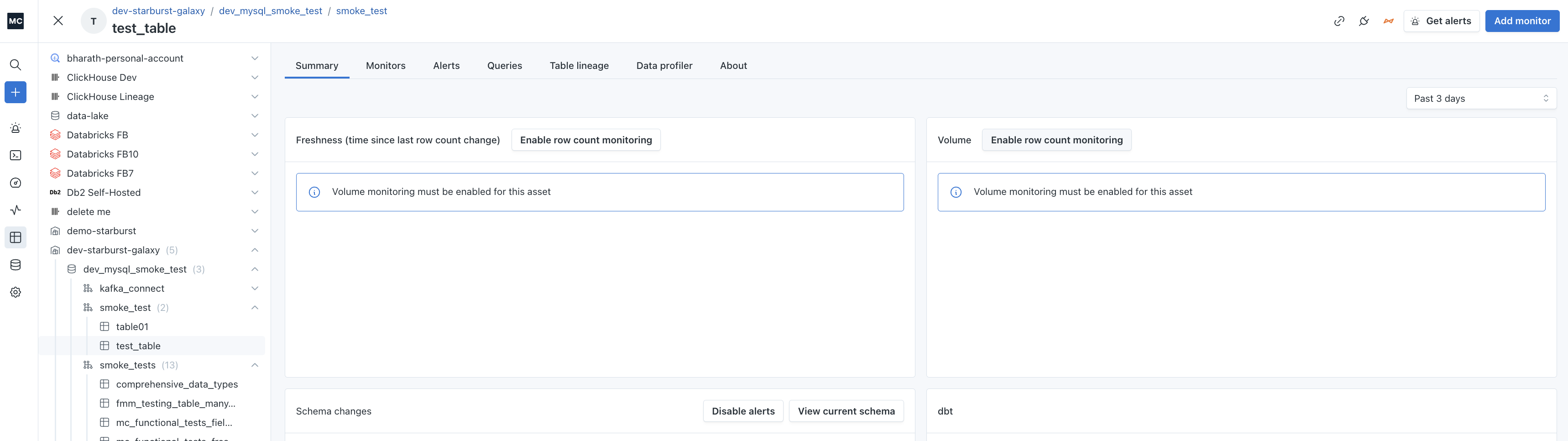
- To enable row count and freshness monitoring on a given table, click the Enable row count monitoring button on the table summary page
- Enable any other desired monitors
For detailed instructions, see SQL Rules documentation.
FAQs
What Starburst deployments are supported?
Monte Carlo currently supports Starburst Galaxy and Starburst Enterprise. We support Starburst enterprise versions 451+.
What authentication methods are supported?
Currently, Monte Carlo supports username and password authentication for Starburst.
What happens if a catalog has incomplete metadata?
Some Starburst connectors expose partial metadata (e.g., missing data types). Monte Carlo will collect what is available, but certain features—such as schema change detection—may behave differently on those catalogs.
Does Monte Carlo collect Data Products?
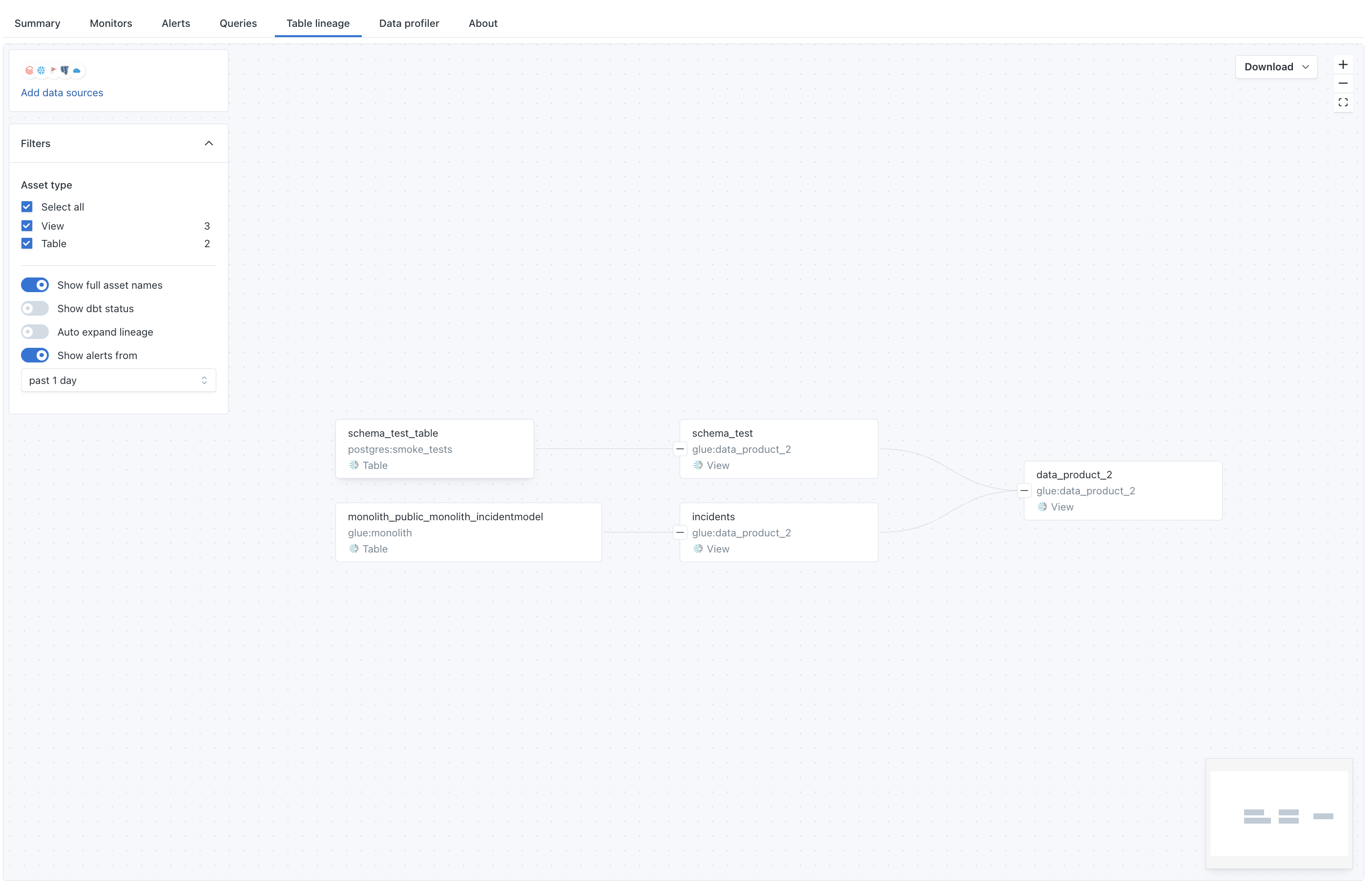
For Starburst Enterprise, Monte Carlo collects datasets and data products that are defined in your Starburst environment. Datasets can be monitored in the same way that views can be monitored. Data Products are not monitorable, but they are included in lineage and as view assets in Monte Carlo.
Here's an example of Data Product lineage in Monte Carlo. Notice how they are labeled as views.
Why don't I see automatic freshness and volume monitors?
Unlike some other integrations, Starburst requires opt-in SQL monitors for freshness and volume monitoring. This is because Starburst doesn't expose the metadata timestamps needed for automatic monitoring. See Step 4 in the installation guide for setup instructions.
Are there any known limitations?
- Query performance and query logs are not supported.
- Lineage is limited to Data Product definitions.
- Automatic freshness/volume monitors are not available; SQL monitors must be configured manually.
Updated 4 months ago