
BigQuery External Tables
Overview
BigQuery External tables allow you to query data stored in an external source without having to load the data into BigQuery's internal storage. Only the table's metadata and schema are stored in BigQuery, the source of truth for the data remains in the external storage. Leveraging Monte Carlo's BigQuery integration, you can monitor the external tables for schema, volume and freshness changes.
There are 2 flavors of external tables in BigQuery that Monte Carlo can monitor:
BigLake external tables
BigLake tables let you query structured data in external data stores with access delegation. Access delegation decouples access to the BigLake table from access to the underlying data store. An external connection associated with a service account is used to connect to the data store.
Non-BigLake external tables
Non-BigLake external tables let you query structured data in external data stores. To query a non-BigLake external table, you must have permissions to both the external table and the external data source.
Supported File Storage Providers
| File Storage Provider | BigQuery BigLake External Tables | BigQuery Non-BigLake External Tables |
|---|---|---|
| AWS S3 | ✅ | ❌ |
| Azure Blob Storage | ✅ | ❌ |
| Azure Data Lake Storage Gen2 | ✅ | ❌ |
| Azure General-purpose v2 | ✅ | ❌ |
| Google Cloud Storage | ✅ | ✅ |
File Type Support
| File Type | BigQuery BigLake | BigQuery Non-BigLake |
|---|---|---|
| CSV | ✅ | ✅ |
| JSON | ✅ | ✅ |
| Parquet | ✅ | ✅ |
| Avro | ✅ | ✅ |
| ORC | ✅ | ✅ |
| Iceberg | ✅ | ❌ |
| Delta | ✅ | ❌ |
File type support is controlled by Google. Please reach out to Google if you need additional file formats supported.
Overview of steps
Already have external tables in BigQuery?If you already have external tables created in BigQuery, skip to Add BigQuery integration in Monte Carlo
The steps for creating and monitoring external tables from your cloud storage through BigQuery are:
- Use the cloud storage support matrix and file type support matrix to identify if you need to use BigLake or Non-BigLake external tables.
- Create the external tables following the guide for your cloud storage provider and external table type.
- Add BigQuery Integration in Monte Carlo
- Create Table Monitors for the external tables
Create BigLake External Tables
You can follow the example workflow for your cloud storage provider to create BigLake external tables in BigQuery.
For detailed instructions, configuration options, limitations, and other info refer to the BigQuery documentation.
Google Cloud Storage workflow
The following steps provide a high-level example of how to create BigLake external tables in BigQuery from your Cloud Storage files. For detailed instructions and other options, see BigLake external tables for Cloud Storage:
- Create a BigQuery dataset where the external tables will live.
- Create a Cloud resource connection to your external data source, in this case Google Cloud Storage.
- Create an external table using
CREATE EXTERNAL TABLE ... WITH CONNECTION.
AWS S3 workflow
The following steps provide a high-level example of how to create BigLake external tables in BigQuery from your Azure Blob Storage files. For detailed instructions and other options, see Amazon S3 BigLake external tables:
- Create a BigQuery dataset where the external tales will live.
- Create an Amazon S3 Connection .
- Create an external table using
CREATE EXTERNAL TABLE ... WITH CONNECTION <aws_location>.<connection_name_from_step_2>.
Azure Microsoft workflow
The following steps provide a high-level example of how to create BigLake external tables in BigQuery from your Azure Blob Storage files. For detailed instructions and other options, see Blob Storage BigLake tables:
- Create a BigQuery dataset where the external tales will live.
- Create an Azure Storage connection. to the external Azure Blob, ADLS Gen2 or General-purpose v2 storage.
- Create an external table using
CREATE EXTERNAL TABLE ... WITH CONNECTION <azure_location>.<connection_name_from_step_2>.
Create Non-BigLake External Tables
You can follow the example workflow for your cloud storage provider to create Non-BigLake external tables in BigQuery.
For detailed instructions, configuration options, limitations, and other info refer to the BigQuery documentation.
Google Cloud Storage workflow
The following steps provide a high-level example of how to create Non-BigLake external tables in BigQuery from your Google Cloud Storage files. For detailed instructions and other options, see Cloud Storage external tables:
- Create a BigQuery dataset where the external tales will live.
- Create an external table using
CREATE EXTERNAL TABLE ...
Add BigQuery Integration in Monte Carlo
Now that you have external tables created in BigQuery, we can add a BigQuery integration in Monte Carlo to monitor these tables.
Follow our Connecting to BigQuery for details on creating a service user, managing permissions, and related setup (such as network configuration). Then create the integration using our onboarding wizard..
If you’ve already integrated BigQuery with Monte Carlo, you can skip this step. If you’d like to confirm access to a specific asset, you can do so from the Integration Settings page.
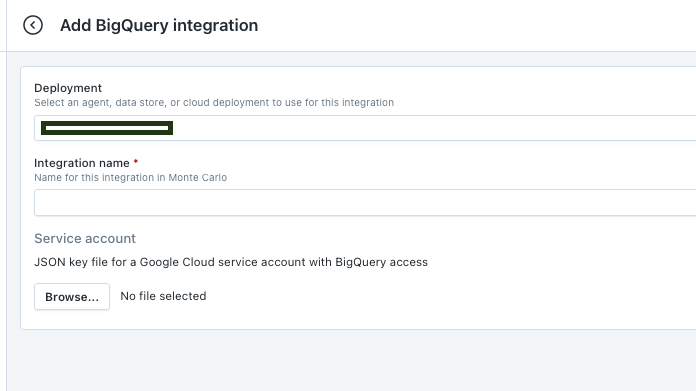
Deployment: [Optional] If you have multiple deployments already in your Monte Carlo account, choose the deployment you want to use for this integration. If you do not have multiple deployments, this field will not be shown.Integration name: The user-friendly name for this integration.Service account: The JSON key you created above.
Create Table Monitors on External tables
With the BigQuery integration added, you can now create table monitors for schema, freshness and volume on the external tables. See our guide on creating table monitors.
You can also create additional monitors types if you’d like (e.g., custom).
Updated 10 months ago