
GCP: Terraform Deployment
How-to create and register the Monte Carlo Agent with the OpenTelemetry Collector on GCP using Terraform
Prerequisites
- You are an admin in GCP.
- You have admin permissions in your data warehouse
- You are an Account Owner.
This guide outlines how to setup an Agent (with object storage) and the OpenTelemetry Collector in your GCP cloud using Terraform.
These FAQs answer common questions like how to review resources and what integrations are supported.
If you already have the Monte Carlo Agent deployed to your cloud vendor and want to add the OpenTelemetry Collector to your deployment, skip Step 1-2 and reference this FAQ. Afterwards, continue with Step 3.
Steps
1. Deploy the Agent
Specifying a VPC is required to run the agent and enables certain connectivity scenarios like when you have an IP allowlist for your resource, want to peer, or deploy in your existing VPC. See more details here.
Deploy with Terraform
Monte Carlo has provided terraform modules that can be used to deploy the MC Agent and the OpenTelemetry Collector with the required PubSub Topic & Subscription to GCP. You can review a full example of how to use these modules in the mcd-public-resources public Github repository.
Please make sure you have the terraform CLI installed and an active session to your GCP account available in your terminal.
# Monte Carlo Agent Module
module "agent" {
  source  = "monte-carlo-data/mcd-agent/google"
  version = "1.1.0"

  # Required variables
  generate_key = true
  project_id   = "<REPLACE_ME_WITH_YOUR_GCP_PROJECT>"
}

# OpenTelemetry Collector Module
module "opentelemetry_collector" {
  source  = "monte-carlo-data/otel-collector/google"
  version = "0.0.2"

  project_id      = "Provide your GCP Project ID"
  deployment_name = "Provide a name for the deployment"
  region          = "Provide a region for the deployment (e.g. us-east1)"

  # VPC Configuration
  vpc_network     = "Provide the id of an existing VPC network"
  # Provide either vpc_subnet (to create a new VPC connector) or existing_vpc_connector
  vpc_subnet = "Provide the IP subnet range to create a new VPC Connector if desired (e.g. 10.10.0.0/28)"
  existing_vpc_connector = "Provide the id of an existing VPC Connector if desired"
}- Initialize Terraform:
terraform init- Create the Terraform plan and review the output:
terraform plan- Apply the Terraform plan:
terraform apply- Validate the deployed occurred successfully by reviewing the command output and by using the GCP Console to locate the newly created resources.
Note that setting generate_key = true will persist a key in the remote state used by Terraform. Please take appropriate measures to protect your remote state. If you would rather create the key outside of Terraform please set this value to false and see the instructions here.
This module will also activate the Cloud Run API in the project you specified. This resource (API) is not deactivated on destroy.
Additional module inputs, options, and defaults can be found here. And other details can be found here.
2. Register the Agent
After deploying the agent you can register either via the Monte Carlo UI or CLI.
And see here for examples on how to retrieve deployment output (i.e. registration input).
UI
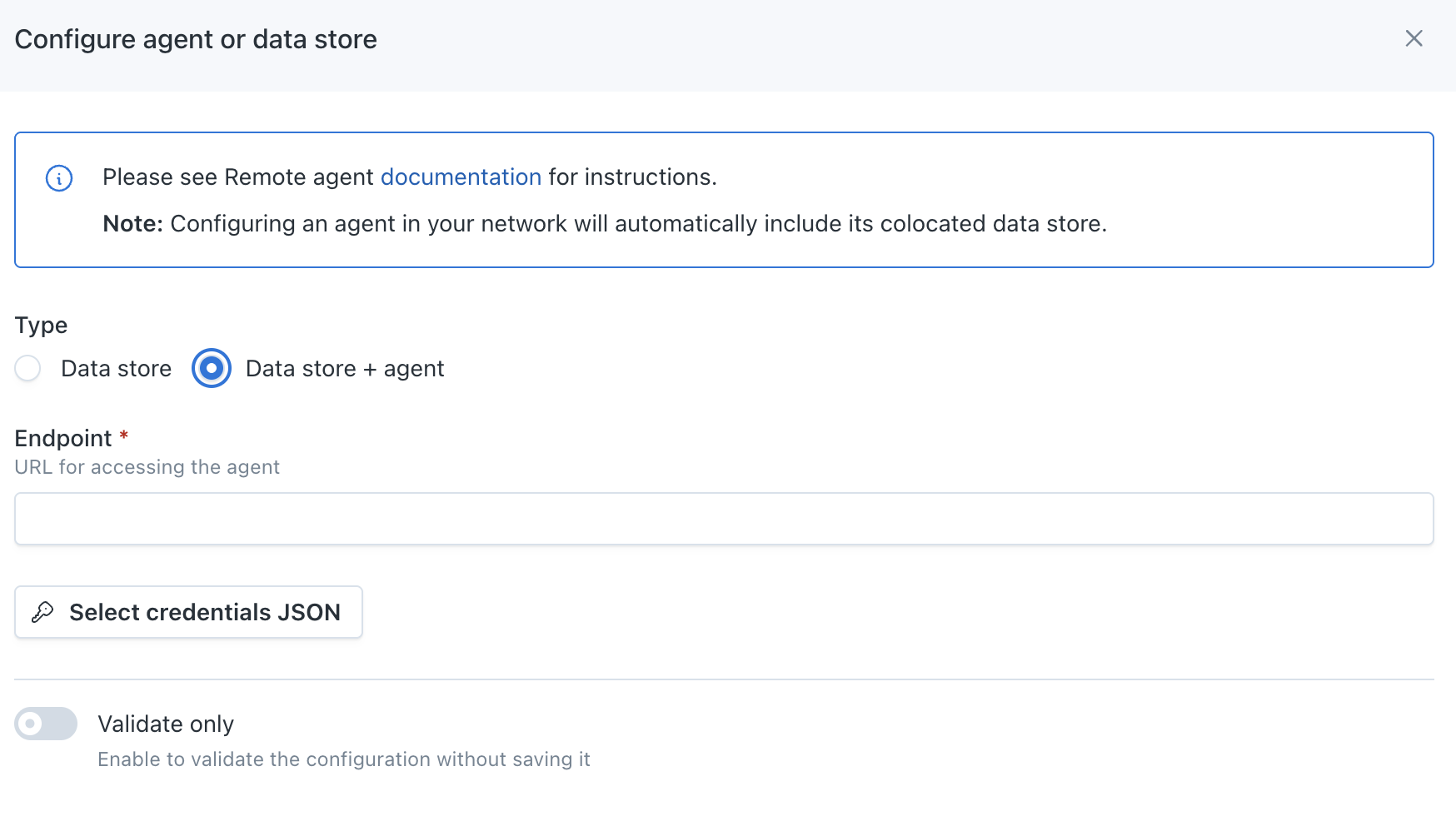
If you are onboarding a new account, you can also register by following the steps on the onboarding screen
- Navigate to settings/integrations/agents and select the
Createbutton. - Follow the onscreen wizard for the "GCP" Platform and "Data Store + Agent" Type.
CLI
Use montecarlo agents register-gcp-agent to register.
See reference documentation here. And see here for how to install and configure the CLI. For instance:
montecarlo agents register-gcp-agent \
  --url $(terraform output -raw url) \
  --key-file <(terraform output -json 'key' | jq -r '.[0]' | base64 -d)
3. Configure your Data Warehouse Ingestion Pipeline
Next, we need to configure your data ingestion pipeline to write the OpenTelemetry trace data to your data warehouse via PubSub so it can be monitored by Monte Carlo. Follow the guide relevant to your data warehouse vendor for steps on how to configure this pipeline.
| Warehouse Vendor | Guide |
|---|---|
| BigQuery | Configure BigQuery Table |
4. Configure your AI Agent
Congrats! You have now configured the Monte Carlo Agent and OpenTelemetry Collector to process traces from your AI agent and write them to your data warehouse.
The final step is to configure your AI agent to begin sending traces to the OpenTelemetry Collector.
- Add the Monte Carlo OpenTelemetry SDK to your AI agent's source code.
- Use the
opentelemetry_collector_http_endpointoutput from the Terraform deployment earlier, with/v1/tracesappended (for example,https://<collector-endpoint>:4318/v1/traces), as the URL to provide to the Monte Carlo OpenTelemetry SDK'sotlp_endpointparameter. If you instead configure the endpoint through the standardOTEL_EXPORTER_OTLP_ENDPOINTenvironment variable, use the output as-is — the OpenTelemetry exporter appends/v1/tracesto that variable automatically. - Follow the Monte Carlo OpenTelemetry SDK library's instructions to configure instrumentation.
You can now validate the deployment is working as expected by observing messages being published to your GCP PubSub Topic and data being ingested into the relevant table in your warehouse.
You can begin creating Agent Monitors in Monte Carlo following the instructions here.
FAQs
What if I already deployed the Monte Carlo Agent?
If you already have the Monte Carlo Agent deployed to your cloud vender, you can deploy the OpenTelemetry Collector separately alongside it via Terraform.
Specifying a VPC is required to run the collector and enables certain connectivity scenarios like when you have an IP allowlist for your resource, want to peer, or deploy in your existing VPC. See more details here. Be sure to use the same VPC associated to your Monte Carlo Agent.
Monte Carlo has provided a terraform module that can be used to deploy the OpenTelemetry Collector to GCP. You can review and use this module from the public Github repository.
Please make sure you have the terraform CLI installed (version >=1.9.0) and an active session to your GCP account available in your terminal. You can use the monte-carlo-data/otel-collector/google module like this:
module "opentelemetry_collector" {
  source  = "monte-carlo-data/otel-collector/google"
  version = "0.0.1"

  project_id      = "Provide your GCP Project ID"
  deployment_name = "Provide a name for the deployment"
  region          = "Provide a region for the deployment (e.g. us-east1)"

  # VPC Configuration
  vpc_network     = "Provide the id of an existing VPC network"
  # Provide either vpc_subnet (to create a new VPC connector) or existing_vpc_connector
  vpc_subnet = "Provide the IP subnet range to create a new VPC Connector if desired (e.g. 10.10.0.0/28)"
  existing_vpc_connector = "Provide the id of an existing VPC Connector if desired"
}- Initialize Terraform:
terraform init- Create the Terraform plan and review the output:
terraform plan- Apply the Terraform plan:
terraform apply- Validate the deployed occurred successfully by reviewing the command output and by using the GCP Console to locate the newly created resources.
Continue with Step 3 above.
Can I review agent resources and code?
Absolutely! You can find details here:
Repository: 590183797493.dkr.ecr.*.amazonaws.com/mcd-agent
Additional FAQs?
Other applicable FAQs for deploying the Monte Carlo Agent to GCP can be found here.
Updated about 1 month ago