
AWS: CloudFormation Deployment
How-to create and register the Monte Carlo Agent with the OpenTelemetry Collector on AWS using CloudFormation
Prerequisites
- You are an admin in AWS.
- You have admin permissions in your data warehouse
- You are an Account Owner.
This guide outlines how to setup an Agent (with object storage) and the OpenTelemetry Collector in your AWS cloud using CloudFormation. It provides instructions for both the self-hosted and Monte Carlo-hosted OpenTelemetry Collector options.
These FAQs answer common questions like how to review resources and what integrations are supported.
If you already have the Monte Carlo Agent deployed to your cloud vendor and want to add the OpenTelemetry Collector to your deployment, skip Step 1-2 and reference this FAQ. Afterwards, continue with Step 3.
Steps
1. Deploy the Agent
Before getting started please review the Monte Carlo AWS account your collection service is hosted in.
When provisioning resources for Monte Carlo deployments on the V2 Platform, use the Collection AWS account id provided in the Account information page. Accounts created after April 24th, 2024, will automatically be on the V2 platform or newer.
If you are using an older version of the platform, please contact your Monte Carlo representative for the ID.
Specifying a VPC is required to run the agent and enables certain connectivity scenarios like when you have an IP allowlist for your resource, want to peer, or deploy in your existing VPC. See more details here.
Deploy with a Self-Hosted OpenTelemetry Collector
You can use the quick-create link below to deploy the Agent with OpenTelemetry Collector on any supported region in your AWS account:
If you need to share with a colleague or first review the template you can download a copy here (source).
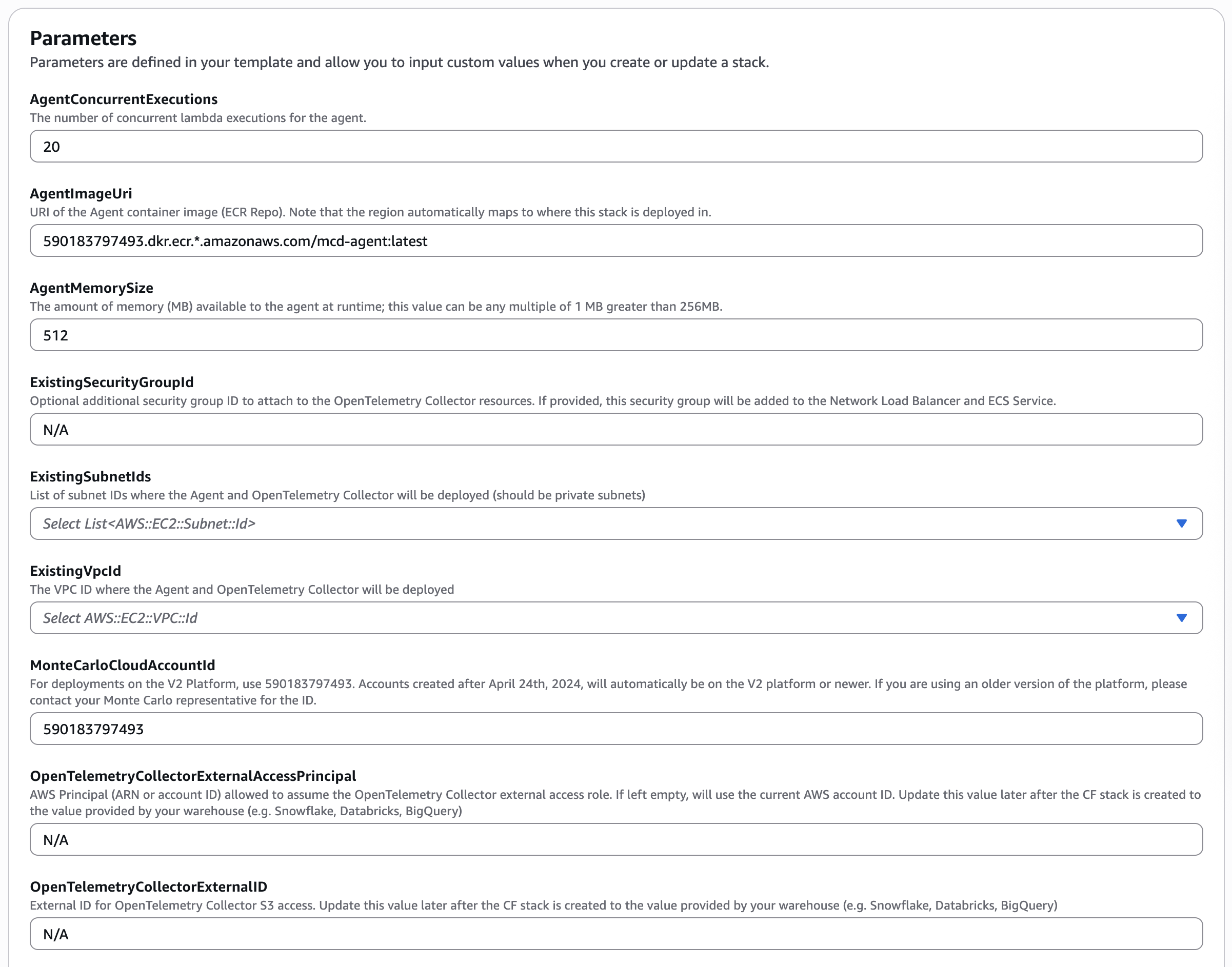
When provisioning resources for Monte Carlo deployments on the V2 Platform, use the Collection AWS account id provided in the Account information page. Accounts created after April 24th, 2024, will automatically be on the V2 platform or newer.
If you are using an older version of the platform, please contact your Monte Carlo representative for the ID.
Note that the AWS account ID is not the same account where you will deploy the agent. It is important to make sure this ID is the one you select as the "Monte Carlo AWS Account ID" parameter when deploying the agent as registration will fail otherwise.
Note: by default the OpenTelemetry Collector deployed with the Monte Carlo Agent will only allow ingress from resources associated with the SecurityGroup created by the CF template. You might need to provide the
ExistingSecurityGroupIdparameter to the stack in order for the OpenTelemetry Collector to receive incoming traces from your Agent. These SecurityGroup definition will vary depend on your network configuration.
If you wish to use an existing S3 bucket to store the OpenTelemetry trace data, specify the ARN of the existing bucket in parameter ExistingOpenTelemetryCollectorBucketArn. By default the Data Store S3 bucket created by the MC Agent deployment will be used to store the OpenTelemetry trace data unless this parameter is specified.
Deploy Using the Monte Carlo-Hosted OpenTelemetry Collector
To use the Monte Carlo-hosted OpenTelemetry collector, the Agent and OpenTelemetry data store should be deployed independently.
You can use the quick-create link below to deploy the Agent without the OpenTelemetry Collector on any supported region in your AWS account:
If you need to share with a colleague or first review the template you can download a copy here (source).
You can then use the link below to deploy the OpenTelemetry data store.
2. Register the Agent
After deploying the agent you can register either via the Monte Carlo UI or CLI.
And see here for examples on how to retrieve deployment output (i.e. registration input).
UI
If you are onboarding a new account, you can also register by following the steps on the onboarding screen
- Navigate to settings/integrations/agents and select the
Createbutton. - Follow the onscreen wizard for the "AWS" Platform and "Data Store + Agent" Type.
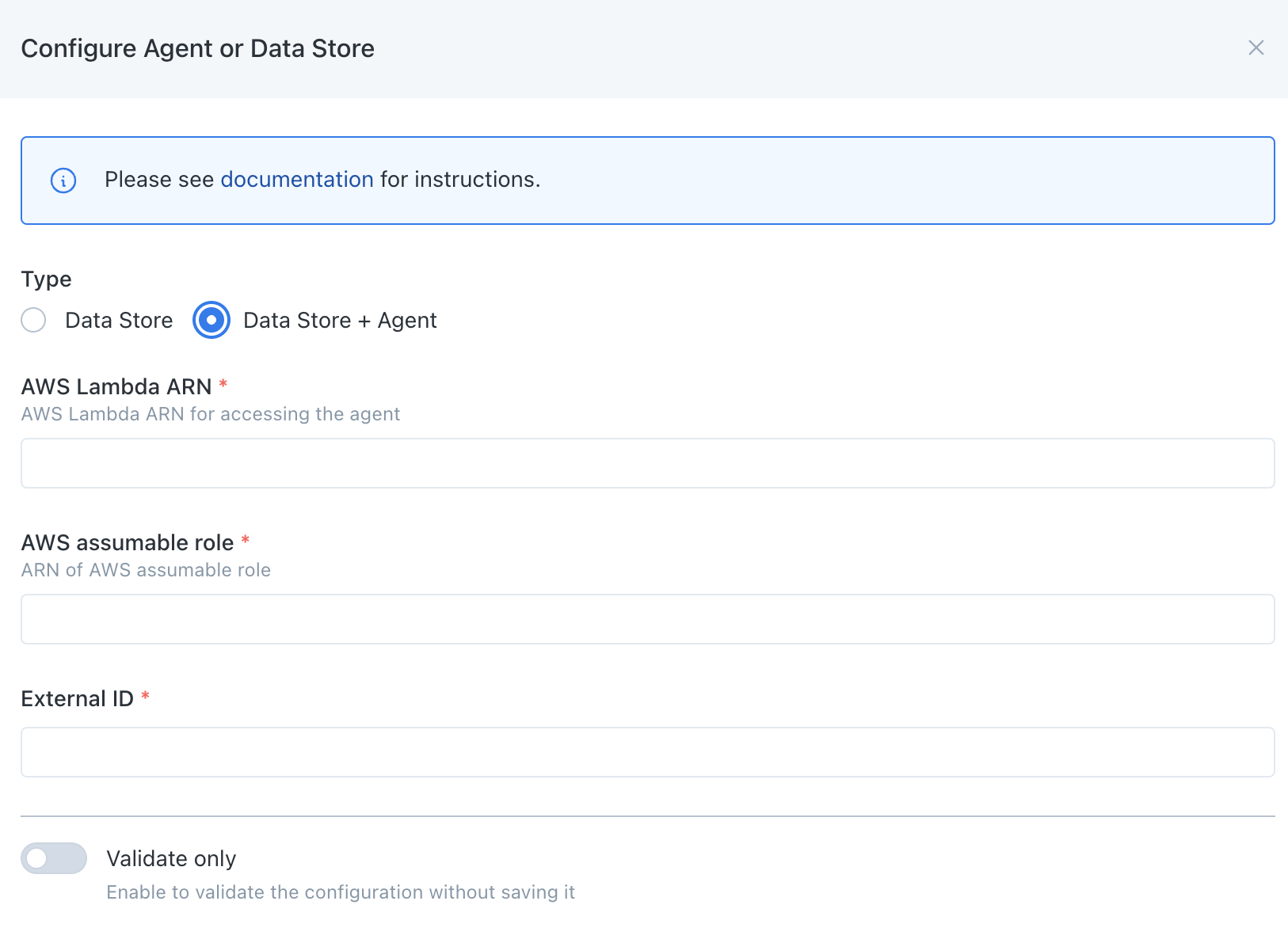
Monte Carlo Registration Wizard UI Example
CLI
Use montecarlo agents register-aws-agent to register.
See reference documentation here. And see here for how to install and configure the CLI. For instance:
montecarlo agents register-aws-agent \
  --lambda-arn arn:aws:lambda:us-east-1:123456789:function:mcd-agent-AgentLambda \
  --assumable-role arn:aws:iam::123456789:role/mcd-agent-InvocationRole-12345 \
  --external-id f3840b31-772e-4fe3-8a5f-3aa5ff7e6fec
3. Configure your Data Warehouse Ingestion Pipeline
Prerequisite: Data Warehouse S3 Access Configuration
Before continuing, your data warehouse must be configured to access the AWS S3 bucket containing the OpenTelemetry trace data. If your data warehouse is not currently configured to access the S3 bucket, refer to the guides below for Monte Carlo's recommendation on how to configure S3 access in your data warehouse.
Warehouse Vendor Guide Snowflake Configure Snowflake Storage Integration and Stage Databricks Configure Databricks External Location Athena N/A
Next, we need to configure your data ingestion pipeline to write the OpenTelemetry trace data from S3 to your data warehouse so it can be monitored by Monte Carlo. Follow the guide relevant to your data warehouse vendor for steps on how to configure this pipeline.
| Warehouse Vendor | Guide |
|---|---|
| Snowflake | Configure Snowflake Snowpipe |
| Databricks | Configure Databricks Delta Live Table |
| Athena | Configure Glue Crawler |
4. Configure your AI Agent
Congrats! You have now configured the Monte Carlo Agent and OpenTelemetry Collector to process traces from your AI agent and write them to your data warehouse.
The final step is to configure your AI agent to begin sending traces to the OpenTelemetry Collector.
- Add the Monte Carlo OpenTelemetry SDK to your AI agent's source code.
- Use the
OpenTelemetryCollectorHTTPEndpointoutput from the CloudFormation stack deployed earlier, with/v1/tracesappended (for example,http://<collector-endpoint>/v1/traces), as the URL to provide to the Monte Carlo OpenTelemetry SDK'sotlp_endpointparameter. If you instead configure the endpoint through the standardOTEL_EXPORTER_OTLP_ENDPOINTenvironment variable, use the output as-is — the OpenTelemetry exporter appends/v1/tracesto that variable automatically. - Follow the Monte Carlo OpenTelemetry SDK library's instructions to configure instrumentation.
You can now validate the deployment is working as expected by observing files being written to the S3 bucket and data being ingested into the relevant table in your warehouse.
You can begin creating Agent Monitors in Monte Carlo following the instructions here.
FAQs
What if I already deployed the Monte Carlo Agent?
If you already have the Monte Carlo Agent deployed to your cloud vender, you can deploy the OpenTelemetry Collector separately alongside it via CloudFormation.
Before getting started please review the Monte Carlo AWS account your collection service is hosted in.
When provisioning resources for Monte Carlo deployments on the V2 Platform, use the Collection AWS account id provided in the Account information page. Accounts created after April 24th, 2024, will automatically be on the V2 platform or newer.
If you are using an older version of the platform, please contact your Monte Carlo representative for the ID.
Specifying a VPC is required to run the collector and enables certain connectivity scenarios like when you have an IP allowlist for your resource, want to peer, or deploy in your existing VPC. See more details here. Be sure to use the same VPC associated to your Monte Carlo Agent.
You can use the quick-create link below to deploy the OpenTelemetry Collector in your AWS account alongside your existing Agent:
If you need to share with a colleague or first review the template you can download a copy here (source).
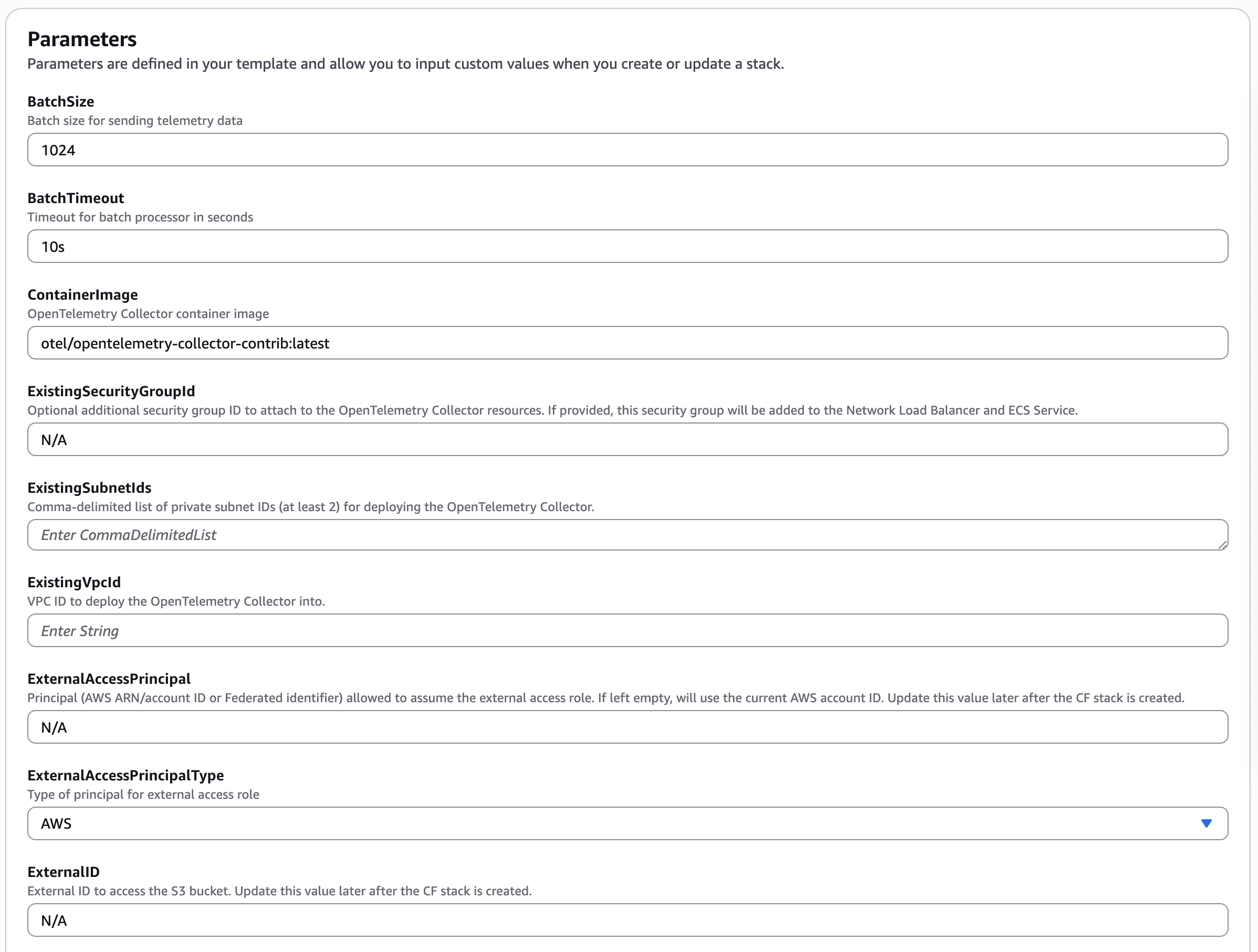
When provisioning resources for Monte Carlo deployments on the V2 Platform, use the Collection AWS account id provided in the Account information page. Accounts created after April 24th, 2024, will automatically be on the V2 platform or newer.
If you are using an older version of the platform, please contact your Monte Carlo representative for the ID.
Note that the AWS account ID is not the same account where you will deploy the agent. It is important to make sure this ID is the one you select as the "Monte Carlo AWS Account ID" parameter when deploying the agent as registration will fail otherwise.
Note: by default the OpenTelemetry Collector deployed with the Monte Carlo Agent will only allow ingress from resources associated with the SecurityGroup created by the CF template. You might need to provide the
ExistingSecurityGroupIdparameter to the stack in order for the OpenTelemetry Collector to receive incoming traces from your Agent. These SecurityGroup definition will vary depend on your network configuration.
You will be required to specify the ARN of the existing bucket to store telemetry trace data in parameter TelemetryDataBucketArn.
Continue with Step 3 above.
Can I review agent resources and code?
Absolutely! You can find details here:
*Note that due to an AWS limitation the agent image is also uploaded and then sourced from AWS ECR when executed on Lambda.
Repository: 590183797493.dkr.ecr.*.amazonaws.com/mcd-agent
Additional FAQs?
Other applicable FAQs for deploying the Monte Carlo Agent to AWS can be found here.
Updated about 1 month ago