
AWS: Terraform Deployment
How-to create and register an OpenTelemetry data store on AWS using Terraform
Prerequisites
- You are an admin in AWS.
- You have admin permissions in your data warehouse
- You are an Account Owner.
Steps
1. Deploy the Data Store
Monte Carlo provides a Terraform module to deploy an OpenTelemetry data store. You can review a full example of how to use this module in the mcd-public-resources public Github repository.
Please make sure you have the terraform CLI installed and an active session to your AWS account available in your terminal.
module "otel_collector" {
  source = "monte-carlo-data/otel-collector/aws"

  deployment_name                  = "my-data-store"
  deploy_otel_collector            = false
  mcd_otel_collector_task_role_arn = "<McdOtelCollectorTaskRoleArn>"
}
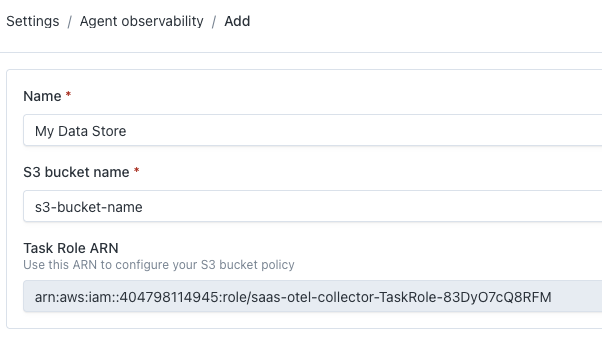
The Monte Carlo-hosted collector requires IAM policy permissions to write telemetry data to your S3 bucket. The mcd_otel_collector_task_role_arn parameter is used as the Principal for these permissions. The value needs to be retrieved from the Monte Carlo UI. Login to Monte Carlo and navigate to Settings -> Agent observability. Under "Trace data stores", click "Add" and copy the value of "Task Role ARN". See the screenshot below for reference.
- Initialize Terraform:
terraform init- Create the Terraform plan and review the output:
terraform plan- Apply the Terraform plan:
terraform apply- Validate the deployed occurred successfully by reviewing the command output and by using the AWS Console to locate the newly created resources.
2. Register the Data Store
After deploying the data store, you need to register it via the Monte Carlo UI. Login to Monte Carlo and navigate to Settings -> Agent observability. Under "Trace data stores", click "Add".
Complete the form as follows:
- Name: This is the name of the data store within Monte Carlo. Enter any value.
- S3 bucket name: Enter the name of the S3 bucket that was created by the Terraform module.
Then click "Add". When the data store is successfully registered, the UI will show a "Key ID" and "Key Secret".
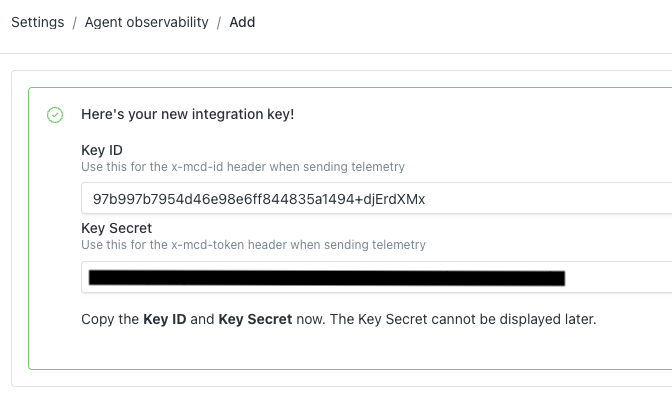
Copy and store these values as this is the only time the secret will be displayed. They will be used in the next steps.
3. Configure your Data Warehouse Ingestion Pipeline
Prerequisite: Data Warehouse S3 Access Configuration
Before continuing, your data warehouse must be configured to access the AWS S3 bucket containing the OpenTelemetry trace data. If your data warehouse is not currently configured to access the S3 bucket, refer to the guides below for Monte Carlo's recommendation on how to configure S3 access in your data warehouse.
Warehouse Vendor Guide Snowflake Configure Snowflake Storage Integration and Stage Databricks Configure Databricks External Location Athena N/A
Next, we need to configure your data ingestion pipeline to write the OpenTelemetry trace data from S3 to your data warehouse so it can be monitored by Monte Carlo. Follow the guide relevant to your data warehouse vendor for steps on how to configure this pipeline.
| Warehouse Vendor | Guide |
|---|---|
| Snowflake | Configure Snowflake Snowpipe |
| Databricks | Configure Databricks Delta Live Table |
| Athena | Configure Glue Crawler |
4. Configure your AI Agent
The final step is to configure your AI agent to begin sending traces to the OpenTelemetry Collector.
- Add the Monte Carlo OpenTelemetry SDK to your AI agent's source code.
- Provide the following URL to the Monte Carlo OpenTelemetry SDK's
otlp_endpointparameter:https://integrations.getmontecarlo.com/otel/v1/traces. If you instead configure the endpoint through the standardOTEL_EXPORTER_OTLP_ENDPOINTenvironment variable, use the base URLhttps://integrations.getmontecarlo.com/otel— the OpenTelemetry exporter appends/v1/tracesto that variable automatically. - Use the Key ID and Key Secret from Step #2 to configure the MonteCarlo API credentials. To do this, follow the instructions under "Add MonteCarlo API credentials as environment variables" in the SDK documentation.
- Follow the Monte Carlo OpenTelemetry SDK library's instructions to configure instrumentation.
You can now validate the deployment is working as expected by observing files being written to the S3 bucket and data being ingested into the relevant table in your warehouse.
You can begin creating Agent Monitors in Monte Carlo following the instructions here.
Updated 23 days ago