
Generic Cloud with Proxy: Agent Deployment (private preview)
This is a more advanced deployment, which can require additional setup, monitoring, and maintenance. If you want to use an agent, Monte Carlo generally recommends using the cloud-native options whenever possible. See the documentation for: AWS, Azure or GCP.
About
Monte Carlo supports running the Agent with a proxy in AWS and GCP. Supported authentication mechanisms for the proxy include OAuth, with optional mTLS. FAQs can be found here.
Additionally, for AWS, Monte Carlo supports running the Agent on generic infrastructure (sometimes referred to as “bare metal”), meaning any infrastructure capable of running a Docker image. Note that running the Agent on generic infrastructure requires a proxy to authenticate communication between the Monte Carlo platform and the deployed Agent.
To get started please review the requirements and then follow the steps under the relevant subsection:
Requirements
- Monte Carlo Role and Subscription: You must have the Account Owner role in Monte Carlo. Additionally, your account must be subscribed to either the Scale or Enterprise tier with with the Advanced Networking add-on.
- AWS Admin: Administrative access to AWS is necessary for the setup.
- Additional Admin Roles: Depending on the specific integration, you may also need administrative rights. Additionally, please note that certain integrations require specific subscription tiers and configurations with their respective vendors. Refer to your vendor's documentation for more details.
AWS Deployment
Prerequisites
- You are an admin in AWS (for step 1).
- You have (or can deploy) a proxy configured to enforce OAuth authentication (for step 2).
- You are an Account Owner (for step 3).
Additionally, your account must be subscribed to either the Scale or Enterprise tier with the Advanced Networking add-on.
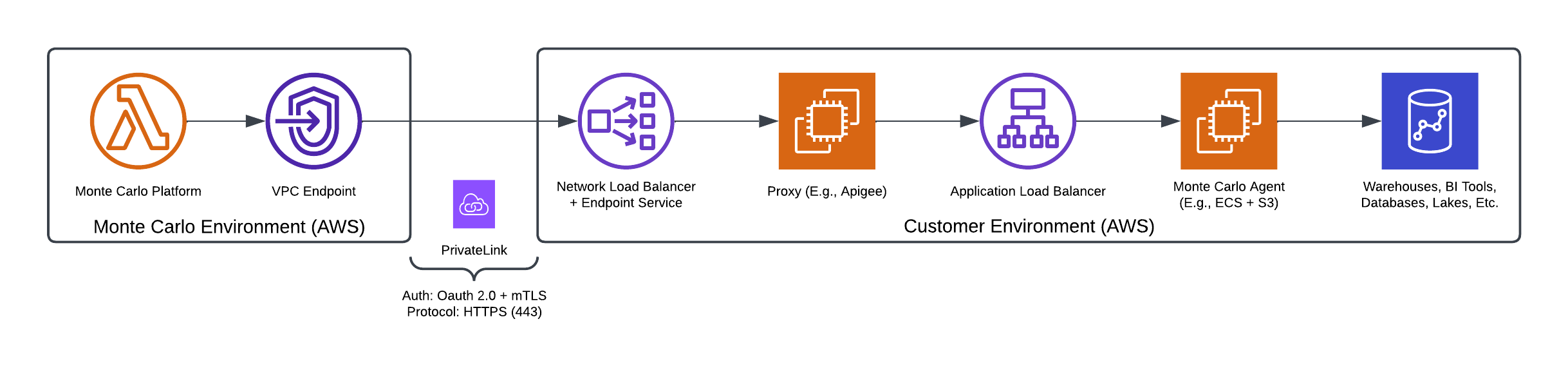
Example Architecture on ECS with Optional mTLS and PrivateLink
The Monte Carlo Agent can be deployed to AWS infrastructure such as ECS, EKS, or EC2. It can run as a Docker image on the chosen AWS infrastructure but requires a proxy to handle authentication.
This is an alternative to using AWS Lambda for running the Agent. Learn more about that deployment option here.
1. Deploy the Agent
You can deploy the Agent using the IaC tool of your choice. We have provided a CloudFormation sample with ECS.
The following quick-create link can deploy the agent on any supported region in your AWS account:
If you need to share with a colleague or first review the template you can download a copy here (source).
Check the instructions here if you prefer to use a Lambda Function deployment with OAuth authentication.
Configuration
Your deployment will vary based on the infrastructure and environment you choose for running and managing the Agent Docker image. See the CloudFormation template above as an example.
However, general requirements and recommendations for operating the Agent are provided below.
Agent Image
When deploying the Agent to generic AWS infrastructure, use the image tag latest-aws-generic.
docker.io/montecarlodata/agent:latest-aws-generic
You can review the Agent resources and code here.
Agent Resources and Infrastructure
The resources required for running the Agent will vary depending on the chosen AWS infrastructure.
If using ECS, Monte Carlo recommends starting with these allocations:
- vCPU: 2
- Memory: 6gb
- Container instances: 1+
- Gunicorn workers: 5
- Gunicorn threads: 8
You also need to chose a port to expose, for example 8081, and create a port mapping using TCP/HTTP protocols.
As additional Monte Carlo integrations and monitors are created, you may need to scale these resources to optimize performance. Increasing the number of task instances in ECS is supported.
Additional Resources and Infrastructure
The following AWS resources might also be necessary:
- One S3 bucket. This is required. The S3 bucket will serve as the Agent's data store. A good starting point would be the configuration outlined here. Monte Carlo strongly recommends not sharing this S3 bucket with other jobs, as the agent might overwrite existing data. We also strongly recommend that the bucket is private and has expiration lifecycles set.
- One CloudWatch log group. This is optional, but is helpful for triaging issues with integrations.
- One IAM role, attached to the infra where the Agent is running, granting permission to the mentioned bucket and log group (if applicable). This is required. See policies below (note that the values need to be filled in):
{
    "Version": "2012-10-17",
    "Statement": [
        {
            "Sid": "StorageBucketAccess",
            "Effect": "Allow",
            "Action": [
                "s3:PutObject",
                "s3:GetObject",
                "s3:DeleteObject",
                "s3:ListBucket",
                "s3:GetBucketPublicAccessBlock",
                "s3:GetBucketPolicyStatus",
                "s3:GetBucketAcl"
            ],
            "Resource": [
                "arn:aws:s3:::<MCD_STORAGE_BUCKET_NAME>",
                "arn:aws:s3:::<MCD_STORAGE_BUCKET_NAME>/*"
            ]
        }
    ]
}
{ "Version": "2012-10-17", "Statement": [ { "Sid": "FilterLogGroupLogs", "Effect": "Allow", "Action": [ "logs:FilterLogEvents" ], "Resource": [ "<MCD_LOG_GROUP_ID>*" ] } ] } - One VPC is required to connect your infrastructure and send requests from your proxy. This setup will vary based on your organization's needs. Generally, Monte Carlo recommends keeping minimal access on private subnets and attaching VPC endpoints for AWS services such as S3 and CloudWatch Logs. The integrations you want to connect with Monte Carlo also need to be reachable from this VPC, such as warehouses, databases, and tools.
Agent Environment Variables and Other Configuration
When configuring the agent image the following environment variables are required:
| Key | Value | |
|---|---|---|
| MCD_AGENT_CLOUD_PLATFORM | AWS_GENERIC | |
| MCD_LOG_GROUP_ID | ARN of your AWS log group | |
| MCD_STORAGE | S3 | |
| MCD_STORAGE_BUCKET_NAME | Name of your AWS S3 bucket to be used as a datastore | |
| MCD_AGENT_IMAGE_TAG | docker.io/montecarlodata/agent:latest-aws-generic | |
| MCD_AGENT_WRAPPER_TYPE | CLOUDFORMATION / TERRAFORM (omit if not applicable) | |
| MCD_AGENT_IS_REMOTE_UPGRADABLE | false (remote upgrades not supported) | |
| PORT | Exposed port mapping (e.g. 8081) | |
| GUNICORN_TIMEOUT | Silent worker timeout, default: 0 (infinite) | |
| GUNICORN_THREADS | Number of threads for each worker, default: 8 | |
| GUNICORN_WORKERS | Number of workers to run, default: 4 |
Note that the Agent provides a health check endpoint at both the root route (/) and the route /health. This can be useful for validating health or distributing traffic when using a load balancer or other mechanisms.
For instance, you can configure a health check command as follows:
CMD-SHELL,curl -f http://localhost:[PORT]/ || exit 12. Configure your Proxy
An HTTPS proxy is required in front of the Agent when running on generic AWS infrastructure. This proxy should manage authentication to the Agent. Monte Carlo currently supports two OAuth authentication schemes:
- Client credentials
- Username/password
When registering the Agent with your Monte Carlo account (step 3), you will provide either the client_id/client_secret or username/password credential combinations. This allows Monte Carlo to authenticate with your proxy to access the Agent.
Additionally, Monte Carlo supports optionally using mTLS for communication from the platform to the Agent via your proxy. When registering the Agent, you can provide the client certificate and private key that Monte Carlo should use to establish mTLS communication with your proxy to access the Agent.
Furthermore, Monte Carlo requires that your proxy supports long-running operations (approximately 15-minute requests) and large payloads. We have provided an example of configuring an Apigee proxy below.
By default, communication between the Monte Carlo platform and your proxy will be over the public internet, but you can use PrivateLink via an AWS Endpoint Service if preferred. See the documentation for further details on this option.
Examples
Apigee
Example of a TargetEndpoint configuration for a simple Apigee proxy, using the deployed Agent as the target:
<?xml version="1.0" encoding="UTF-8" standalone="yes"?>
<TargetEndpoint name="default">
  <Description/>
  <FaultRules/>
  <PreFlow name="PreFlow">
    <Request>
      <Step>
        <!-- Verify OAuth access token -->
        <Name>OAuthV2-VerifyToken</Name>
      </Step>
    </Request>
    <Response/>
  </PreFlow>
  <PostFlow name="PostFlow">
    <Request/>
    <Response/>
  </PostFlow>
  <Flows/>
  <HTTPTargetConnection>
    <Properties>
	    <!-- Increase timeout defaults to support longer queries -->
      <Property name="api.timeout">900000</Property>
      <Property name="keepalive.timeout.millis">900000</Property>
      <Property name="io.timeout.millis">900000</Property>
    </Properties>
    <!-- IP/DNS of MC Agent in AWS -->
    <URL>http://my-aws-generic-agent.us-east-1.elb.amazonaws.com</URL>
  </HTTPTargetConnection>
</TargetEndpoint>
Note the timeout/keepalive property overrides; these are required to support long-running queries from the Monte Carlo platform.
AWS Application Load Balancer
You can use Amazon Cognito with M2M authentication (see this link) to generate OAuth Client Credentials tokens and configure an AWS Application Load Balancer (ALB) to validate them (see this link for more information).
For example, you can do this with the following (you may need to adjust it for your environment):
-
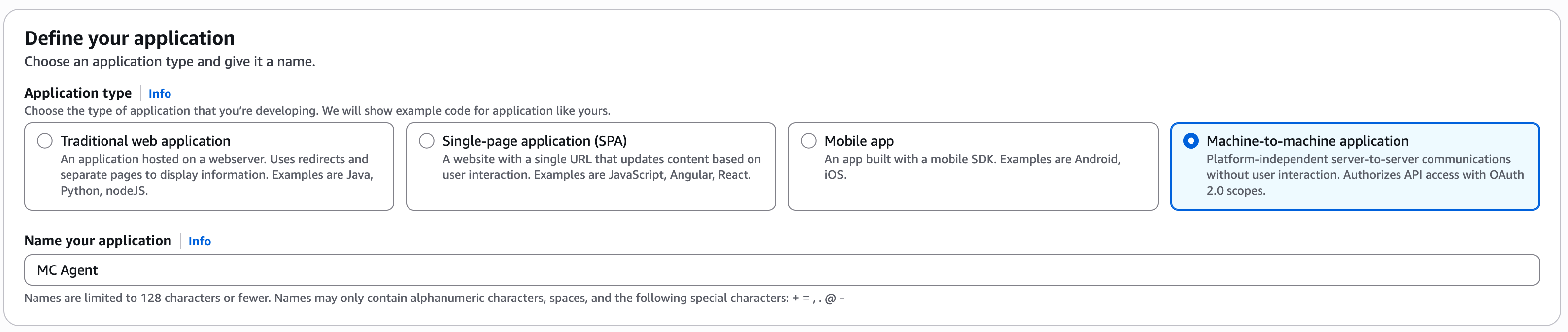
Create a new Cognito User Pool with a Machine-to-machine application:
-
Create a new ALB (or use the existing one if you used the template above) with an HTTPS Listener:
-
With a "Validate token" pre-routing action:
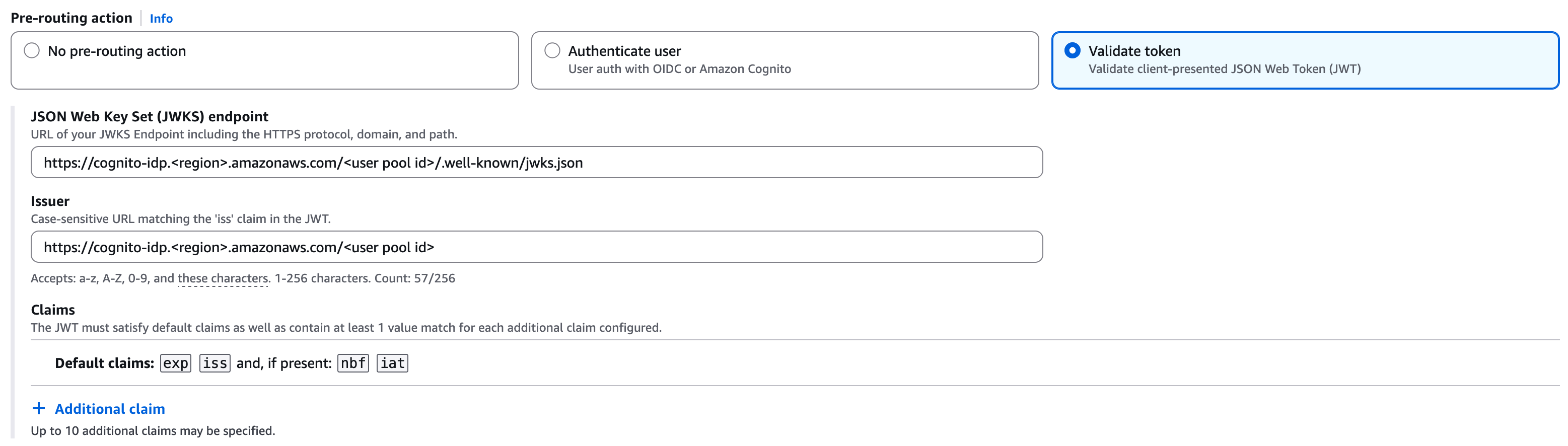
You can get the JKWS endpoint from the User Pool page (under "Token signing key URL") and the issuer should be
https://cognito-idp.<region>.amazonaws.com/<user pool id> -
Forwarding to a target group configured with the agent.
-
As you're configuring an HTTPS Listener you need to create a certificate for it and update the DNS domain to map the certificate name to the ALB.
-
-
You can configure the ALB as "internet-facing" (and optionally restrict access only to the MC static IP addresses) or configure it as "internal", with an internal Network Load Balancer in front of it and use PrivateLink via an AWS Endpoint Service, see the documentation for further details on this option.
-
Make sure to configure the load balancer(s) to accept long-running operations (at least 15 minutes).
-
When registering the agent to Monte Carlo (see below) you can use:
- For the
proxy-endpointparameter: the URL to the HTTPS listener. - For the
auth-urlparameter: get the token URL from Cognito User Pool -> App clients, it should be similar to:https://<id>.auth.<region>.amazoncognito.com/oauth2/token?scope=<scope>, please note the "?" character is required in this parameter, if you're not using a scope you can use:https://<id>.auth.<region>.amazoncognito.com/oauth2/token? - For
client-idandclient-secret: you can get them from Cognito User Pool -> App clients. - For example:
montecarlo agents register-aws-proxied-agent \
 --proxy-endpoint <proxy agent endpoint> \
 --auth-url <proxy oauth endpoint> \
 --authentication oauth2_client_credentials \
 --client-id <oauth client id> \
 --client-secret <oauth client secret> \
 --collector-id <collector service id allocated to your account> \
 --deployment-type generic
- For the
3. Register the Agent
After deploying the agent and configuring your proxy you can register via the Monte Carlo CLI or API.
After this step is complete, all supported integrations using this deployment will automatically use this agent (and object store for troubleshooting and temporary data). You can add these integrations as you normally would using Monte Carlo's UI wizard or CLI.
CLI
Use montecarlo agents register-aws-proxied-agent to register.
See reference documentation here. And see here for how to install and configure the CLI. For instance:
montecarlo agents register-aws-proxied-agent \
 --proxy-endpoint <proxy agent endpoint> \
 --auth-url <proxy oauth endpoint> \
 --authentication <oauth2_client_credentials|oauth2_password> \
 --username <oauth username> \
 --password <oauth password> \
 --collector-id <collector service id allocated to your account> \
 --client-certificate <path/to/client.crt> \
 --private-key <path/to/client.private.pem> \
 --deployment-type generic
Once the Agent is registered, you can test connectivity and operation from the platform in your Monte Carlo account here. Click the three-dot menu on your newly registered Agent and select “Test” from the popover menu. The validations should pass.
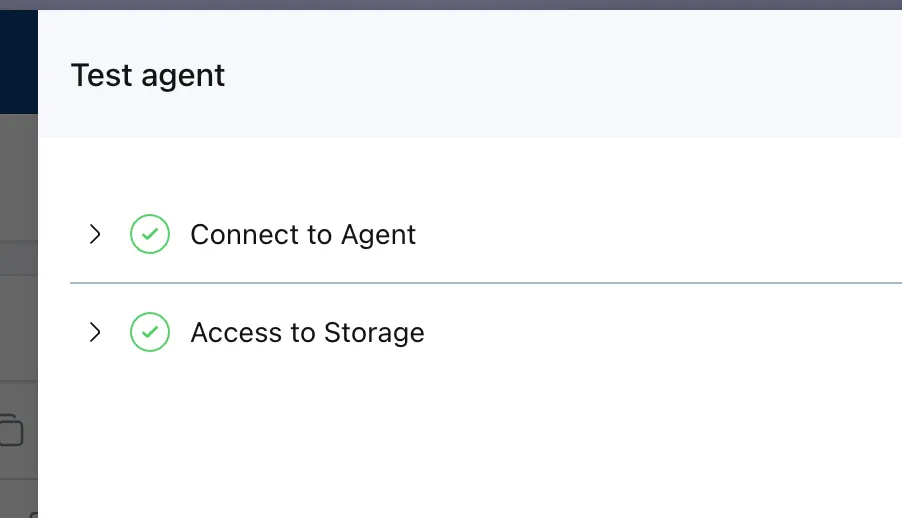
Example Monte Carlo UI
API
You can use the API to register either by generating an API token or from the UI via the API Explorer.
To open this directly in the API explorer you can use the following: https://mc-d.io/proxy-reg (fill in the variables).
mutation createOrUpdateAgent(
  $agentId: UUID,
  $dataCollectorId: UUID,
  $credentials: JSONString,
  $endpoint: String,
  $agentType: AgentTypeEnum,
  $authType: AuthTypeEnum,
  $storageType: StorageTypeEnum,
  $platform: PlatformTypeEnum,
  $dryRun: Boolean
) {
  createOrUpdateAgent(
    agentId: $agentId,
    dataCollectorId: $dataCollectorId,
    credentials: $credentials,
    endpoint: $endpoint,
    agentType: $agentType,
    authType: $authType,
    storageType: $storageType,
    platform: $platform,
    dryRun: $dryRun
  ) {
    agentId
    validationResult {
    success
    validationName
    }
  }
}
{
"agent_type": "REMOTE_AGENT",
"endpoint": "<proxy agent endpoint>",
"storage_type": "S3",
"platform": "AWS_PROXIED",
"auth_type": "<oauth_client_credentials|oauth_password>",
"dry_run": false,
"data_collector_id": "<collector service id allocated to your account>",
"credentials": "{\"auth_url\": \"<proxy oauth endpoint>\", \"username\": \"<username>\", \"password\": \"<password>\", \"client_certificate\": \"base64 encoded client certificate\", \"private_key\": \"base64 encoded private key\"}"
}Once the Agent is registered, you can test connectivity and operation from the platform in your Monte Carlo account here. Click the three-dot menu on your newly registered Agent and select “Test” from the popover menu. The validations should pass.
Example Monte Carlo UI
GCP Cloud Run Deployment
If you’d like to deploy the native GCP Cloud Run Agent and expose it via an OAuth proxy, you can.
1. Deploy the Agent
Follow the steps documented here to register a GCP Agent.
2. Configure your Proxy
An HTTPS proxy with OAuth authentication is required in front of the GCP CloudRun Agent. This proxy should manage authentication to the Agent. Monte Carlo currently supports two OAuth authentication schemes:
- Client credentials
- Username/password
When registering the Agent with your Monte Carlo account (step 3), you will provide either the client_id/client_secret or username/password credential combinations. This allows Monte Carlo to authenticate with your proxy to access the Agent.
Additionally, Monte Carlo supports optionally using mTLS for communication from the platform to the Agent via your proxy. When registering the Agent, you can provide the client certificate and private key that Monte Carlo should use to establish mTLS communication with your proxy to access the Agent.
Furthermore, Monte Carlo requires that your proxy supports long-running operations (approximately 15-minute requests) and large payloads. We have provided an example of configuring an Apigee proxy below.
Examples
Apigee
Create a new Service Account and grant it Cloud Run Invoker access to the previously deployed Cloud Run service. When creating the proxy and the target endpoint, make sure to select this service account.
Example of a TargetEndpoint configuration for a simple Apigee proxy, using the deployed GCP Cloud Run Agent as the target:
<?xml version="1.0" encoding="UTF-8" standalone="yes"?>
<TargetEndpoint name="default">
  <Description/>
  <FaultRules/>
  <PreFlow name="PreFlow">
    <Request>
      <Step>
        <!-- Verify OAuth access token -->
        <Name>OAuthV2-VerifyToken</Name>
      </Step>
    </Request>
    <Response/>
  </PreFlow>
  <PostFlow name="PostFlow">
    <Request/>
    <Response/>
  </PostFlow>
  <Flows/>
  <HTTPTargetConnection>
    <Properties>
	    <!-- Increase timeout defaults to support longer queries -->
      <Property name="api.timeout">900000</Property>
      <Property name="keepalive.timeout.millis">900000</Property>
      <Property name="io.timeout.millis">900000</Property>
    </Properties>
    <Authentication>
      <GoogleIDToken>
        <!-- CloudRun Service URL -->
        <Audience>https://[agent-name].[region].run.app</Audience>
      </GoogleIDToken>
    </Authentication>
    <!-- CloudRun Service URL -->
    <URL>https://[agent-name].[region].run.app</URL>
  </HTTPTargetConnection>
</TargetEndpoint>
Note the timeout/keepalive property overrides; these are required to support long-running queries from the Monte Carlo platform.
3. Register the Agent
After deploying the agent and configuring your proxy you can register via the Monte Carlo CLI or API.
After this step is complete, all supported integrations using this deployment will automatically use this agent (and object store for troubleshooting and temporary data). You can add these integrations as you normally would using Monte Carlo's UI wizard or CLI.
CLI
Use montecarlo agents register-gcp-proxied-agent to register.
See reference documentation here. And see here for how to install and configure the CLI. For instance:
montecarlo agents register-gcp-proxied-agent \
 --proxy-endpoint <proxy agent endpoint> \
 --auth-url <proxy oauth endpoint> \
 --authentication <oauth2_client_credentials|oauth2_password> \
 --client-id <oauth client id> \
 --client-secret <oauth client secret> \
 --collector-id <collector service id allocated to your account>
Once the Agent is registered, you can test connectivity and operation from the platform in your Monte Carlo account here. Click the three-dot menu on your newly registered Agent and select “Test” from the popover menu. The validations should pass.
Example Monte Carlo UI
API
You can use the API to register either by generating an API token or from the UI via the API Explorer.
To open this directly in the API explorer you can use the following: https://mc-d.io/proxy-reg (fill in the variables).
mutation createOrUpdateAgent(
  $agentId: UUID,
  $dataCollectorId: UUID,
  $credentials: JSONString,
  $endpoint: String,
  $agentType: AgentTypeEnum,
  $authType: AuthTypeEnum,
  $storageType: StorageTypeEnum,
  $platform: PlatformTypeEnum,
  $dryRun: Boolean
) {
  createOrUpdateAgent(
    agentId: $agentId,
    dataCollectorId: $dataCollectorId,
    credentials: $credentials,
    endpoint: $endpoint,
    agentType: $agentType,
    authType: $authType,
    storageType: $storageType,
    platform: $platform,
    dryRun: $dryRun
  ) {
    agentId
    validationResult {
    success
    validationName
    }
  }
}
{
"agent_type": "REMOTE_AGENT",
"endpoint": "<proxy agent endpoint>",
"storage_type": "GCS",
"platform": "GCP_PROXIED",
"auth_type": "<oauth_client_credentials|oauth_password>",
"dry_run": false,
"data_collector_id": "<collector service id allocated to your account>",
"credentials": "{\"auth_url\": \"<proxy oauth endpoint>\", \"client_id\": \"<client id>\", \"client_secret\": \"<client secret>\"}"
}FAQs
What integrations does the Agent support?
The agent supports all integrations except for the following:
- Data Lake Query Logs from S3 Buckets are not supported: Learn more.
- Tableau requires using the connected app authentication flow: Learn more.
Note that onboarding (connecting) any supported integration using this deployment will use the agent if one is provisioned. Otherwise, any other integrations will use the cloud service to connect directly.
Some integrations, such as dbt Core, Atlan, and Airflow, either leverage our developer toolkit or are managed by a third party and do not require an agent. These integrations natively push data to Monte Carlo, so an agent is not needed.
Can I use more than one Agent?
Yes, please reach out to [email protected] or contact your account representative if you would like to use more than one.
What regions does the Agent support in AWS?
You can deploy an agent in the following AWS regions:
| Supported Regions |
|---|
| us-east-1 |
| us-east-2 |
| us-west-1 |
| us-west-2 |
| af-south-1 |
| ap-south-1 |
| ap-south-2 |
| ap-southeast-1 |
| ap-southeast-2 |
| ap-southeast-3 |
| ap-southeast-4 |
| ap-northeast-1 |
| ap-northeast-2 |
| ap-northeast-3 |
| ca-central-1 |
| ca-west-1 |
| eu-central-1 |
| eu-central-2 |
| eu-west-1 |
| eu-west-2 |
| eu-west-3 |
| eu-north-1 |
| eu-south-1 |
| eu-south-2 |
| il-central-1 |
| sa-east-1 |
For GCP, please refer to this documentation.
Can I review agent resources and code?
Absolutely! You can find details here:
How do I upgrade the agent?
Monte Carlo releases new agent image versions to add new features, fix bugs, and patch CVEs. It's important to keep your agent up to date. If you deployed on generic infrastructure, automatic remote upgrades of the agent are not supported. Managing updates is part of your shared responsibility.
To upgrade the agent, simply update the tag of the agent's Docker image used in your deployment. For example, if your current deployment is using this image reference:
docker.io/montecarlodata/agent:1.3.5-aws-generic
You could update to the newer version by modifying the tag to this:
docker.io/montecarlodata/agent:1.3.6-aws-generic
Next, simply trigger an update or deployment of your service. This will vary depending on what infrastructure you're using.
Monte Carlo also offers the 'latest' image tags (e.g. latest-<platform>-generic ) which can be used to ensure you're always running the latest image. However, to upgrade these images sometimes you might have to "force" a deployment on your infrastructure so the latest image is pulled from Dockerhub.
You can confirm the agent was upgraded successfully by checking your Monte Carlo account here.
How do I scale the generic agent?
As you onboard integrations and create monitors in your Monte Carlo account it might become necessary to scale up the agent to optimize performance. Monte Carlo supports scaling the agent by increasing the number of internal Gunicorn workers and threads along with increasing CPU and memory of a single instance or by scaling the number of instances.
To increase the number of Gunicorn workers and threads, update these environment variables:
- GUNICORN_WORKERS (default: 5)
- GUNICORN_THREADS (default: 8)
After triggering a deployment of the agent with the new environment variables values, monitor your agent's resource usage. Increasing CPU or memory might be required.
Increasing the number of instances of the agent is also a valid scaling option. In AWS ECS this can be accomplished by increasing the number of task instances of your service. In this case the AWS ALB will distribute the load between the instances, optimizing the performance of your agent.
For GCP, please refer to this documentation.
How do I monitor the generic Agent in AWS?
The Agent automatically generates a log of all operations, which can from CloudWatch.
Operational metrics can similarly be retrieved from CloudWatch metrics (or the infra console).
For GCP, please refer to this documentation.
How do I migrate from a native agent to the generic deployment type in AWS?
These steps assume you have already completed steps #1 and #2, which involve deploying the agent and creating the proxy. See the docs here for further details on those steps.
First, find your existing agent's identifier using the list command on the Monte Carlo CLI (see here for how to install and configure the CLI):
montecarlo agents listNext, run the register-aws-proxied-agent command using the agent-id from above to migrate your agent from a native deployment to a generic one. Be sure to modify the command to include the authentication and mTLS options required for your agent’s generic deployment.
montecarlo agents register-aws-proxied-agent \
 --proxy-endpoint <proxy agent endpoint> \
 --auth-url <proxy oauth endpoint> \
 --authentication <oauth2_client_credentials|oauth2_password> \
 --username <oauth username> \
 --password <oauth password> \
 --collector-id <collector service id allocated to your account> \
 --client-certificate <path/to/client.crt> \
 --private-key <path/to/client.private.pem> \
 --deployment-type generic \
 --agent-id <agent identifier>
What features are not supported with the generic agent?
The following are not supported:
- Functionality that uses pre-signed URLs, such as generating breach download CSVs.
- Remote upgrading.
How do I check the reachability between Monte Carlo and the Agent?
Please refer to the documentation here.
How do I debug connectivity between the Agent and my integration?
Please refer to the documentation here.
Can I use a Lambda Function deployment instead of ECS?
Yes, for AWS you can use the standard Lambda Function agent and configure it to be exposed with OAuth authentication using an Application Load Balancer.
First, deploy the Lambda Function Agent, following the instructions here.
Then, you can use Amazon Cognito with M2M authentication (see this link) to generate OAuth Client Credentials tokens and configure an AWS Application Load Balancer (ALB) to validate them (see this link for more information).
For example, you can do this with the following (you may need to adjust it for your environment):
-
Create a new Cognito User Pool with a Machine-to-machine application:
-
Create a Target Group to forward requests to the Lambda Function deployed by the agent.
-
Create a new ALB with an HTTPS Listener:
-
With a "Validate token" pre-routing action:
You can get the JKWS endpoint from the User Pool page (under "Token signing key URL") and the issuer should be
https://cognito-idp.<region>.amazonaws.com/<user pool id> -
Forwarding to the target group created above, that forwards requests to the Lambda Function.
-
As you're configuring an HTTPS Listener you need to create a certificate for it and update the DNS domain to map the certificate name to the ALB.
-
If you’re using the AWS console, it should automatically update the Lambda Function to allow the “lambda:InvokeFunction” action from the Load Balancer, if not you might need to update Lambda permissions with a policy like this:
-
{
  "Version": "2012-10-17",
  "Id": "default",
  "Statement": [
    {
      "Sid": "AWS-ALB_Invoke",
      "Effect": "Allow",
      "Principal": {
        "Service": "elasticloadbalancing.amazonaws.com"
      },
      "Action": "lambda:InvokeFunction",
      "Resource": "<LAMBDA_FUNCTION_ARN>",
      "Condition": {
        "ArnLike": {
          "AWS:SourceArn": "<TARGET_GROUP_ARN>"
        }
      }
    }
  ]
}
-
-
You can configure the ALB as "internet-facing" (and optionally restrict access only to the MC static IP addresses) or configure it as "internal", with an internal Network Load Balancer in front of it and use PrivateLink via an AWS Endpoint Service, see the documentation for further details on this option.
-
Make sure to configure the load balancer(s) to accept long-running operations (at least 15 minutes).
-
When registering the agent to Monte Carlo (see below) you need to use:
- For the
proxy-endpointparameter: the URL to the HTTPS listener. - For the
auth-urlparameter: get the token URL from Cognito User Pool -> App clients, it should be similar to:https://<id>.auth.<region>.amazoncognito.com/oauth2/token?scope=<scope>, please note the "?" character is required in this parameter, if you're not using a scope you can use:https://<id>.auth.<region>.amazoncognito.com/oauth2/token? - For
client-idandclient-secret: you can get them from Cognito User Pool -> App clients. - For example:
montecarlo agents register-aws-proxied-agent \
 --proxy-endpoint <load balancer endpoint> \
 --auth-url <cognito token endpoint> \
 --authentication oauth2_client_credentials \
 --client-id <oauth client id> \
 --client-secret <oauth client secret> \
 --collector-id <collector service id allocated to your account> \
 --deployment-type generic
- For the
Updated 2 months ago