
Generic Agent: Docker Compose Deployment
Deploy the Generic Agent with Docker Compose
Prerequisites
- Docker and Docker Compose installed.
- You are an Account Owner in Monte Carlo.
This guide walks through a basic example of deploying the Generic Agent with Docker Compose. This example uses MinIO for S3-compatible object storage, making the deployment fully self-contained.
An example is available in the mcd-public-resources repository.
The steps below explain each part of the setup.
Steps
1. Register the Agent
-
In Monte Carlo, navigate to Settings > Deployments and click Add.
-
Select Generic, enter a name for the agent, and choose an Authentication method:
- Key/Token (default) — the agent authenticates with a Monte Carlo-generated key pair (
mcd_id/mcd_token). - OAuth — the agent authenticates using OAuth 2.0 Client Credentials (
client_id/client_secret). The agent automatically obtains and refreshes short-lived JWT tokens. See Authentication for more details.
The authentication method is permanent and cannot be changed after provisioning.
- Key/Token (default) — the agent authenticates with a Monte Carlo-generated key pair (
-
Click Provision.
-
Copy the credentials — they are displayed only once and cannot be retrieved later.
- Key/Token: copy the Key ID and Key Secret — these are used as
mcd_idandmcd_tokenin the deployment steps below. - OAuth: copy the Client ID and Client Secret — these are used as
client_idandclient_secretin the deployment steps below.
- Key/Token: copy the Key ID and Key Secret — these are used as
2. Deploy the Agent
2.1 Create the Directory Structure
mkdir -p mcd-agent/secrets/integrations
cd mcd-agent
2.2 Create the Docker Compose File
Create a docker-compose.yml file. Choose the tab matching the authentication method you selected during registration:
services:
  mcd-agent:
    image: montecarlodata/agent:${AGENT_IMAGE_TAG:-latest-generic}
    ports:
      - "8080:8080"
    environment:
      - PORT=8080
      - BACKEND_SERVICE_URL=${BACKEND_SERVICE_URL:?BACKEND_SERVICE_URL must be set in .env}
      - MCD_AGENT_WRAPPER_TYPE=DOCKER
      - MCD_STORAGE_BUCKET_NAME=mcd-agent-storage
      - MCD_STORAGE=S3_COMPATIBLE
      - MCD_STORAGE_ENDPOINT_URL=http://minio:9000
      - MCD_STORAGE_ACCESS_KEY=${MINIO_ROOT_USER:?MINIO_ROOT_USER must be set in .env}
      - MCD_STORAGE_SECRET_KEY=${MINIO_ROOT_PASSWORD:?MINIO_ROOT_PASSWORD must be set in .env}
      - MCD_OPS_RUNNER_THREAD_COUNT=18
      - MCD_PUBLISHER_THREAD_COUNT=3
      - MCD_TOKEN_FILE_PATH=/etc/secrets/mcd-agent-token/contents.json
    volumes:
      - ./secrets/token.json:/etc/secrets/mcd-agent-token/contents.json:ro
      - ./secrets/integrations:/etc/secrets/integrations:ro
    restart: unless-stopped
    depends_on:
      create-bucket:
        condition: service_completed_successfully

  create-bucket:
    image: quay.io/minio/mc:latest
    depends_on:
      minio:
        condition: service_healthy
    environment:
      - MC_USER=${MINIO_ROOT_USER:?MINIO_ROOT_USER must be set in .env}
      - MC_PASS=${MINIO_ROOT_PASSWORD:?MINIO_ROOT_PASSWORD must be set in .env}
    entrypoint:
      - sh
      - -c
      - mc alias set local http://minio:9000 "$$MC_USER" "$$MC_PASS" && mc mb local/mcd-agent-storage --ignore-existing

  minio:
    image: quay.io/minio/minio:latest
    command: server /data --console-address ":9001"
    ports:
      - "9000:9000"
      - "9001:9001"
    environment:
      - MINIO_ROOT_USER=${MINIO_ROOT_USER:?MINIO_ROOT_USER must be set in .env}
      - MINIO_ROOT_PASSWORD=${MINIO_ROOT_PASSWORD:?MINIO_ROOT_PASSWORD must be set in .env}
    volumes:
      - minio-data:/data
    healthcheck:
      test: ["CMD", "mc", "ready", "local"]
      interval: 5s
      timeout: 5s
      retries: 5
    restart: unless-stopped

volumes:
minio-data:services:
mcd-agent:
image: montecarlodata/agent:${AGENT_IMAGE_TAG:-latest-generic}
ports:
- "8080:8080"
environment:
- PORT=8080
- BACKEND_SERVICE_URL=${BACKEND_SERVICE_URL:?BACKEND_SERVICE_URL must be set in .env}
- MCD_AGENT_WRAPPER_TYPE=DOCKER
- MCD_STORAGE_BUCKET_NAME=mcd-agent-storage
- MCD_STORAGE=S3_COMPATIBLE
- MCD_STORAGE_ENDPOINT_URL=http://minio:9000
- MCD_STORAGE_ACCESS_KEY=${MINIO_ROOT_USER:?MINIO_ROOT_USER must be set in .env}
- MCD_STORAGE_SECRET_KEY=${MINIO_ROOT_PASSWORD:?MINIO_ROOT_PASSWORD must be set in .env}
- MCD_OPS_RUNNER_THREAD_COUNT=18
- MCD_PUBLISHER_THREAD_COUNT=3
- MCD_OAUTH_FILE_PATH=/etc/secrets/mcd-oauth/credentials.json
volumes:
- ./secrets/oauth.json:/etc/secrets/mcd-oauth/credentials.json:ro
- ./secrets/integrations:/etc/secrets/integrations:ro
restart: unless-stopped
depends_on:
create-bucket:
condition: service_completed_successfully
create-bucket:
image: quay.io/minio/mc:latest
depends_on:
minio:
condition: service_healthy
environment:
- MC_USER=${MINIO_ROOT_USER:?MINIO_ROOT_USER must be set in .env}
- MC_PASS=${MINIO_ROOT_PASSWORD:?MINIO_ROOT_PASSWORD must be set in .env}
entrypoint:
- sh
- -c
- mc alias set local http://minio:9000 "$$MC_USER" "$$MC_PASS" && mc mb local/mcd-agent-storage --ignore-existing
minio:
image: quay.io/minio/minio:latest
command: server /data --console-address ":9001"
ports:
- "9000:9000"
- "9001:9001"
environment:
- MINIO_ROOT_USER=${MINIO_ROOT_USER:?MINIO_ROOT_USER must be set in .env}
- MINIO_ROOT_PASSWORD=${MINIO_ROOT_PASSWORD:?MINIO_ROOT_PASSWORD must be set in .env}
volumes:
- minio-data:/data
healthcheck:
test: ["CMD", "mc", "ready", "local"]
interval: 5s
timeout: 5s
retries: 5
restart: unless-stopped
volumes:
minio-data:Create a .env file with your environment-specific values:
BACKEND_SERVICE_URL=<YOUR_BACKEND_SERVICE_URL>
MINIO_ROOT_USER=minioadmin
MINIO_ROOT_PASSWORD=change-me-to-a-secure-password
# Optional: pin the agent image to a specific version (defaults to latest-generic)
# AGENT_IMAGE_TAG=0.0.8-generic
Optionally set AGENT_IMAGE_TAG to pin the agent image to a specific version (e.g. 0.0.8-generic). If unset, defaults to latest-generic.
Docker Compose automatically reads .env when you start the stack.
Set
BACKEND_SERVICE_URLto the Public endpoint shown in Account Information > Agent Service in the Monte Carlo app.
2.3 Create the Agent Credentials
Using the credentials obtained during registration, create the credentials file.
cat > secrets/token.json << 'EOF'
{"mcd_id": "<YOUR_MCD_ID>", "mcd_token": "<YOUR_MCD_TOKEN>"}
EOF
chmod 600 secrets/token.jsoncat > secrets/oauth.json << 'EOF'
{"client_id": "<YOUR_CLIENT_ID>", "client_secret": "<YOUR_CLIENT_SECRET>"}
EOF
chmod 600 secrets/oauth.json2.4 Start All Services
docker compose up -dThis starts MinIO, automatically creates the storage bucket, and launches the agent.
2.5 Verify
Check that the agent is running:
docker compose logs -f mcd-agentRun the reachability test to confirm the agent can communicate with the Monte Carlo platform:
curl -s -X POST http://localhost:8080/api/v1/test/reachabilityA successful response contains "ok": true.
MinIO with default credentials is suitable for development and testing only. For production deployments, configure MinIO with proper credentials and TLS, or use a cloud-native storage service.
3. Enable the Agent
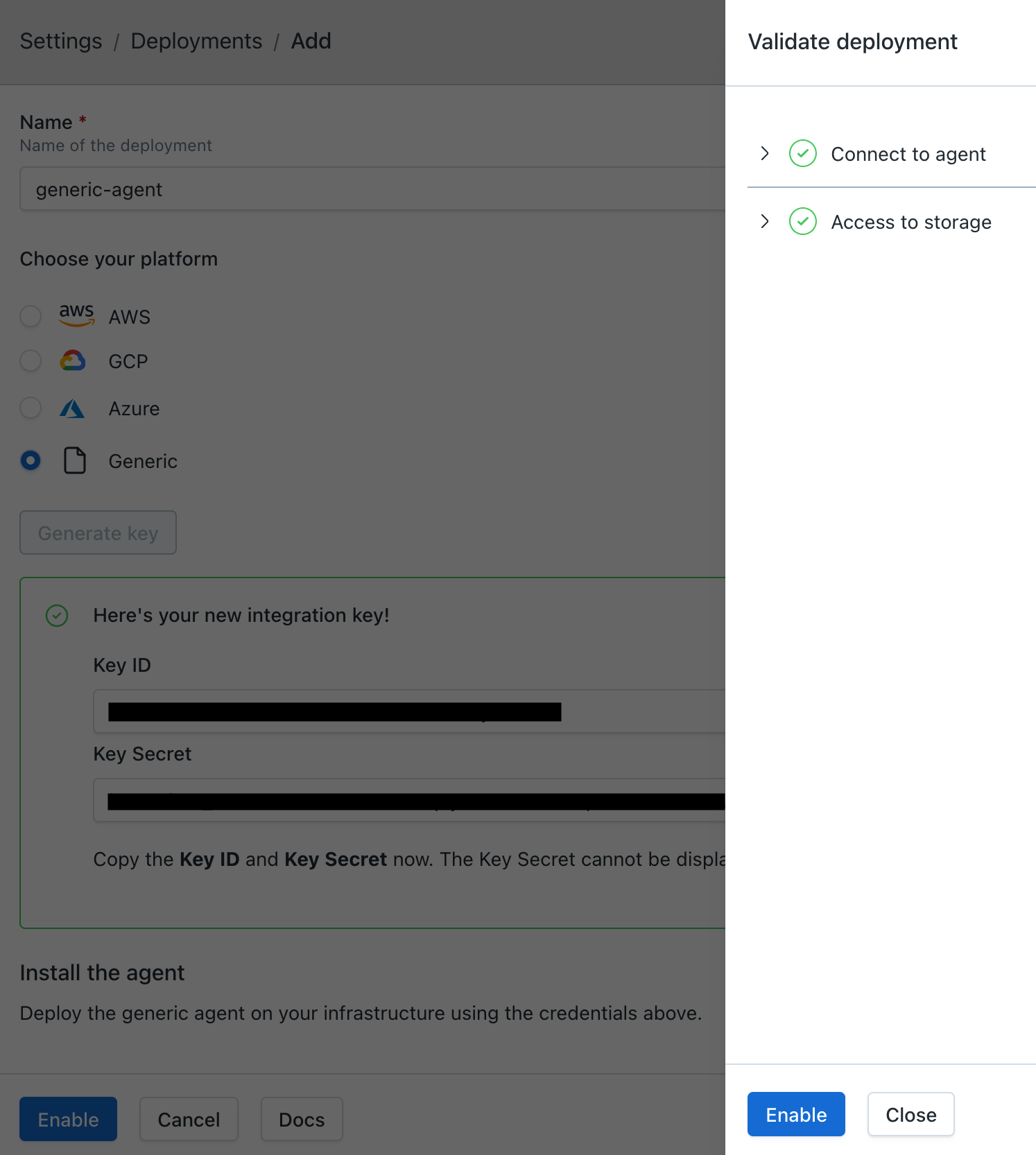
After verifying the agent is running, click Enable on the agent registration screen.
If you've navigated away from the registration screen, go to Settings > Deployments, select your agent, and click Enable.
Once validations pass, click Enable in the validations dialog to activate the agent.
Adding Integration Credentials
Place integration credential files in ./secrets/integrations/. They are mounted read-only into the container at /etc/secrets/integrations/.
After adding the files, restart the agent:
docker compose restart mcd-agentSee the Self-Hosted Credentials documentation for the JSON format for each integration type and how to register the credentials in Monte Carlo.
After adding the secret, register the integration in Monte Carlo. You can do this via the UI (see Self-Hosted Credentials) or via the CLI:
montecarlo integrations add-self-hosted-credentials-v2 \
  --connection-type <integration> \
  --self-hosted-credentials-type FILE \
  --file-path /etc/secrets/integrations/<integration>.json \
  --name <connection_name>
Updating the Agent
Pull the latest image and recreate the container:
docker compose pull mcd-agent
docker compose up -d mcd-agent
Tearing Down
docker compose down -vFAQs
Does the agent require inbound network access?
No. The Generic Agent is egress-only. All connections are initiated from the agent to the Monte Carlo platform. No inbound connectivity to the agent is required.
Can I use a different S3-compatible storage service instead of MinIO?
Yes. The agent works with any S3-compatible storage. Update MCD_STORAGE_ENDPOINT_URL, MCD_STORAGE_ACCESS_KEY, MCD_STORAGE_SECRET_KEY, and MCD_STORAGE_BUCKET_NAME in the mcd-agent environment to point to your storage service.
Can I use cloud-native storage (S3, GCS, Azure Blob) instead of MinIO?
Yes. Remove the minio and create-bucket services, and update the agent environment variables:
- For Amazon S3: Set
MCD_STORAGE=S3, removeMCD_STORAGE_ENDPOINT_URL, and configure AWS credentials (via environment variables or IAM roles). - For Google Cloud Storage: Set
MCD_STORAGE=GCSand configure GCP credentials. - For Azure Blob Storage: Set
MCD_STORAGE=AZURE_BLOB, setMCD_STORAGE_ACCOUNT_NAME, and configure Azure credentials.
How do I view MinIO storage contents?
The MinIO Console is accessible at http://localhost:9001. Log in with the MINIO_ROOT_USER and MINIO_ROOT_PASSWORD values from your .env file.
How do I add credentials for data source integrations?
Place JSON credential files in the ./secrets/integrations/ directory. The agent container mounts this directory read-only at /etc/secrets/integrations/. After adding files, restart the agent with docker compose restart mcd-agent.
See the Self-Hosted Credentials documentation for the JSON format for each integration type.
How do I route agent traffic through a forward proxy?
If your environment requires outbound traffic to go through a proxy, you can configure the agent with HTTP_PROXY and HTTPS_PROXY environment variables. A complete Docker Compose example using Squid as a forward proxy is available in the mcd-public-resources repository. This setup logs all destination hosts and ports the agent connects to.
How do I inspect HTTPS traffic from the agent?
To audit the full content of HTTPS traffic sent by the agent — including URLs, headers, and payloads — you can use TLS inspection tools such as mitmproxy, Charles Proxy, or Fiddler. A complete Docker Compose example using mitmproxy with a browser-based UI is available in the mcd-public-resources repository.
How do I scale the agent?
There are several ways to scale the agent:
Multiple instances: Scale horizontally by running multiple instances:
docker compose up -d --scale mcd-agent=3Thread count: Increase the number of concurrent operations a single instance can process:
environment:
  - MCD_OPS_RUNNER_THREAD_COUNT=36
The example above sets this to 18 (matching the recommended baseline). Increasing the value allows each instance to handle more operations in parallel, which can be useful before adding more instances.
Always set
MCD_OPS_RUNNER_THREAD_COUNTandMCD_PUBLISHER_THREAD_COUNTexplicitly. The agent's built-in defaults are1for both, which can cause concurrent operations to time out under load. The exampledocker-compose.ymlabove already sets these to recommended values (18and3).
Container resources: Set CPU and memory limits to ensure instances have adequate resources, especially when increasing thread count:
services:
  mcd-agent:
    deploy:
      resources:
        limits:
          cpus: '4'
          memory: 4G
How do I rotate agent credentials?
Replace secrets/token.json with the new credentials and restart:
cat > secrets/token.json << 'EOF'
{"mcd_id": "<NEW_MCD_ID>", "mcd_token": "<NEW_MCD_TOKEN>"}
EOF
chmod 600 secrets/token.json
docker compose restart mcd-agent-
In Monte Carlo, go to Settings > Deployments, select your agent, and click Manage OAuth clients. Click Generate OAuth client to create new credentials.
-
Replace
secrets/oauth.jsonwith the new credentials and restart:cat > secrets/oauth.json << 'EOF' {"client_id": "<NEW_CLIENT_ID>", "client_secret": "<NEW_CLIENT_SECRET>"} EOF chmod 600 secrets/oauth.json docker compose restart mcd-agent -
After confirming the agent is healthy, delete the old OAuth client from the Manage OAuth clients panel. Previously issued tokens from the old client will remain valid until they expire (up to 1 hour).
How do I monitor the agent?
You can monitor the agent using docker compose logs and standard Docker monitoring tools. The agent exposes a health endpoint at /api/v1/test/healthcheck that returns OK when the agent is running.
How do I set additional environment variables on the agent?
Add the variable to the agent service's environment: list in your docker-compose.yaml, alongside the other MCD_* variables:
    environment:
      - MCD_ORACLE_THICK_MODE=true
This is an advanced option used to enable optional agent features (for example, Oracle Thick mode).
Updated 3 months ago