
Connection Auth Rules (Private Preview)
This feature requires an Enterprise or higher plan to use
Connection Auth Rules are only available native cloud agent deployments with self-hosted credentials. The generic agent is not supported.
This is an advanced feature intended for customers who need to customize how credentials are passed to their connection. Most connections work without it
Connection Auth Rules control how credentials are resolved and passed to the database driver when Monte Carlo connects through an agent. The default auth handling for each connector covers standard use cases (user/password, key-pair auth, common SSL options). An auth rule configuration lets you override or extend that handling when your credentials are shaped differently, for example when using a custom OAuth token endpoint, non-standard credential field names, or an authentication method that requires additional pre-processing.
How it works
When Monte Carlo establishes a connection through an agent, it resolves the self-hosted credentials using the connection auth rules configured for that connection. The agent processes the credentials through the rule, executing any transform steps in order, then applying the mapper, and passes the resulting connection arguments to the database driver
The pipeline has two components:
| Component | Purpose |
|---|---|
steps | Ordered list of pre-processing transforms (e.g. fetch an OAuth token, decode a PEM key) |
mapper | Maps raw or derived credential fields to driver connection arguments using Jinja2 templates |
Configuration format
A config is a JSON object stored per connection. The minimal form includes only the mapper:
{
  "mapper": {
    "host": "{{ raw.hostname }}",
    "port": "{{ raw.port }}",
    "dbname": "{{ raw.database }}",
    "user": "{{ raw.svc_account }}",
    "password": "{{ raw.svc_password }}"
  }
}
With transform steps:
{
  "steps": [ ... ],
  "mapper": { ... }
}
Mapper templates
Each value in the mapper is a Jinja2 template string. Use raw.<field> to reference any field from the stored credentials:
{
  "mapper": {
    "host": "{{ raw.host }}",
    "port": "{{ raw.port }}",
    "database": "{{ raw.database }}"
  }
}
Values produced by transform steps are available as derived.<key>:
{
  "mapper": {
    "token": "{{ derived.oauth_token }}"
  }
}
Transform steps
Steps run before the mapper and produce values in the derived namespace. Each step has:
| Field | Required | Description |
|---|---|---|
type | yes | The transform to run (see table below) |
input | yes | Template expressions passed to the transform |
output | yes | Maps transform outputs to derived keys, referenced as derived.<key> in field_map |
field_map | no | Connection argument entries contributed by this step |
Available transform types
| Type | Description |
|---|---|
oauth | Acquires an OAuth 2.0 access token (client_credentials or password grant) |
load_private_key | Decodes a PEM private key string to DER bytes for key-pair auth |
tmp_file_write | Writes credential data (e.g. a certificate) to a temp file, producing a file path |
resolve_ssl_options | Builds an SSL configuration from a credential dict — writes CA data to a temp file and creates an SSLContext |
fetch_remote_file | Downloads a file from a URL or cloud storage bucket to a local temp path |
generate_jwt | Signs a HS256 JWT for authentication |
write_ini_file | Writes key-value pairs to a temporary INI file and produces a file path |
resolve_redshift_credentials | Exchanges an IAM identity for temporary Redshift DbUser / DbPassword via GetClusterCredentials |
oauth
Fetches an access token from an OAuth 2.0 authorization server.
Input fields:
oauth— template resolving to an object with:client_id,client_secret,access_token_endpoint,grant_type("client_credentials"or"password"), and optionallyscope,username,password(password grant)
Output fields:
token— derived key where the access token string is stored
{
  "type": "oauth",
  "input": { "oauth": "{{ raw.oauth }}" },
  "output": { "token": "oauth_token" },
  "field_map": {
    "token": "{{ derived.oauth_token }}",
    "authenticator": "oauth"
  }
}
load_private_key
Decodes a PEM-encoded private key to unencrypted DER bytes for connectors such as Snowflake.
Input fields:
pem— template resolving to a PEM key stringpassword— passphrase for encrypted keys (omit for unencrypted)
Output fields:
private_key— derived key where the DER bytes are stored
{
  "type": "load_private_key",
  "input": {
    "pem": "{{ raw.private_key_pem }}",
    "password": "{{ raw.private_key_passphrase }}"
  },
  "output": { "private_key": "private_key_der" },
  "field_map": { "private_key": "{{ derived.private_key_der }}" }
}
tmp_file_write
Writes string or binary data to a temporary file on the agent host. Useful when a driver requires a file path (e.g. a trust store or CA certificate) rather than inline data.
Input fields:
contents— template resolving to the file contents (string or bytes)file_suffix— optional file extension (e.g.".pem")
Output fields:
path— derived key where the temp file path is stored
{
  "type": "tmp_file_write",
  "input": {
    "contents": "{{ raw.ca_cert_data }}",
    "file_suffix": ".pem"
  },
  "output": { "path": "ca_cert_path" },
  "field_map": { "sslTrustStore": "{{ derived.ca_cert_path }}" }
}
resolve_ssl_options
Builds an SSL configuration from a structured credential dict. Writes CA certificate data to a deterministic temp file when present, and optionally constructs a Python ssl.SSLContext for drivers that accept one directly.
Input fields:
ssl_options— template resolving to an object with any of the following:ca_data— PEM string for the certificate authority (used for server verification)cert_data— PEM string for the client certificatekey_data— PEM string for the client private keykey_password— passphrase for an encrypted private keyca— path to a CA PEM file (alternative toca_data)skip_cert_verification— skip certificate and identity validation (defaultfalse)verify_cert— verify the server certificate (defaulttrue)verify_identity— verify the server hostname (defaulttrue)disabled— disable SSL entirely (defaultfalse)
Output fields (all optional — omit any you don't need):
ssl_options— the resolved SSL options object; access its attributes asderived.<key>.ca_path, etc.ca_path— path to the CA cert file written to disk (only set whenca_datais present and SSL is not disabled)ssl_context— a Pythonssl.SSLContextfor drivers that accept one directly (only built whencert_datais present)
{
  "type": "resolve_ssl_options",
  "input": { "ssl_options": "{{ raw.ssl_options }}" },
  "output": { "ca_path": "ssl_ca_path" },
  "field_map": { "ssl_ca_cert": "{{ derived.ssl_ca_path }}" }
}
fetch_remote_file
Downloads a file from a remote URL or cloud storage bucket to a local temp path on the agent host. Useful when a driver requires a file path (e.g. a CA certificate or keystore) and the file is stored remotely rather than inline in credentials.
Input fields:
url— template resolving to a URL or storage key (required)mechanism—"url"(default) or a platform storage mechanism (e.g."s3")sub_folder— optional subdirectory hint for temp file placement
Output fields:
path— derived key where the local file path is stored
{
  "type": "fetch_remote_file",
  "input": {
    "url": "{{ raw.ca_cert_url }}",
    "mechanism": "url"
  },
  "output": { "path": "ca_cert_path" },
  "field_map": { "ssl_ca_cert": "{{ derived.ca_cert_path }}" }
}
generate_jwt
Generates a signed HS256 JWT for authentication.
Input fields:
username— Tableau username embedded in the token's subject claimclient_id— Connected App client UUIDsecret_id— Connected App secret UUIDsecret_value— Connected App secret value used to sign the tokenexpiration_seconds— token lifetime in seconds (optional, default300)
Output fields:
token— derived key where the signed JWT string is stored
{
  "type": "generate_jwt",
  "input": {
    "username": "{{ raw.tableau_user }}",
    "client_id": "{{ raw.client_id }}",
    "secret_id": "{{ raw.secret_id }}",
    "secret_value": "{{ raw.secret_value }}"
  },
  "output": { "token": "jwt" },
  "field_map": { "jwt": "{{ derived.jwt }}" }
}
write_ini_file
Writes key-value pairs to a temporary INI file on the agent host. Useful when a driver requires a config file path rather than inline connection arguments (e.g. Looker).
Input fields:
section— the INI section name (required, e.g."Looker")- any additional keys — rendered as
key=valuelines under the section; fields that resolve tonullare omitted
Output fields:
path— derived key where the temp file path is stored
{
  "type": "write_ini_file",
  "input": {
    "section": "Looker",
    "base_url": "{{ raw.base_url }}",
    "client_id": "{{ raw.client_id }}",
    "client_secret": "{{ raw.client_secret }}"
  },
  "output": { "path": "looker_ini_path" },
  "field_map": { "ini_file_path": "{{ derived.looker_ini_path }}" }
}
resolve_redshift_credentials
Calls the AWS Redshift GetClusterCredentials API to exchange an IAM identity for short-lived database credentials.
Input fields:
cluster_identifier— Redshift cluster identifierdb_user— IAM database userdb_name— target database nameauto_create— whether to auto-create the user (defaulttrue)aws_region— optional AWS region override
Output fields:
user— derived key for the temporaryDbUserpassword— derived key for the temporaryDbPassword
{
  "type": "resolve_redshift_credentials",
  "input": {
    "cluster_identifier": "{{ raw.cluster_identifier }}",
    "db_user": "{{ raw.db_user }}",
    "db_name": "{{ raw.db_name }}",
    "aws_region": "{{ raw.aws_region }}"
  },
  "output": {
    "user": "federated_user",
    "password": "federated_password"
  },
  "field_map": {
    "user": "{{ derived.federated_user }}",
    "password": "{{ derived.federated_password }}"
  }
}
Examples
Snowflake with OAuth token acquisition
{
  "steps": [
    {
      "type": "oauth",
      "input": { "oauth": "{{ raw.oauth }}" },
      "output": { "token": "oauth_token" },
      "field_map": {
        "token": "{{ derived.oauth_token }}",
        "authenticator": "oauth"
      }
    }
  ],
  "mapper": {
    "user": "{{ raw.user }}",
    "account": "{{ raw.account }}",
    "warehouse": "{{ raw.warehouse }}",
    "database": "{{ raw.database }}",
    "role": "{{ raw.role }}"
  }
}
Stored credentials for this config:
{
  "user": "svc_montecarlo",
  "account": "myorg-myaccount",
  "warehouse": "COMPUTE_WH",
  "database": "ANALYTICS",
  "role": "MONITOR",
  "oauth": {
    "client_id": "abc123",
    "client_secret": "s3cr3t",
    "access_token_endpoint": "https://auth.example.com/oauth/token",
    "grant_type": "client_credentials"
  }
}
Snowflake with key-pair authentication
{
  "steps": [
    {
      "type": "load_private_key",
      "input": {
        "pem": "{{ raw.private_key_pem }}",
        "password": "{{ raw.private_key_passphrase }}"
      },
      "output": { "private_key": "private_key_der" },
      "field_map": { "private_key": "{{ derived.private_key_der }}" }
    }
  ],
  "mapper": {
    "user": "{{ raw.user }}",
    "account": "{{ raw.account }}",
    "warehouse": "{{ raw.warehouse }}"
  }
}
Stored credentials for this config:
{
  "user": "svc_montecarlo",
  "account": "myorg-myaccount",
  "warehouse": "COMPUTE_WH",
  "private_key_pem": "-----BEGIN PRIVATE KEY-----\nMII...\n-----END PRIVATE KEY-----",
  "private_key_passphrase": "my-passphrase"
}
SAP HANA with TLS encryption
SAP HANA servers configured to enforce secure-only connections require encrypt=True to be passed to the driver. sslValidateCertificate=False disables server certificate validation when a trusted CA bundle is not available.
{
  "mapper": {
    "address": "{{ raw.address }}",
    "port": "{{ raw.port }}",
    "user": "{{ raw.user }}",
    "password": "{{ raw.password }}",
    "encrypt": true,
    "sslValidateCertificate": false
  }
}
Stored credentials for this config:
{
  "address": "my-hana-server.example.com",
  "port": 30015,
  "user": "MONTE_CARLO",
  "password": "s3cr3t"
}
When a trust store certificate is required, write it to a temp file and pass the path to the driver:
{
  "steps": [
    {
      "type": "tmp_file_write",
      "input": {
        "contents": "{{ raw.ssl_trust_store_data }}",
        "file_suffix": ".pem"
      },
      "output": { "path": "trust_store_path" },
      "field_map": {
        "sslTrustStore": "{{ derived.trust_store_path }}"
      }
    }
  ],
  "mapper": {
    "address": "{{ raw.address }}",
    "port": "{{ raw.port }}",
    "user": "{{ raw.user }}",
    "password": "{{ raw.password }}",
    "encrypt": true,
    "sslValidateCertificate": true
  }
}
Stored credentials for this config:
{
  "address": "my-hana-server.example.com",
  "port": 30015,
  "user": "MONTE_CARLO",
  "password": "s3cr3t",
  "ssl_trust_store_data": "-----BEGIN CERTIFICATE-----\nMII...\n-----END CERTIFICATE-----"
}
Redshift with federated IAM authentication
Redshift supports temporary IAM credentials via GetClusterCredentials, allowing connections without a static password.
The agent must have an IAM role with
redshift:GetClusterCredentialspermission on the target cluster and database user.
{
  "steps": [
    {
      "type": "resolve_redshift_credentials",
      "input": {
        "cluster_identifier": "{{ raw.cluster_identifier }}",
        "db_user": "{{ raw.db_user }}",
        "db_name": "{{ raw.db_name }}",
        "aws_region": "{{ raw.aws_region }}"
      },
      "output": {
        "user": "federated_user",
        "password": "federated_password"
      },
      "field_map": {
        "user": "{{ derived.federated_user }}",
        "password": "{{ derived.federated_password }}"
      }
    }
  ],
  "mapper": {
    "host": "{{ raw.host }}",
    "port": "{{ raw.port }}",
    "dbname": "{{ raw.db_name }}"
  }
}
Stored credentials for this config:
{
  "connect_args": {
    "host": "my-cluster.abc123.us-east-1.redshift.amazonaws.com",
    "port": "5439",
    "db_name": "analytics",
    "cluster_identifier": "my-cluster",
    "db_user": "mc_service_account",
    "aws_region": "us-east-1"
  }
}
Informatica with IDP JWT authentication
For Informatica organizations configured with SAML/SSO, Monte Carlo can authenticate
using a short-lived JWT obtained from your identity provider (Okta, Azure AD, etc.)
via the OAuth Resource Owner Password Credentials (ROPC) grant.
The oauth step fetches a JWT from your IDP, then resolve_informatica_session
exchanges it for an Informatica session ID using the loginOAuth endpoint.
{
  "steps": [
    {
      "type": "oauth",
      "input": { "oauth": "{{ raw.oauth }}" },
      "output": { "token": "informatica_jwt_token" }
    },
    {
      "type": "resolve_informatica_session",
      "input": {
        "jwt_token": "{{ derived.informatica_jwt_token }}",
        "org_id": "{{ raw.org_id }}",
        "base_url": "{{ raw.base_url | default(none) }}"
      },
      "output": {
        "session_id": "informatica_session_id",
        "api_base_url": "informatica_api_base_url"
      }
    }
  ],
  "mapper": {
    "field_map": {
      "session_id": "{{ derived.informatica_session_id }}",
      "api_base_url": "{{ derived.informatica_api_base_url }}"
    }
  }
}
Stored credentials for this config:
{
  "org_id": "your-informatica-org-id",
  "base_url": "https://dm-us.informaticacloud.com",
  "oauth": {
    "client_id": "your-idp-client-id",
    "client_secret": "your-idp-client-secret",
    "access_token_endpoint": "https://your-idp.example.com/oauth/token",
    "grant_type": "password",
    "username": "[email protected]",
    "password": "your-informatica-password"
  }
}
Remapping non-standard credential fields
If your credentials use different field names than the driver expects, remap them in the mapper:
{
  "mapper": {
    "host": "{{ raw.hostname }}",
    "port": "{{ raw.db_port }}",
    "dbname": "{{ raw.database_name }}",
    "user": "{{ raw.service_account_user }}",
    "password": "{{ raw.service_account_pass }}"
  }
}
Stored credentials for this config:
{
  "hostname": "my-postgres.example.com",
  "db_port": 5432,
  "database_name": "analytics",
  "service_account_user": "mc_svc",
  "service_account_pass": "s3cr3t"
}
You may also use the skill in our agent toolkit to help you build the connection auth rules.
Steps
Adding Custom Credentials to a Connection
- Open the connection configuration for a supported integration. Navigate to the Self Hosted Credentials step.
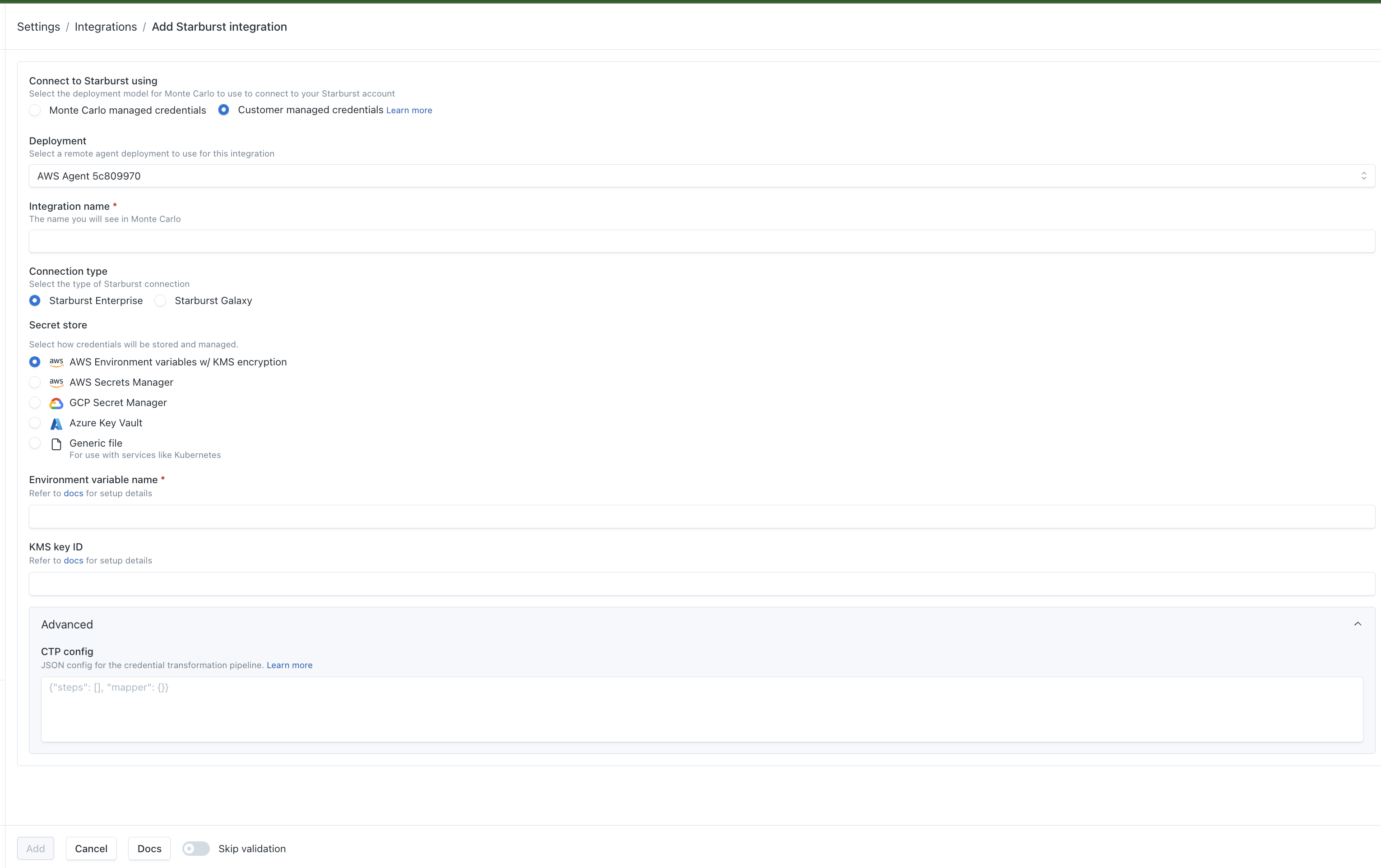
- Select the Advanced tab.
- Enter your config as JSON in the CTP config field. The expected shape is:
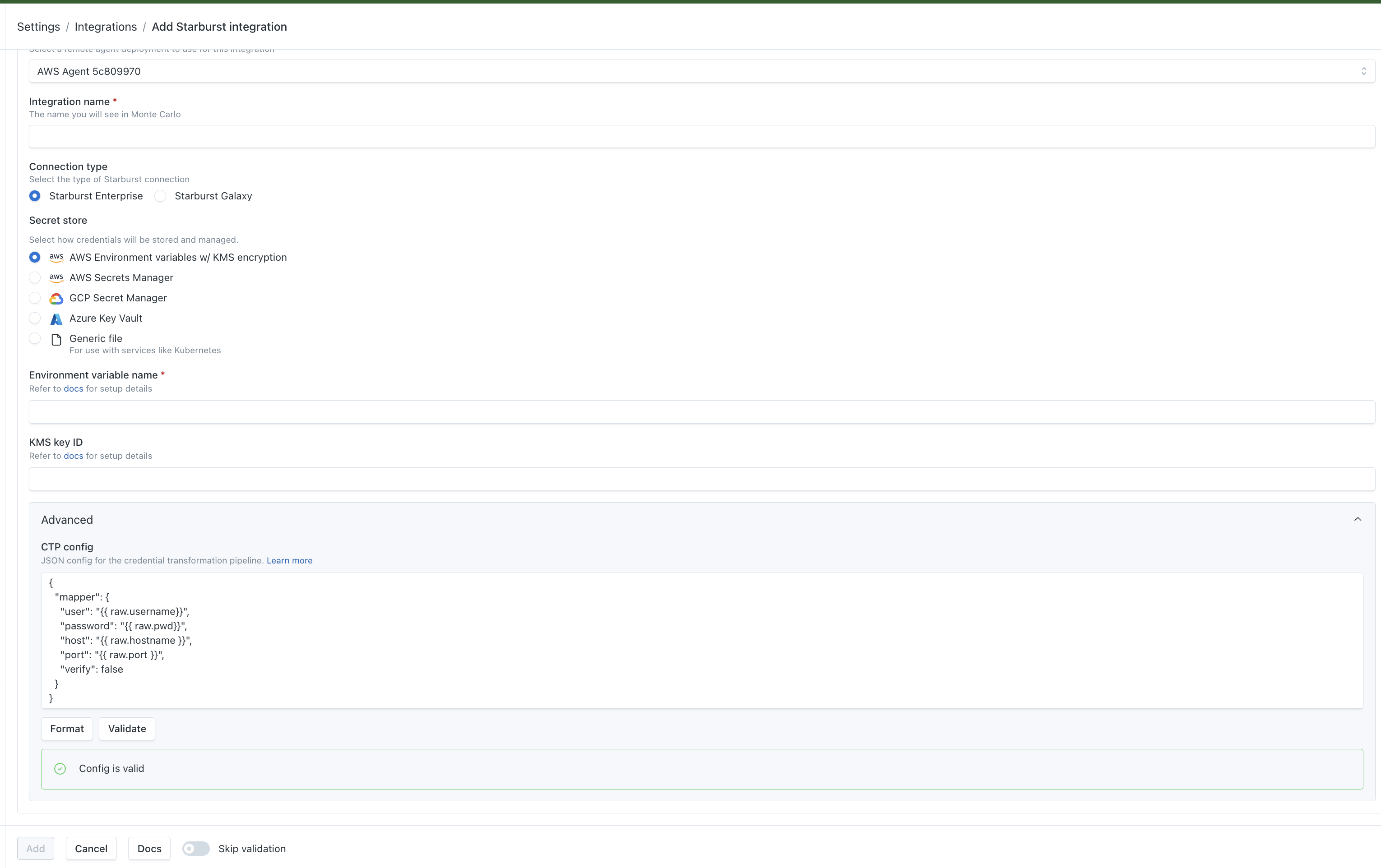
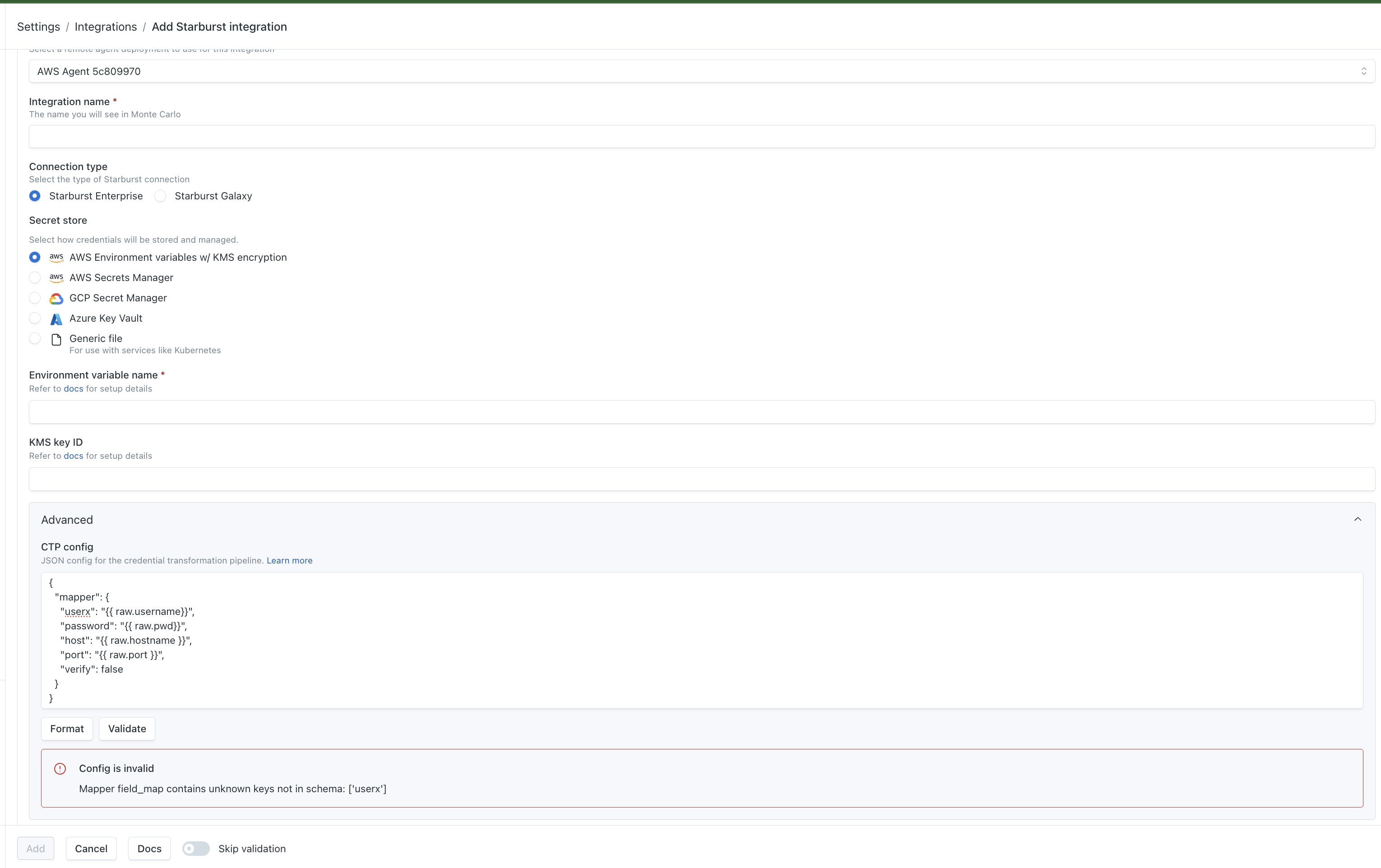
- Click Validate. Monte Carlo will run your config against the connection and report back:
- A green "Config is valid" confirmation if the config is correct.
- A red "Config is invalid" message with details if something is wrong — correct the config and validate again.
- Once validation passes, click Save (or Create) to finish setting up the connection. Custom Credentials will be applied to all jobs run against this connection.
FAQs
What Integrations Support Custom Credentials?
Custom Credentials are available on all integrations that support Self Hosted Credentials through the agent. Notably, this does not include any Notification or Collaboration integrations.
Updated 3 months ago