
Generic Agent: Kubernetes Deployment
Deploy the Generic Agent on any Kubernetes cluster
Prerequisites
- A running Kubernetes cluster (any distribution — e.g. EKS, AKS, GKE, k3s, kind, minikube, or on-premises).
kubectlandhelmCLI tools installed and configured to access your cluster.- You are an Account Owner in Monte Carlo.
This guide walks through an example of deploying the Generic Agent on a Kubernetes cluster using Helm. The steps are platform-agnostic and can work on any Kubernetes distribution.
The examples below use k3s (via Rancher Desktop) as a reference environment, but all steps apply to any Kubernetes cluster. Platform-specific guides for managed Kubernetes services (EKS, AKS, GKE) — including cloud-native storage and secrets management — are available separately.
Steps
1. Register the Agent
-
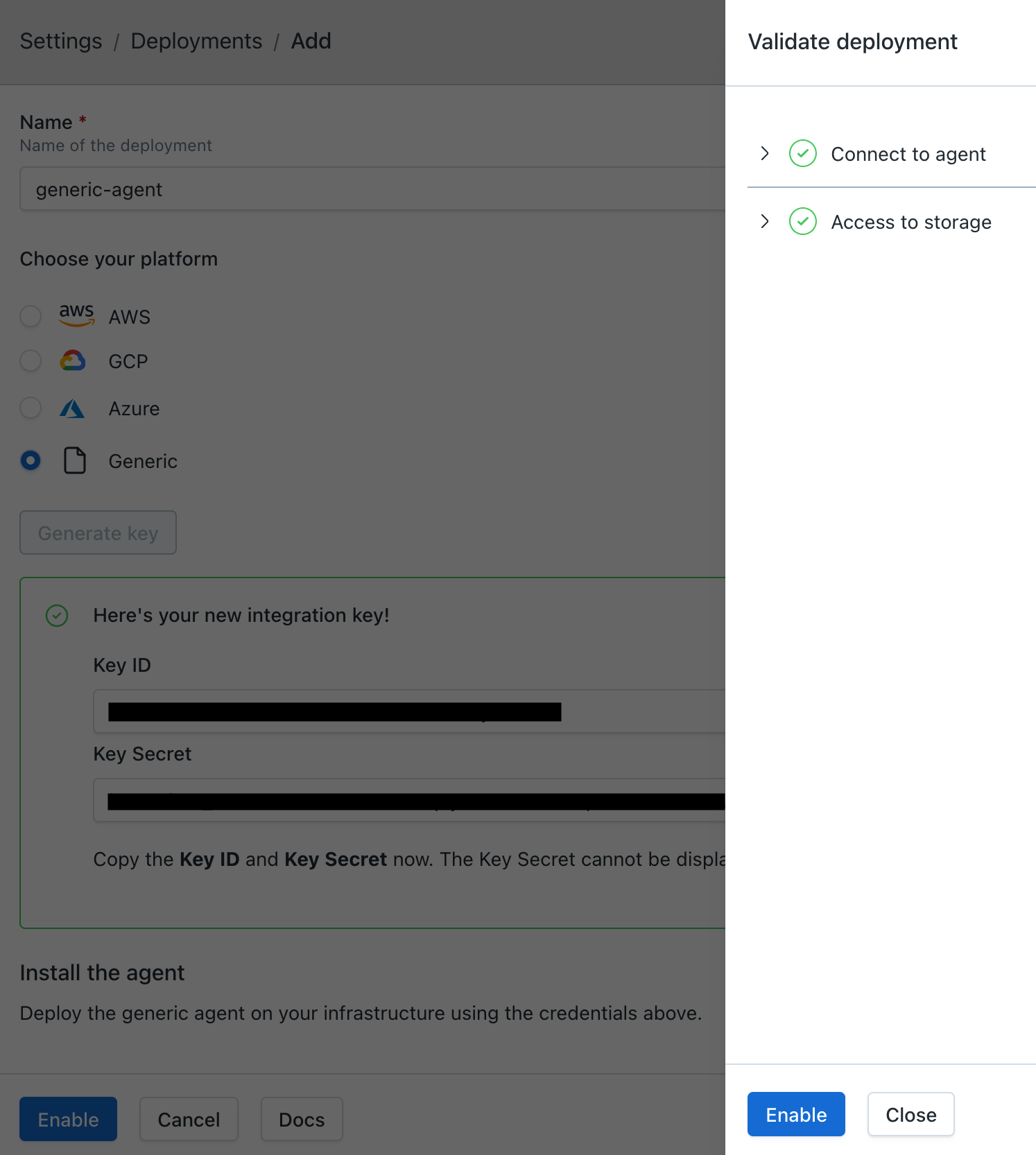
In Monte Carlo, navigate to Settings > Deployments and click Add.
-
Select Generic, enter a name for the agent, and choose an Authentication method:
- Key/Token (default) — the agent authenticates with a Monte Carlo-generated key pair (
mcd_id/mcd_token). - OAuth — the agent authenticates using OAuth 2.0 Client Credentials (
client_id/client_secret). The agent automatically obtains and refreshes short-lived JWT tokens. See Authentication for more details.
The authentication method is permanent and cannot be changed after provisioning.
- Key/Token (default) — the agent authenticates with a Monte Carlo-generated key pair (
-
Click Provision.
-
Copy the credentials — they are displayed only once and cannot be retrieved later.
- Key/Token: copy the Key ID and Key Secret — these are used as
mcd_idandmcd_tokenin the deployment steps below. - OAuth: copy the Client ID and Client Secret — these are used as
client_idandclient_secretin the deployment steps below.
- Key/Token: copy the Key ID and Key Secret — these are used as
2. Deploy the Agent
2.1 Deploy Object Storage
The agent requires a supported object storage service. Follow the guide for the option that matches your platform, then return here:
| Storage | Best for |
|---|---|
| Amazon S3 | EKS, or any cluster with access to an AWS account |
| Azure Blob Storage | AKS |
| Google Cloud Storage | GKE |
| MinIO / S3-compatible | On-premises clusters, development, and testing |
The rest of this guide uses MinIO deployed in the same cluster, with a bucket named mcd-agent-storage.
2.2 Create the Agent Namespace
kubectl create namespace mcd-agentBecause the namespace already exists, the values.yaml in step 2.4 sets namespaceCreate: false so the Helm chart does not try to create it as well.
2.3 Create the Authentication Secret
The agent needs an authentication secret before deployment. Its format depends on the method you chose during registration.
Agent Authentication
Using the mcd_id and mcd_token obtained during registration, create a file named agent-token.json:
{
  "mcd_id": "<your-mcd-id>",
  "mcd_token": "<your-mcd-token>"
}
Create the secret:
kubectl create secret generic mcd-agent-token-secret -n mcd-agent \
  --from-file=contents.json=agent-token.json
Using the client_id and client_secret obtained during registration, create a file named oauth-credentials.json:
{
  "client_id": "<your-client-id>",
  "client_secret": "<your-client-secret>"
}
Create the secret:
kubectl create secret generic mcd-oauth-secret -n mcd-agent \
  --from-file=credentials.json=oauth-credentials.json
Credentials for data source integrations live in a separate mcd-integrations-secrets secret. It is optional — the agent starts without it. See Adding Integration Credentials to add them later.
2.4 Configure and Deploy with Helm
Create a values.yaml file with your deployment configuration.
namespace: mcd-agent
# The namespace was created in step 2.2, so the chart must not create it.
namespaceCreate: false
replicaCount: 1

image:
  pullPolicy: Always
  tag: "latest-generic"

container:
  backendServiceUrl: "<your-backend-service-url>"
  storageBucketName: "mcd-agent-storage"
  storageType: "S3_COMPATIBLE"
  storageEndpointUrl: "http://minio-api.minio.svc.cluster.local:9000"
  storageAccessKey: "<your-minio-access-key>"
  storageSecretKey: "<your-minio-secret-key>"

skipExternalSecrets: truenamespace: mcd-agent
# The namespace was created in step 2.2, so the chart must not create it.
namespaceCreate: false
replicaCount: 1
image:
pullPolicy: Always
tag: "latest-generic"
container:
backendServiceUrl: "<your-backend-service-url>"
storageBucketName: "mcd-agent-storage"
storageType: "S3_COMPATIBLE"
storageEndpointUrl: "http://minio-api.minio.svc.cluster.local:9000"
storageAccessKey: "<your-minio-access-key>"
storageSecretKey: "<your-minio-secret-key>"
# Selects OAuth authentication and mounts mcd-oauth-secret. Without this the
# agent uses key/token authentication and expects mcd-agent-token-secret.
oauthSecret:
enabled: true
skipExternalSecrets: trueSet
backendServiceUrlto the Public endpoint shown in the Agent Service section of the Account Information page in Monte Carlo.The
storage*values above configure MinIO. If you chose another option in step 2.1, use the values from its section in Object Storage instead — some options also require aserviceAccount.annotationsentry.
Deploy the agent:
Check Docker Hub for the latest available chart version and update the
--versionflag accordingly.
helm upgrade --install mcd-agent \
  oci://registry-1.docker.io/montecarlodata/generic-agent-helm \
  --version 0.1.6 \
  -f values.yaml
2.5 Verify
Check the agent pod is running:
kubectl get pods -n mcd-agent
kubectl logs -n mcd-agent -l app=mcd-agent --tail=30
Run the reachability test to confirm the agent can communicate with the Monte Carlo platform:
kubectl exec -n mcd-agent deploy/mcd-agent-deployment -- \
  curl -s -X POST localhost:8080/api/v1/test/reachability
A successful response contains "ok": true.
3. Enable the Agent
After verifying the agent is running, click Enable on the agent registration screen.
If you've navigated away from the registration screen, go to Settings > Deployments, select your agent, and click Enable.
Once validations pass, click Enable in the validations dialog to activate the agent.
Adding Integration Credentials
To connect data sources, create the integrations secret with the connection details:
kubectl delete secret mcd-integrations-secrets -n mcd-agent --ignore-not-found
kubectl create secret generic mcd-integrations-secrets -n mcd-agent \
  --from-file=<integration>.json=<path-to-credentials>.json
kubectl rollout restart deployment/mcd-agent-deployment -n mcd-agent
See the Self-Hosted Credentials documentation for the JSON format for each integration type and how to register the credentials in Monte Carlo.
Updating the Agent Version
To deploy a newer version, update the --version flag and the image.tag in your values.yaml, then re-run the helm upgrade command.
Tearing Down
helm uninstall mcd-agent
kubectl delete namespace mcd-agent
If you deployed MinIO:
kubectl delete -f https://raw.githubusercontent.com/monte-carlo-data/hermes-agent/main/environments/local/minio/k8s.yamlFAQs
What Kubernetes distributions are supported?
The Generic Agent runs on any Kubernetes cluster that supports standard workloads — including EKS, AKS, GKE, k3s, kind, minikube, OpenShift, and on-premises distributions.
Which Kubernetes versions are supported?
The agent is regularly tested against current Kubernetes releases on managed cloud platforms (EKS, AKS, GKE). The chart uses standard, non-deprecated Kubernetes APIs (v1, apps/v1, autoscaling/v2, rbac.authorization.k8s.io/v1), which require Kubernetes 1.23 or later — in practice, all currently supported versions on the major managed platforms.
When your cluster is upgraded to a newer Kubernetes version, no agent-side changes are typically required. If you encounter an issue specific to a particular version, please open a support case.
Does the agent run as root?
No. The agent and the metrics-collector daemonset run with runAsNonRoot: true:
- The main agent deployment (
mcd-agent-deployment) — runs as UID 1000 - The
metrics-collectordaemonset (OpenTelemetry) — runs as UID 10001 - All init containers used during pod startup (CA bundle build, credential extraction)
The optional Fluentd logs-collector daemonset is the exception — see Can I disable Monte Carlo log shipping?. No container uses privileged: true, requests extra Linux capabilities, or attaches host namespaces.
Does the chart create any cluster-scoped resources?
One, and it is optional. The chart creates a ClusterRole and a matching ClusterRoleBinding, both named mcd-agent-metrics-reader, granting get and list on nodes, nodes/metrics, nodes/proxy, nodes/stats, and pods.
They exist solely to support the metrics-collector daemonset, which reads container CPU and memory usage for the agent's own pods from the kubelet on each node. A namespaced Role cannot be used instead, because nodes and its subresources are cluster-scoped resources. If you don't need those metrics, disable the metrics collector and the chart creates no cluster-scoped resources at all.
Everything else the chart deploys is namespace-scoped: the agent Deployment, its ServiceAccount, ConfigMaps, the optional HorizontalPodAutoscaler, and — when using External Secrets Operator — a namespaced SecretStore and its ExternalSecrets. No ClusterSecretStore is created.
External Secrets Operator, if you use it to sync credentials, is a separate component with its own CRDs and cluster-scoped RBAC. The Terraform modules install it by default; set
helm.install_external_secrets_operatortofalseto skip it and point the agent at an installation your platform team already manages. The chart's ownSecretStoreis namespaced, so it works against a centrally managed operator without changes.
Is SELinux supported?
Yes. The agent has been validated against Kubernetes nodes running SELinux in enforcing mode and triggers no AVC denials during normal operation. This includes the agent deployment, the logs-collector and metrics-collector daemonsets, and all init containers used by the chart.
Does the agent require inbound network access?
No. The Generic Agent is egress-only. All connections are initiated from the agent to the Monte Carlo platform. No inbound connectivity to the agent is required.
What outbound destinations does the agent connect to?
See the Outbound Destinations section in the architecture overview for the full list of egress targets and ports.
Can I use a different storage service instead of MinIO?
Yes. The agent supports Amazon S3, Azure Blob Storage, Google Cloud Storage, and any S3-compatible service. See Object Storage for the setup steps and Helm values for each option.
How do I add credentials for data source integrations?
Integration credentials live in the optional mcd-integrations-secrets secret. To add credentials for an integration, create it with the connection details:
kubectl delete secret mcd-integrations-secrets -n mcd-agent --ignore-not-found
kubectl create secret generic mcd-integrations-secrets -n mcd-agent \
  --from-file=<integration>.json=<path-to-credentials>.json
kubectl rollout restart deployment/mcd-agent-deployment -n mcd-agent
You can include multiple integration files in the same secret by passing additional --from-file flags.
See the Self-Hosted Credentials documentation for the JSON format for each integration type.
After adding the secret, register the integration in Monte Carlo. You can do this via the UI (see Self-Hosted Credentials) or via the CLI:
montecarlo integrations add-self-hosted-credentials-v2 \
  --connection-type <integration> \
  --self-hosted-credentials-type FILE \
  --file-path /etc/secrets/integrations/<integration>.json \
  --name <connection_name>
How do I scale the agent?
There are several ways to scale the agent:
Manual replicas: Increase replicaCount in your values.yaml:
replicaCount: 3Thread count: Increase the number of concurrent operations a single replica can process:
container:
  opsRunnerThreadCount: "36"
The default is 18. Increasing this value allows each replica to handle more operations in parallel, which can be useful before adding more replicas.
Pod resources: Set CPU and memory requests/limits to ensure replicas have adequate resources, especially when increasing thread count:
container:
  resources:
    requests:
      cpu: "500m"
      memory: "512Mi"
    limits:
      cpu: "2"
      memory: "2Gi"
Autoscaling (HPA): Enable the Horizontal Pod Autoscaler to scale replicas automatically based on CPU (and optionally memory) utilization:
autoscaling:
  enabled: true
  minReplicas: 1
  maxReplicas: 5
  targetCPUUtilizationPercentage: 70
When autoscaling is enabled, replicaCount is ignored — the HPA manages replicas. container.resources.requests must be set for the HPA to calculate utilization, and metrics-server must be installed in the cluster (standard in EKS, AKS, and GKE).
How do I monitor the agent?
You can monitor the agent using standard Kubernetes monitoring tools such as Prometheus + Grafana, or the monitoring tools provided by your Kubernetes platform. The agent exposes a health endpoint at /api/v1/test/healthcheck that can be used for liveness and readiness probes.
Can I disable the metrics collector?
Yes. By default the chart deploys a metrics-collector daemonset (OpenTelemetry) that collects CPU and memory usage for the agent's own containers. If your platform already collects container metrics centrally and you don't want a parallel pipeline, you can turn it off.
When installing the chart directly with Helm:
metricsCollector:
  enabled: false
When deploying with one of the Terraform modules:
helm = {
  chart_version             = "<chart_version>"
  enabled_metrics_collector = false
}With the Terraform modules, setting
metricsCollector.enabledthroughcustom_valueshas no effect — the module applies its own value afterwards. Usehelm.enabled_metrics_collector.
This removes the daemonset and the mcd-agent-metrics-reader ClusterRole and ClusterRoleBinding, which are the chart's only cluster-scoped resources. With the metrics collector disabled, everything the chart deploys is namespace-scoped.
Log shipping is a separate setting and is unaffected — the agent continues to ship its logs to Monte Carlo.
Trade-off: Monte Carlo support won't have visibility into the agent's runtime resource usage, which is used to help you right-size the deployment and diagnose performance issues.
Can I disable Monte Carlo log shipping?
Yes. By default the agent ships its logs to Monte Carlo in-process — it buffers and POSTs them itself, with no DaemonSet required. If you already collect pod logs centrally and would rather rely on your own pipeline, you can turn this off.
When installing the chart directly with Helm:
logShipping: noneWhen deploying with one of the Terraform modules:
helm = {
  chart_version = "<chart_version>"
  log_shipping  = "none"
}With the Terraform modules, setting
logShippingthroughcustom_valueshas no effect — the module applies its own value afterwards. Usehelm.log_shipping.
logShipping accepts three values:
in-process(default) — the agent ships its own logs to Monte Carlofluentd— opt in to alogs-collectordaemonset (Fluentd) that tails container logs from the host. Requires root pods. Mostly useful for troubleshooting or specialized log-routing setups.none— disable Monte Carlo log shipping entirely; rely on your own pipeline
The agent itself continues to run normally, and its stdout JSON logs still flow to your cluster's standard log driver and any pipeline subscribed to it. The metrics collector is a separate setting and is unaffected.
Trade-off: Monte Carlo support won't have direct visibility into agent logs during troubleshooting — you may be asked to share logs manually if you open a support case.
How do I rotate agent credentials?
-
Delete and recreate the Kubernetes secret with the new credentials:
kubectl delete secret mcd-agent-token-secret -n mcd-agent kubectl create secret generic mcd-agent-token-secret -n mcd-agent \ --from-file=contents.json=agent-token.json -
Restart the agent services:
kubectl rollout restart deployment mcd-agent-deployment -n mcd-agent
kubectl rollout restart daemonset metrics-collector -n mcd-agent
-
In Monte Carlo, go to Settings > Deployments, select your agent, and click Manage OAuth clients. Click Generate OAuth client to create new credentials.
-
Update the Kubernetes secret with the new credentials:
kubectl delete secret mcd-oauth-secret -n mcd-agent kubectl create secret generic mcd-oauth-secret -n mcd-agent \ --from-file=credentials.json=oauth-credentials.json -
Restart the agent services:
kubectl rollout restart deployment mcd-agent-deployment -n mcd-agent kubectl rollout restart daemonset metrics-collector -n mcd-agent -
After confirming the agent is healthy, delete the old OAuth client from the Manage OAuth clients panel. Previously issued tokens from the old client will remain valid until they expire (up to 1 hour).
How do I route agent traffic through a forward proxy?
Configure HTTPS_PROXY, HTTP_PROXY, and NO_PROXY environment variables using container.extraEnv in your values.yaml. See the Proxies and Traffic Inspection guide for details. A complete example using Squid is available in the mcd-public-resources repository.
How do I inspect HTTPS traffic from the agent?
To audit the full content of HTTPS traffic — including URLs, headers, and payloads — you can use TLS inspection tools such as mitmproxy, Charles Proxy, or Fiddler. This requires configuring both a forward proxy and a custom CA certificate. See the Proxies and Traffic Inspection guide for details. A complete example using mitmproxy is available in the mcd-public-resources repository.
How do I set additional environment variables on the agent?
Set additional environment variables on the agent container through the Helm chart's container.extraEnv value (a native Kubernetes env list):
container:
  extraEnv:
    - name: MCD_ORACLE_THICK_MODE
      value: "true"
If you deploy with the mcd-k8s-agent Terraform module (EKS, GKE, AKS), pass the same value through the module's custom_values input, which is merged into the generated Helm configuration:
  custom_values = {
    container = {
      extraEnv = [
        { name = "MCD_ORACLE_THICK_MODE", value = "true" }
      ]
    }
  }
This is an advanced option used to enable optional agent features (for example, Oracle Thick mode).
Updated about 2 months ago