
Managing Authorization Groups
Managing authorization groups
An authorization group is the unit through which permissions are assigned to users. Each group combines one or more roles with a list of members and optional domain and warehouse connection restrictions.
graph LR
    U[User] -->|member of| G["<strong>Authorization Group</strong>"]
    G -->|assigned| R1[Role A]
    G -->|assigned| R2[Role B]
    R1 -->|policy statement| P1["dashboard/*: allow"]
    R2 -->|policy statement| P2["monitors/*: allow"]
    G -.->|optionally scoped to| D[Domain]
    style G stroke-width:3px
Built-in groups
Monte Carlo provides built-in authorization groups that correspond to each built-in role. These built-in groups grant the role's permissions across all domains — they are denoted with "(All)" in their name (e.g., "Editors (All)").
All built-in roles may be assigned to custom authorization groups. This is primarily useful for creating domain-restricted groups--or combining with a custom role to slightly modify the effective permissions for a group. However, custom groups with the Account Owner or Domains Manager roles cannot be domain-restricted. The purpose of creating a custom group for those roles would be to manage access to admin permissions through SSO group mapping.
Note: If a user is in one of the "(All)" built-in groups, they get that role's permissions for all domains, which overrides any more specific domain restrictions from other groups. If your intent is to limit a user to specific domains, ensure they are not in any built-in groups.
Externally managed groups (SCIM)
If your organization uses SCIM to provision users and groups from an external identity provider, Monte Carlo groups can be provisioned and maintained externally. These groups are labeled SCIM badge.
For externally managed groups, membership is controlled entirely by your identity provider and cannot be edited in Monte Carlo. Most other group settings — label, description, roles, domain restrictions, and connection restrictions — can still be edited directly. The SSO group mapping field is not shown for SCIM-managed groups, since the mapping is handled by the SCIM integration. Externally managed groups cannot be deleted from the Monte Carlo UI; they must be removed through your identity provider. See Auth provisioning with SCIM for setup and configuration details.
Creating a custom group
Navigate to Settings > Authorization Groups and click Add Group.
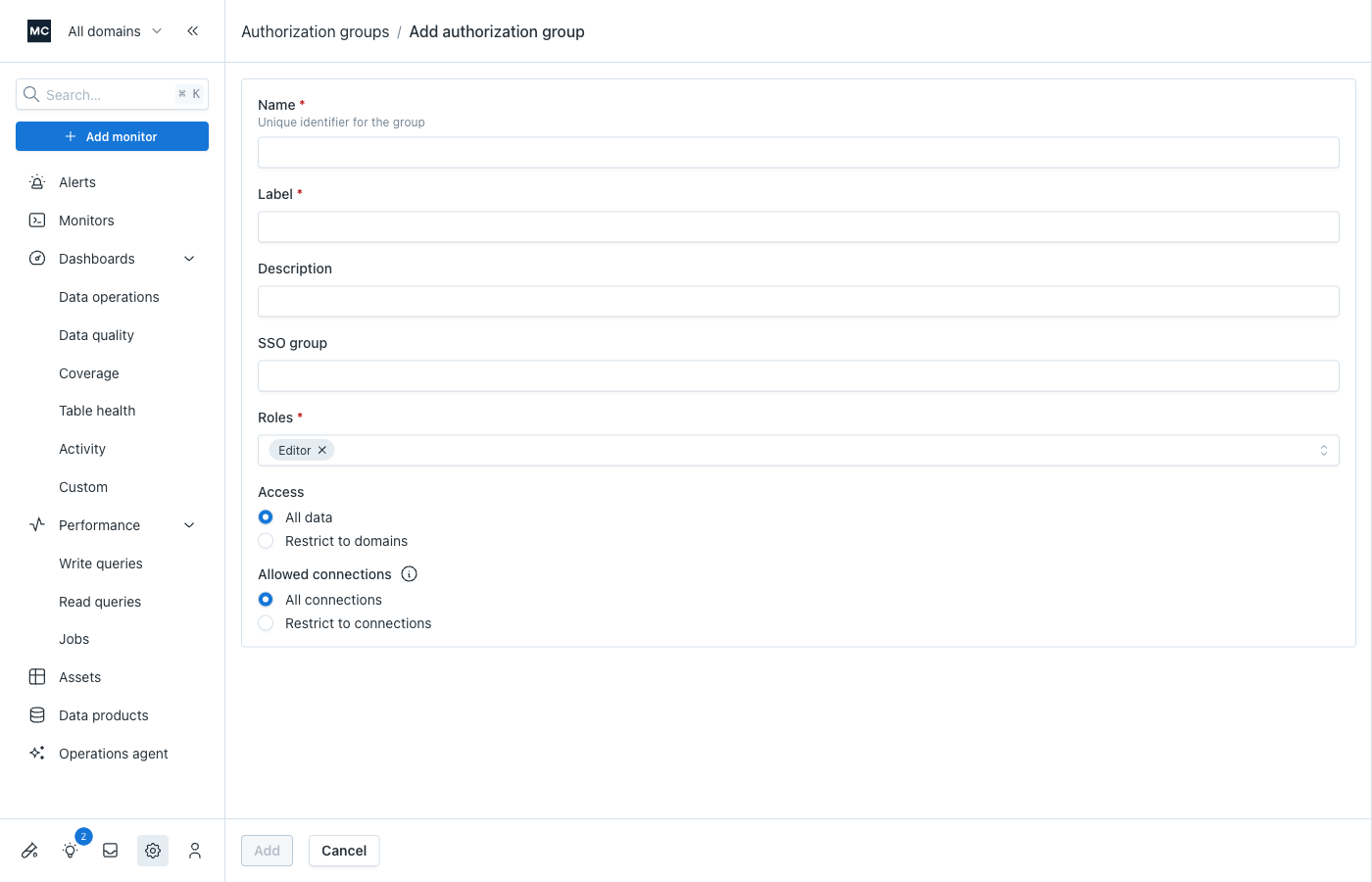
When creating a group, you'll configure:
- Name — a human-readable key for use in API and declarative policies (auto-suggested from the label)
- Label — the display name shown in lists in the UI
- Description — helps you and colleagues understand the group's purpose
- SSO group (optional) — map this Monte Carlo group to a group in your SSO configuration; users in that SSO group will automatically be added as members of this group. See Mapping SSO groups to authorization groups.
- Roles — one or more roles that define the group's permissions
- Domain restrictions (optional) — limit the group's permissions to specific domains
- Allowed connections (optional) — limit the group's permissions to specific warehouse connections
Note: You'll need to create any domains before you can select them as restrictions. You may select one or more domains.
Restricting groups to domains
Domains are conceptual partitions of your data. To grant users access to only a subset of your Monte Carlo data:
- Create a domain for that subset
- Create an authorization group and select that domain as a restriction
- Add users to the group
Be sure to select the appropriate role(s) for your group to control what users can do in relation to the selected domain.
For a fuller treatment of restricting access to particular sets of data/objects in Monte Carlo, see Data authorization.
Permissions for users in multiple groups
While straightforward for users in a single group, permissions can be less obvious for users in multiple groups. In general, we recommend assigning a user to multiple groups only when they have the same role (e.g., different domain-scoped groups with the Editor role).
Permissions are additive across groups, following the policy resolution rules. If a user is in a group with the Editor role and another with the Viewer role (same domain restrictions), their effective permissions are the more expansive Editor permissions.
Domain restrictions still apply per-group, so you can give a user different roles for different domains.
Examples
Same domain, different roles:
- Group A: Editor for Domain Y
- Group B: Viewer for Domain Y
- Result: effectively Editor for Domain Y (Editor has more permissions allowed)
Different domains, different roles:
- Group C: Editor for Domain Y
- Group D: Viewer for Domain Z
- Result: Editor for Y, Viewer for Z — the domain restrictions keep the greater permissions scoped to Y only
Updated 4 months ago