
Managing Roles
A role in Monte Carlo is a named set of policy statements that define what actions are allowed or denied. Roles are assigned to authorization groups, and users inherit permissions through their group memberships.
graph LR
    U[User] -->|member of| G[Authorization Group]
    G -->|assigned| R["<strong>Role</strong>"]
    R -->|policy statement| P1["dashboard/*: allow"]
    R -->|policy statement| P2["dashboard/edit: deny"]
    G -.->|optionally scoped to| D[Domain]
    style R stroke-width:3px
See Policies and permission resolution for how policy statements, effects, paths, and specificity determine a user's effective permissions.
Built-in roles
Monte Carlo provides a set of built-in roles designed for common use cases. These roles are maintained by Monte Carlo — they are updated as new features and permissions are added, so users with built-in roles automatically get appropriate access to new functionality. Built-in roles use the reserved mcd/ name prefix (e.g., mcd/editor, mcd/owner).
See IAM built-in roles for the full list of built-in roles and their permissions.
Each built-in role has a corresponding built-in authorization group (e.g., the Editor role has an "Editors (All)" group). These built-in groups grant the role's permissions across all domains.
Note: Previously, there were also built-in roles called Asset Editor and Asset Viewer — these were deprecated in May 2025. Users and groups with those roles were allowed to persist, but they cannot be assigned to new users or groups.
Custom account roles
If built-in roles don't quite match your needs, you can create custom account roles. These are roles created by customers for their own account — they are not maintained by Monte Carlo and are not shared across accounts (though you may share YAML definitions between accounts).
When to create a custom role
Most needs are addressed by built-in roles and authorization groups. If they don't match your needs, you have two approaches:
- Extend/modify a built-in role — create a custom, partial role that overrides specific permissions, then combine it with a built-in role in an authorization group
- Create a standalone role — build a role from scratch (or clone from existing) with only the permissions you specify
Extending or modifying a built-in role
This is the most common use case. For example, you may want the Editor role's permissions but without the ability to create, delete, or edit other users' dashboards.
Recommended: We recommend this approach because as new features and permissions are added to Monte Carlo, built-in roles are updated accordingly. Your custom role only needs to specify the overrides. A from-scratch standalone role requires you to manually add any new permissions as they become available.
Steps:
- Create a custom role that denies the specific permissions you want to remove. For the example above, deny
dashboard/edit— call it something likerestricted-dashboards.Most write-type permissions use the
editpermission on the related resource, though more specific permissions may exist (e.g.,dashboard/edit-their-ownfor editing only one's own dashboards). - Create an authorization group that includes both the built-in
mcd/editorrole and your newrestricted-dashboardscustom role.
Users assigned to this group get Editor permissions minus dashboard editing. You could optionally allow dashboard/edit-their-own so users can still edit dashboards they created.
The same approach works for granting additional permissions — use allow instead of deny in your custom role to add new permissions otherwise not granted to the primary role you are extending.
Creating a standalone role
If you prefer to fully own and manage a set of permissions, you can create a role from scratch, or clone from an existing one. This is useful when:
- You need a very specific, limited set of permissions that no built-in role approximates
- You want full control and don't want users to automatically receive permissions from new features
Warning: No new permissions are automatically added to custom roles. You'll need to update them as new features are released. The exception is wildcard permission paths (e.g.,
monitors/*) — new permissions under that resource are automatically included.
The steps are the same as extending/modifying, but your authorization group would only include your custom role, without a built-in role.
Creating custom roles in the UI
Go to the roles list. Select Add in the top right.
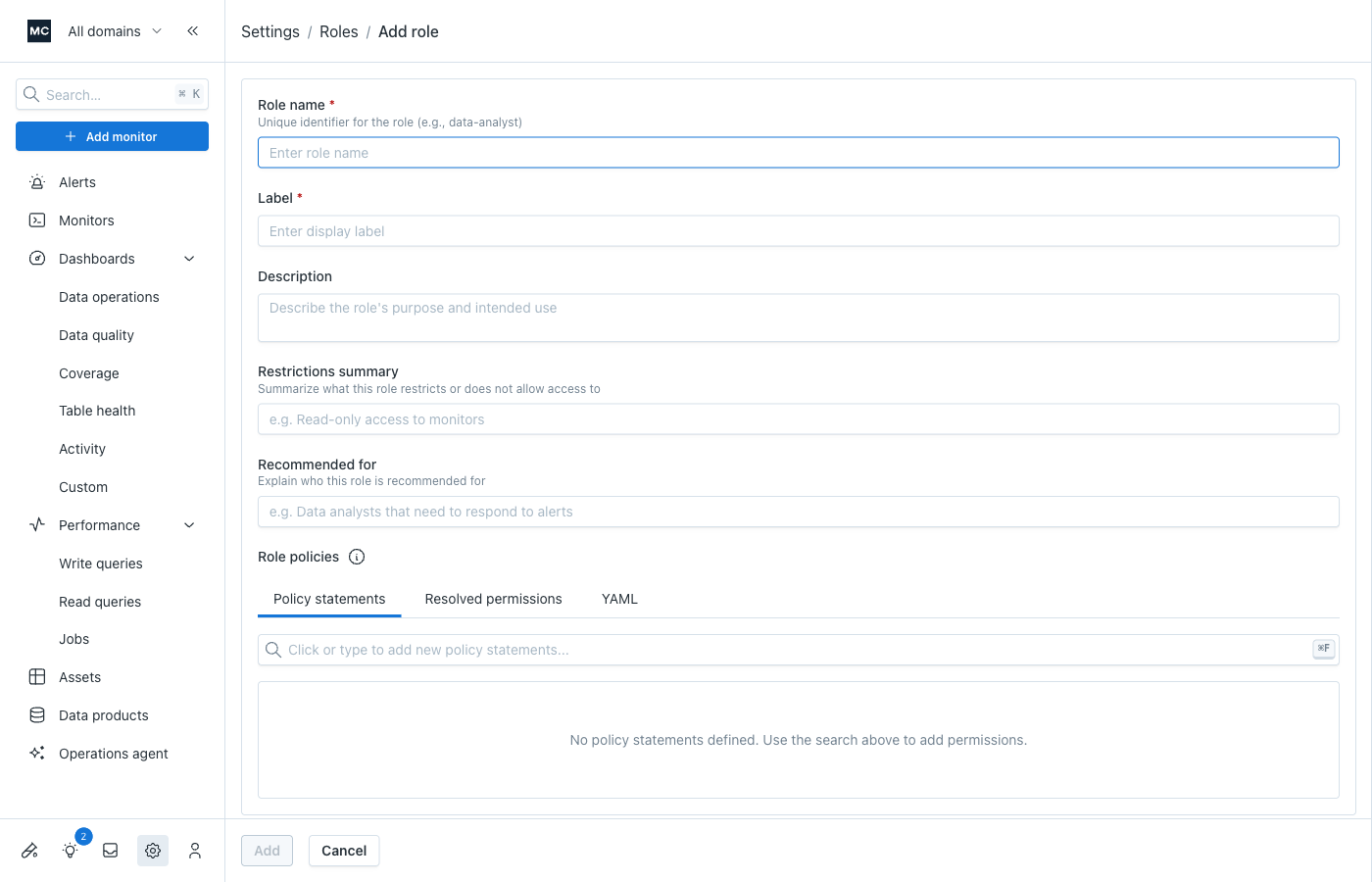
- Fill out "About" info:
- name: this should be a stable identifier; it is used as the role's key in your account.
- label: a user-friendly name (we will pre-fill it for you based on the name)
- other metadata (description, restrictions, recommended for): these are optional but can be helpful for others coming to this role later to quickly understand it
- Build the policy:
You can use the keyboard to drive this--or click thru. The search input helps to find the likely resource/permission you want to control.
Once you find what you want, hit Enter or click it, to add that to your role.
If you selected a resource (to control permissions for that resource as a group), you can choose to control:
- All permissions - this creates a
resource/*policy statement path, so that whatever effect you choose applies to all permissions under that resource--unless overridden by a more specific policy. - Read permissions - this creates a
resource/readpolicy statement path, which applies your selected effect to all read-type permissions/operations for that resource, which can be useful if you're aiming for a 'read only' type role - Write permissions - this creates a
resource/writepolicy statement path, which applies your selected effect to all write-type permissions/operations for that resource, which is probably mostly useful if you are allowing write type permissions for a sub-resource where a higher level policy only grants read to all
If you selected an individual permission, you only need to choose the desired effect (allow/deny).
You can use the Resolved permissions tab to preview the result of your policy for all permissions.
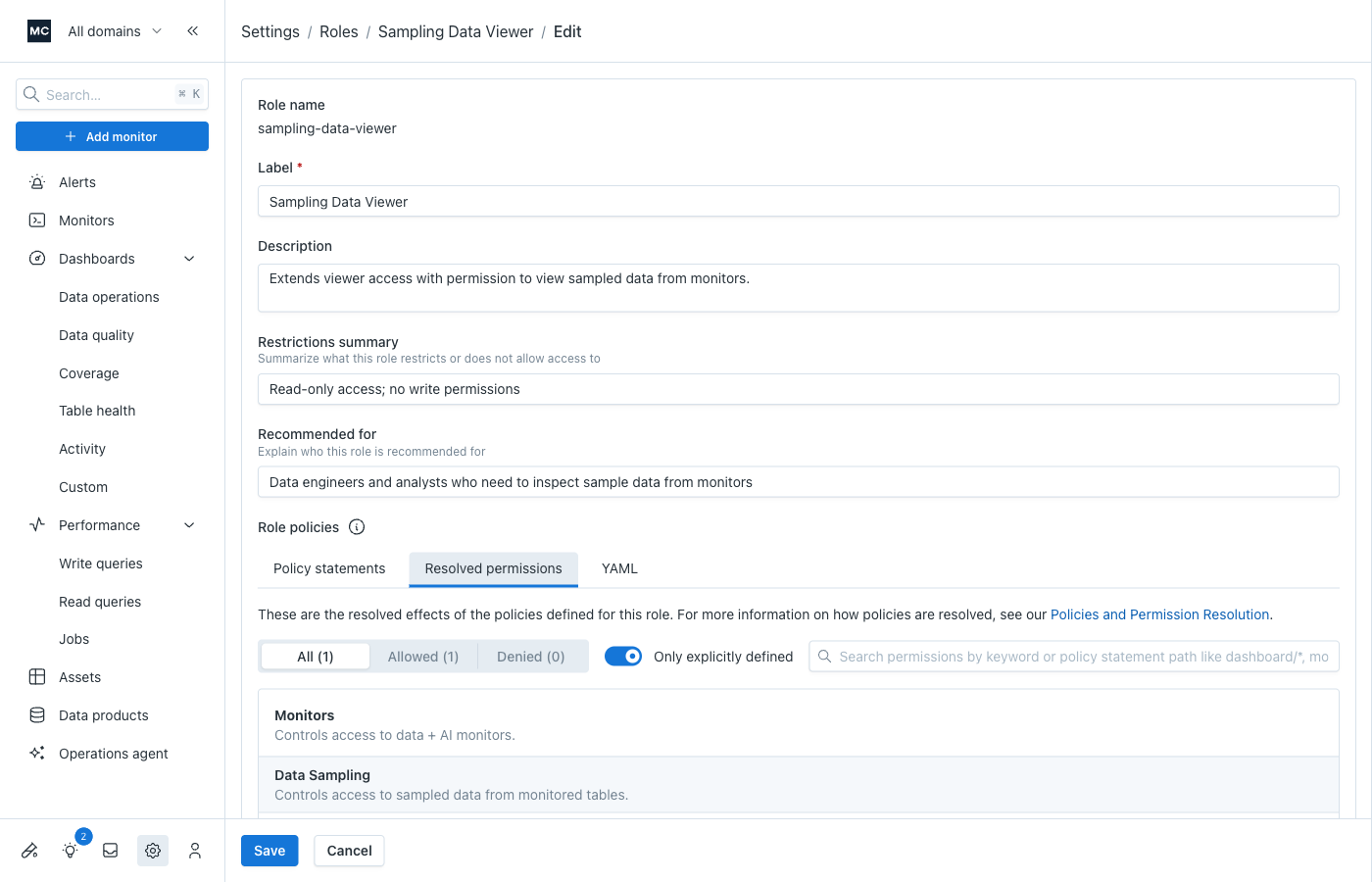
You can keyword search or filter by effect to verify specific permissions. The Only explicitly defined toggle narrows down the list to just those you have specified in this role with the policy statements you built.
See Policies and permission resolution to better understand how your policies result in the resolved permissions you are seeing.
Creating custom roles via the API
Once you understand the considerations above, you can create custom roles via two API mutations:
- YAML definition — provide a complete YAML role definition (useful for external version controlled "IAM as code" and automation)
- Individual parameters — pass the role fields directly as mutation arguments
Using YAML role definitions
If you want to store role definitions in version control or automate updates, use the YAML-based mutation. Here's a template:
iam-role:
  # Name must be unique within your account. The 'mcd/' prefix is reserved for built-in roles.
  name: restricted-dashboards
  # Version is your own versioning scheme and has no impact on Monte Carlo functionality. It is defaulted to day of creation if omitted.
  version: 2026-01-27
  # Label is the display name for the role in the UI.
  label: "Restricted Dashboard Editing"
  # Description is help text to educate users on the purpose of the role
  description: "Allows users to view and edit their own dashboards, but not create, delete, or edit other users' dashboards."
  # Permissions is a list of policy statements (paths with their effects).
  permissions:
    # If combined with another role that allows, it would be unnecessary to include this allow.
    # But for completeness in the scope of "what a user can do with dashboards", it does not hurt to include.
    # Whether you include depends on, e.g., if you ever thought you might use this role in isolation (not combined with other roles that also grant dashboard access).
    dashboard/*: allow
    # Deny ability to create, delete, or edit other users' dashboards.
    dashboard/edit: deny
    # Allow ability to edit one's own dashboards.
    dashboard/edit-their-own: allow
Permission paths in policy statements must match the IAM resources hierarchy. See IAM resources for available resources and permissions, and Policies and permission resolution for how paths and effects are resolved. You can also build the role in our UI builder and copy/download the YAML from there, if you prefer an interactive approach.
Inline GraphQL example:
mutation CreateRoleFromYaml {
  createOrUpdateAccountRoleFromDefinition(
    definition: """
    iam-role:
      version: 2026-01-27
      name: restricted-dashboards
      label: "Restricted Dashboard Editing"
      description: "Allows users to view and edit their own dashboards, but not create, delete, or edit other users' dashboards."
      permissions:
        dashboard/edit: deny
        dashboard/edit-their-own: allow
    """
  ) {
    role {
      name
      label
      description
      isManaged
      policyStatements {
        path
        effect
      }
    }
  }
}
Bash example (reading from a definition file):
# Assuming your role definition is saved in restricted-dashboards.yml
curl -X POST "$MCD_API_ENDPOINT" \
  -H "Content-Type: application/json" \
  -H "x-mcd-id: $MCD_API_KEY_ID" \
  -H "x-mcd-token: $MCD_API_KEY_TOKEN" \
  -d "$(jq -n --arg yaml "$(cat restricted-dashboards.yml)" '{
    query: "mutation CreateRoleFromYaml($definition: String!) { createOrUpdateAccountRoleFromDefinition(definition: $definition) { role { name label description isManaged policyStatements { path effect } } } }",
    variables: { definition: $yaml }
  }')"
Using API parameters
If you don't need file-based definitions, you can pass the role definition as parameters directly.
mutation CreateRoleWithParams {
  createOrUpdateAccountRole(
    name: "restricted-dashboards"
    version: "2026-01-27"
    label: "Restricted Dashboard Editing"
    description: "Allows users to view and edit their own dashboards, but not create, delete, or edit other users' dashboards."
    policyStatements: [
      { path: "dashboard/edit", effect: DENY }
      { path: "dashboard/edit-their-own", effect: ALLOW }
    ]
  ) {
    role {
      name
      label
      description
      isManaged
      policyStatements {
        path
        effect
      }
    }
  }
}
Common use cases
See Custom role recipes for ready-to-use patterns including restricting billing access, managing sampling data access, and domain-scoped sampling restrictions.
Updated 4 months ago