
SSO Recovery Codes
Regain access to Monte Carlo when your SSO identity provider is unreachable.
If your identity provider (IdP) becomes unreachable, everyone who signs in to Monte Carlo through SSO is locked out — including the users who could fix the SSO configuration. Recovery codes are single-use codes, generated when you save your SSO configuration, that let any user with the Edit SSO permission regain access in that situation.
Two safety netsRecovery codes are the fallback for when you are already locked out. Separately, whenever a user edits and saves an existing SSO configuration, that user receives a time-limited password fallback by email, so a misconfiguration cannot lock them out instantly.
See details in Password fallback when changing your SSO configuration.
Generating recovery codes
When you save your SSO configuration in Settings → Single sign on, Monte Carlo generates a set of 10 single-use recovery codes and displays them once, together with your Account ID:
- Copy or download the codes (a
.txtdownload is available) and store them securely - Save the Account ID together with the codes. You must enter it, along with a code, to recover access later.
The codes are shown only onceYou will not be able to see the codes again after closing this window. Monte Carlo cannot display or recover them. If you lose the codes, regenerate a new set from Settings → Single sign on.
The first time you generate codes, you are asked to enter one of them back to confirm that you saved the set. That confirmation consumes the code, so your active count starts at 9 of 10. Saving later edits to your SSO configuration does not ask for (or consume) another code while you have an active set.
Network Access ControlsWe strongly recommend to setup the IPs that can redeem recovery codes using Network Access Controls, this will add extra security to the SSO setup. You can find the instructions to configure the network access controls here.
See more details in network access controls.
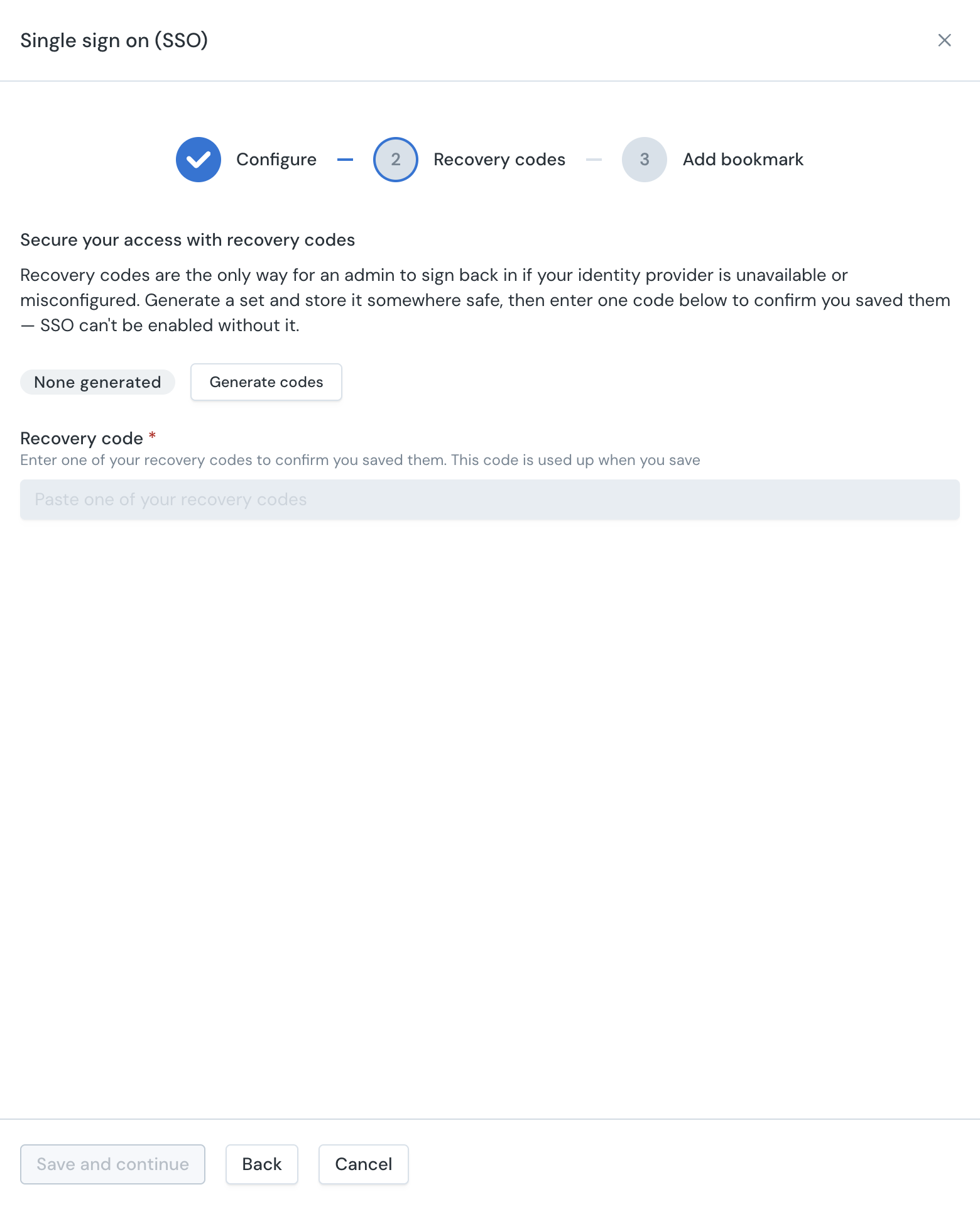
Monte Carlo UI Example
Account ID vs. Account IdentifierThe Account ID shown with your recovery codes is not the same as the optional Account Identifier field in the SSO configuration form.
The Account ID is assigned by Monte Carlo and is required when redeeming a recovery code.
Managing recovery codes
Settings → Single sign on shows a Recovery codes row with the number of active codes and two actions (available to users with the Edit SSO permission):
- Regenerate codes — creates a new set of 10 codes and revokes the entire previous set. Your account has exactly one active set at a time. As with the first generation, you confirm one code from the new set to prove it was saved, which consumes it.
- Revoke codes — revokes all active codes without creating new ones.
Recovery codes are also revoked automatically if SSO is removed from the account.
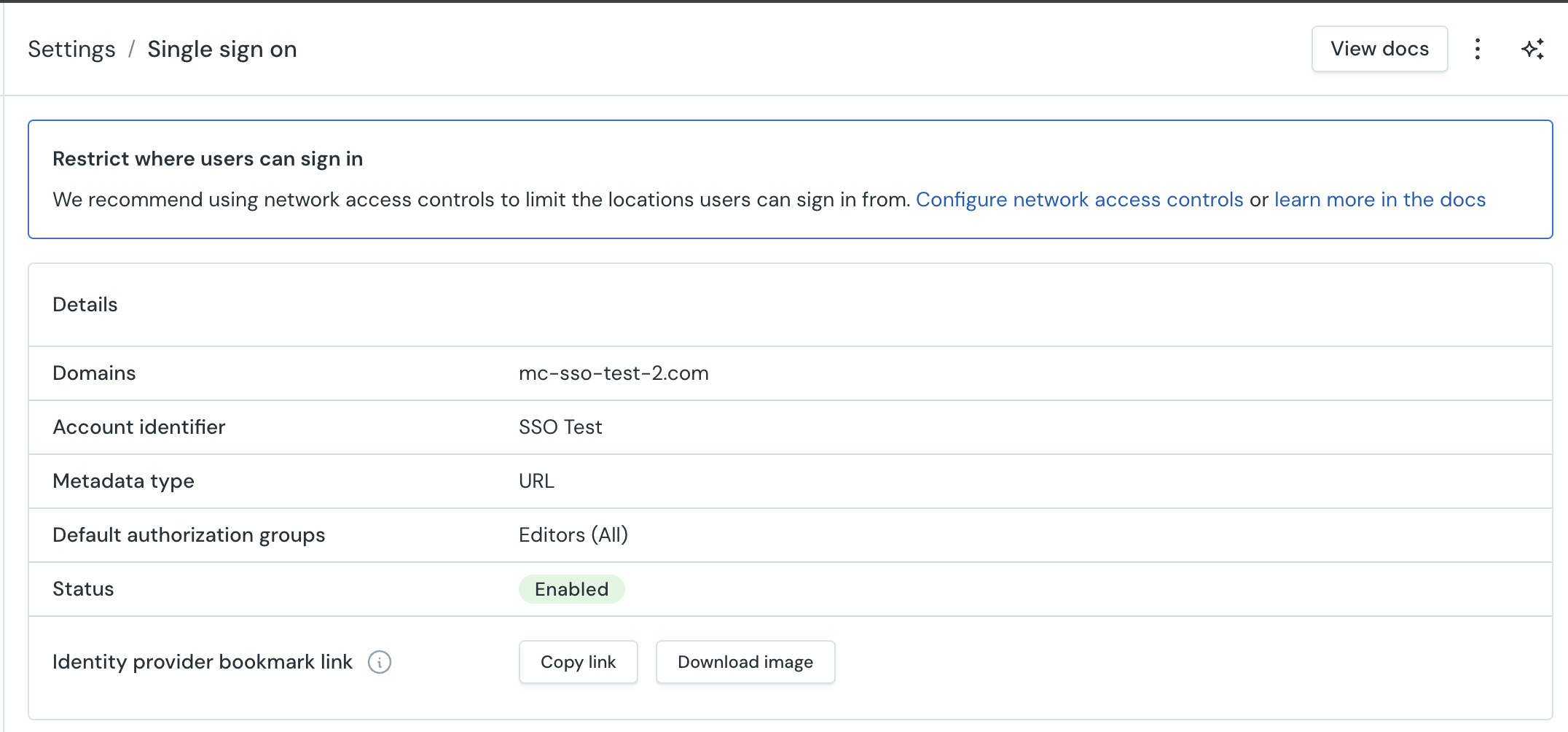
Recovering access when you are locked out
Only users who hold the Edit SSO permission in the account can redeem a recovery code.
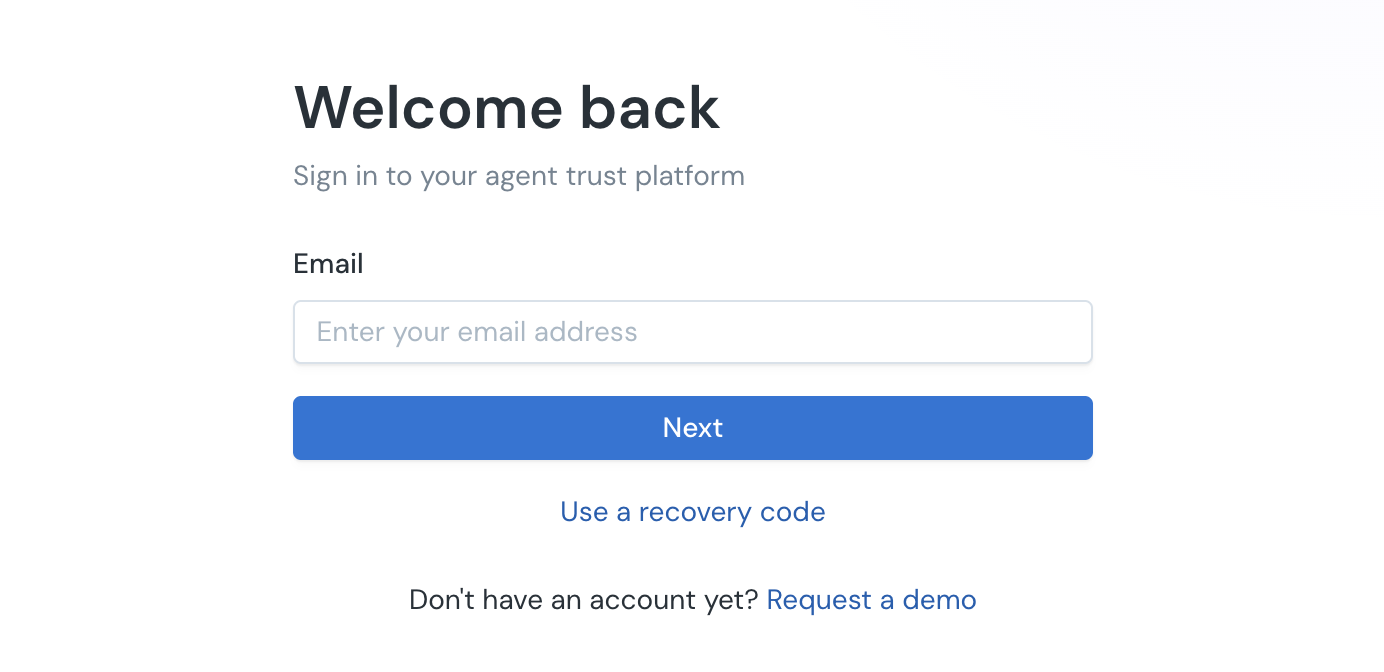
Monte Carlo UI Example
- Go to the Monte Carlo sign-in page and select Use a recovery code (getmontecarlo.com/sso-recovery).
- Enter your Account ID, one unused recovery code, and your email address.
- Monte Carlo emails a password-reset link to the registered address. Follow it to set a password. Complete the emailed reset and sign-in within 30 minutes of redeeming the code.
- Sign in with your email and the new password. You are back in and update the SSO configuration in Settings → Single sign on.
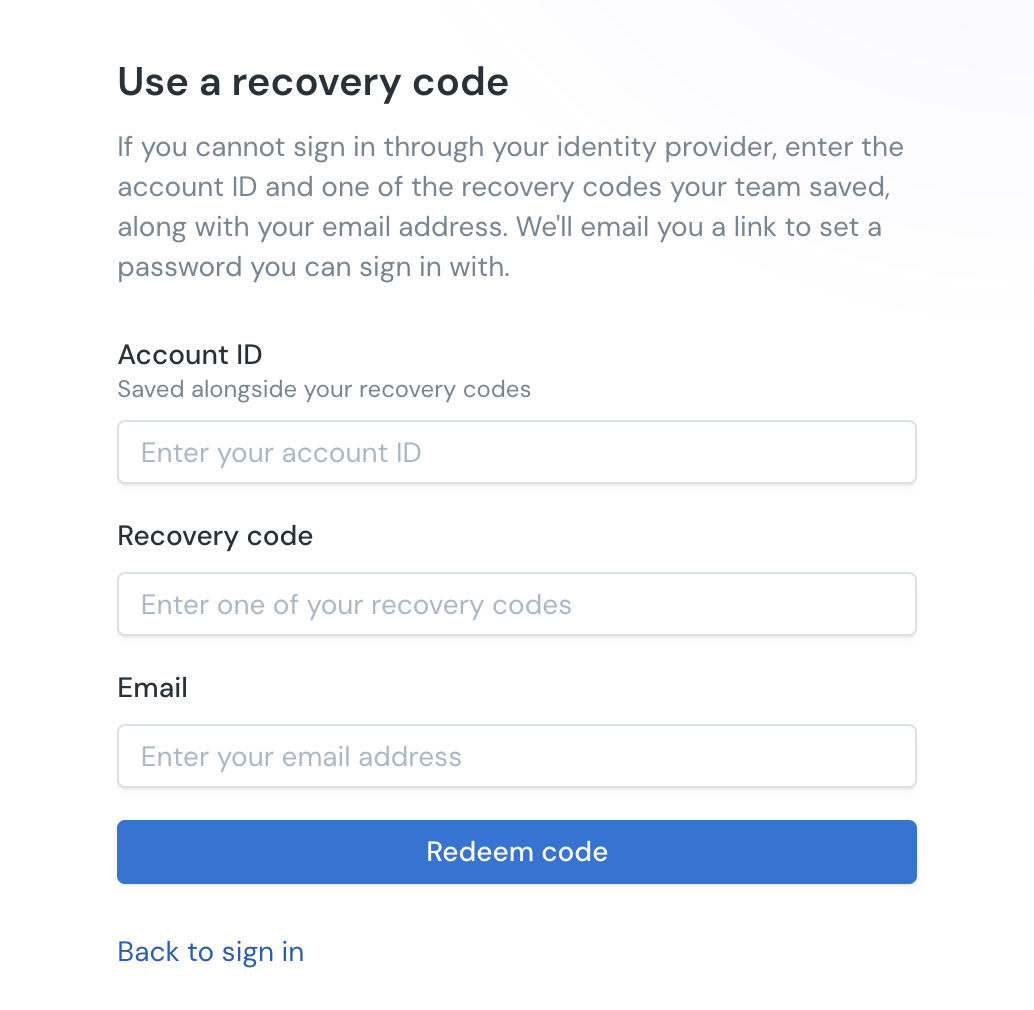
Monte Carlo UI Example
For security, the recovery form responds identically no matter what you enter — it does not reveal whether the Account ID, code, or email address was recognized.
If no email arrives within a few minutes: double-check the Account ID and code, confirm the email address belongs to a user with the Edit SSO permission in this account, and check your spam folder for mail from: [email protected]
A recovery code alone grants nothing. The password-reset link is only ever sent to the registered email address of a user authorized to redeem, so control of that inbox is a required second factor. Redemption attempts are rate-limited, and if your account restricts web access with a network access control IP allowlist, redemption is only accepted from allowed addresses.
Recovery only works for administrators whose email belongs to a single Monte Carlo account. If your email address is also an active user in another Monte Carlo account, the password-reset step is blocked for security — resetting the password would affect your sign-in for that other account — and no email is sent. This applies to both the recovery-code flow and the configuration-change fallback. In that case, ask another administrator with the Edit SSO permission whose email is unique to this account to perform the recovery, or contact Monte Carlo Support.
FAQ
When is a code actually used up?
A redeemed code is consumed when you successfully sign in with the password you set — not when you submit the recovery form. In practice:
- The active count in Settings → Single sign on still includes codes with a redemption in flight; the count drops once the recovery is completed by signing in.
- Completing a recovery consumes exactly one code and cancels any other in-flight redemptions for the same email address.
- If your account still allows password sign-in (for example, during the first-time SSO enable transition described below), a redeemed code is not consumed — you did not need it to get in.
Can I get locked out when setting up SSO?
When enabling SSO for the first time, existing users can keep signing in with their passwords until their first successful SSO sign-in, so a misconfigured first setup does not lock anyone out. This keeps working until the first time you login with SSO.
Recovery codes also work in the case you get locked out, so you can use them to be able to login again.
If none of these options work you can contact Monte Carlo support team to get unlocked.
Can I get locked out when updating SSO?
Recovery codes are the net for when you are already locked out. Two behaviors help prevent the lockout in the first place:
- Editing an existing SSO configuration: when you save changes, Monte Carlo emails you — the user who saved the changes — a password-reset link that is valid for roughly 30 minutes. If the new configuration turns out to be broken, use that link to set a password, sign back in, and fix the configuration. Once an SSO sign-in succeeds again, the fallback closes early.
- Enabling SSO for the first time: existing users can keep signing in with their passwords until their first successful SSO sign-in, so a misconfigured first setup does not lock anyone out.
What should I do if I get locked out?
Try these in order:
- Did you just change the SSO configuration? Use the password-reset link that was emailed to you when you saved (valid for roughly 30 minutes).
- Otherwise, redeem a recovery code as described above.
- If neither works — for example, your recovery attempt does not get you back in, or your email address is also used in another Monte Carlo account (see below) — contact Monte Carlo Support.
I reset the password but I do not receive a password reset email. Why?
- The "Reset password" link does not work on an SSO account. Once SSO is enforced, password sign-in is intentionally disabled, and the sign-in page's Reset password link will not send an email for SSO users. Use a recovery code (which emails you a reset link) or the configuration-change fallback above instead. During the first-time enable transition, before users have signed in with SSO, Reset password still works normally.
- Your email address is used in more than one Monte Carlo account. See the FAQ below — the reset email is intentionally not sent in this case.
Does recovery work if my email is used in more than one Monte Carlo account?
No. Both fallbacks — redeeming a recovery code and the configuration-change password-reset email — only work for administrators whose email address belongs to a single Monte Carlo account. Monte Carlo accounts share one password sign-in identity per email address, so if your email is also an active user in another Monte Carlo account, issuing the reset would change your password for that other account. For security, Monte Carlo blocks the reset instead, and no email is sent.
If this applies to you:
- Ask another administrator with the Edit SSO permission — whose email is unique to this account — to perform the recovery, or
- Contact Monte Carlo Support.
To avoid this situation, make sure at least one Edit SSO administrator in the account uses an email address that is not shared with any other Monte Carlo account.
After resetting the password the SSO login fails. What can I do?
- Your first SSO sign-in after a password recovery may fail once. After signing in with a password through either fallback, your next SSO sign-in may fail a single time while your sign-in identity is re-linked. Try again right away — the retry succeeds.
How do I set up Network Access Controls to avoid redeeming codes from any IPs?
-
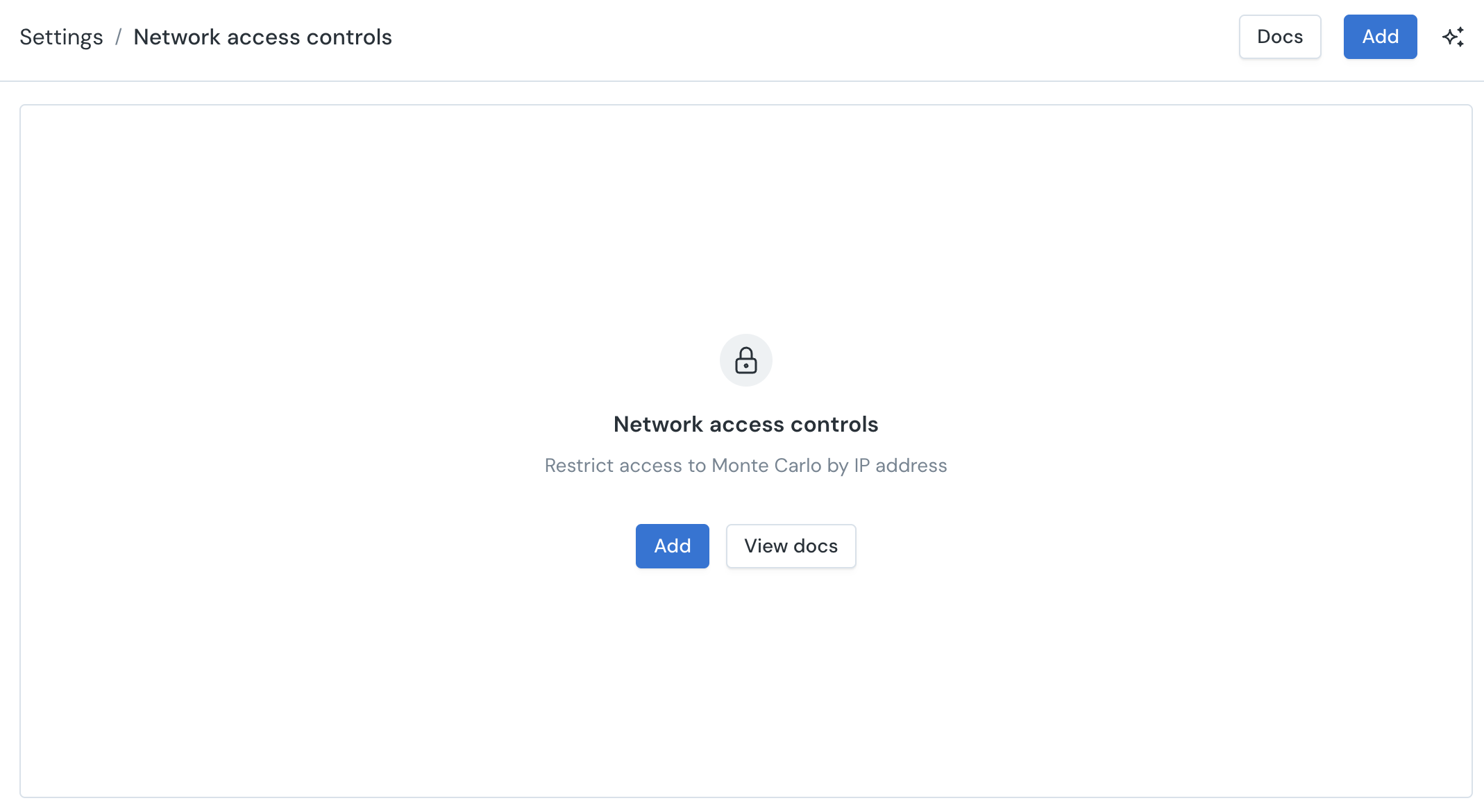
Go to Settings -> Network Access Controls or click in "Configure network access controls" from the Single sign on screen.

-
Click "Add" to add a network access configuration.
-
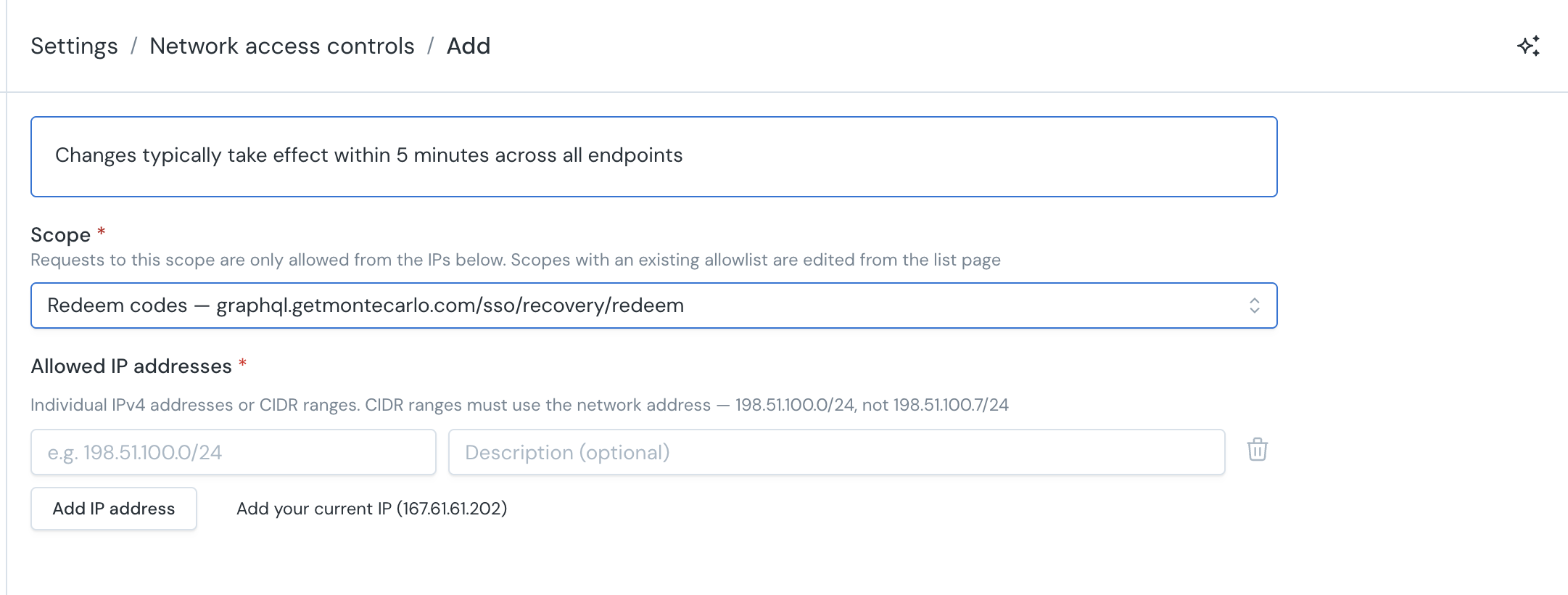
Select the Redeem Codes scope and enter the IP addresses or CIDRs that you need, then press Add and the configuration is done.
Updated 4 days ago