
Slack AI
Chat with Monte Carlo's AI agent directly in Slack
Slack AI brings Monte Carlo's Operations Agent into Slack, so your team can investigate data and AI reliability issues without leaving the conversation. Mention @Monte Carlo AI in a channel, reply in an alert thread, or send it a direct message — ask questions in plain language, triage and troubleshoot alerts, check the health of your tables, and even build monitors.
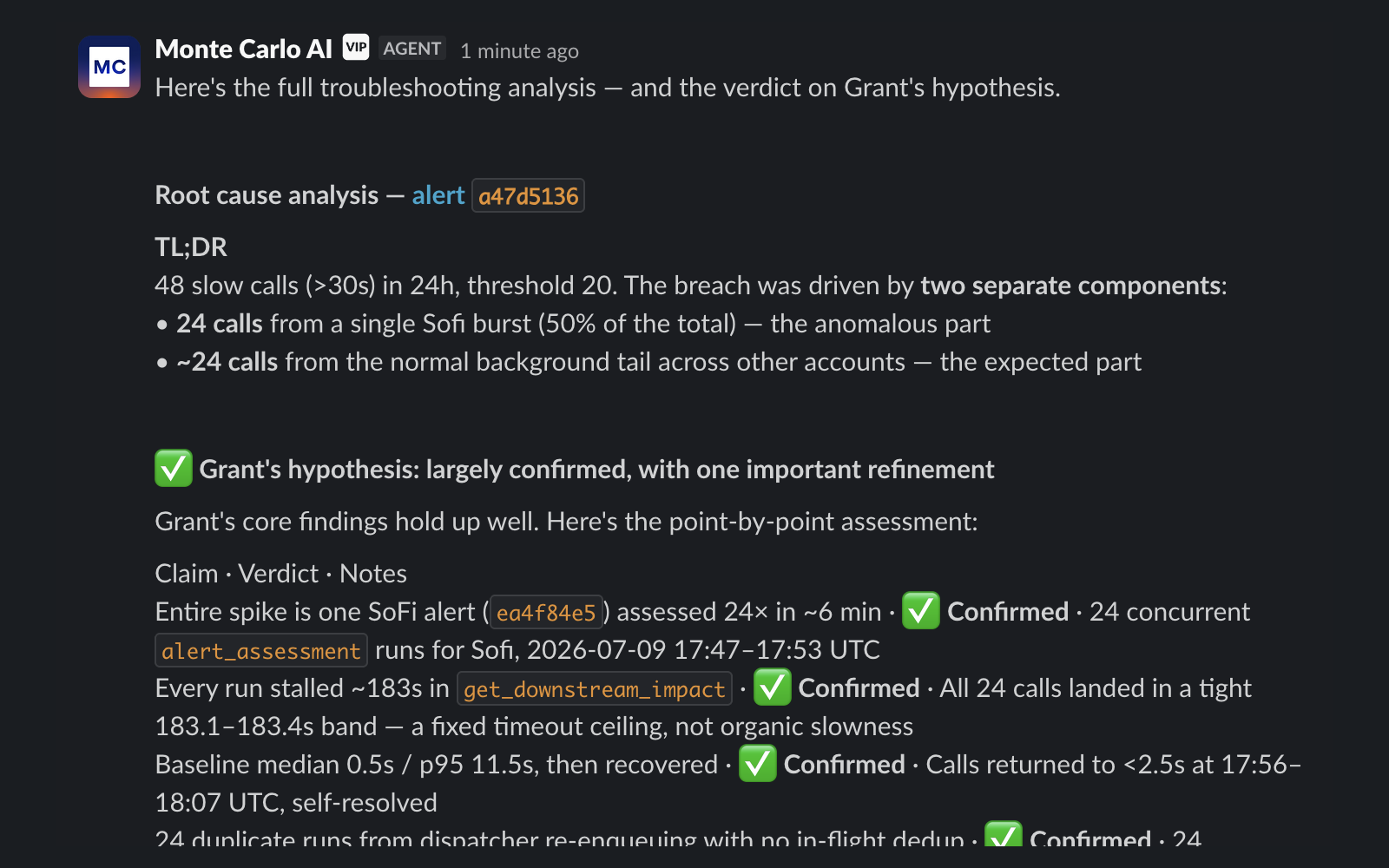
Monte Carlo AI troubleshooting an alert in a Slack thread — it confirms a teammate's root cause hypothesis point by point
Slack AI is a superset of the classic Slack notifications integration. It delivers Monte Carlo alerts to your channels and lets you act on them with built-in message buttons — triage, acknowledge, resolve — exactly like the classic app, and it adds a conversational agent layer on top, so you can talk to Monte Carlo in natural language and have it investigate on your behalf. You don't need both: installing Slack AI on its own gives you everything the classic Slack app does, plus agent-based interaction.
What you can do
Mention @Monte Carlo AI in a channel or send it a direct message to:
- Ask about your data — "How's the health status of table X?", "When was table Y last updated?", "Are there any alerts assigned to me today?"
- Troubleshoot alerts — ask the agent to investigate an alert and get a summary of likely root causes, posted right in the thread.
- Triage incidents — have alerts assessed and prioritized so your team knows what to look at first.
- Build monitors — describe what you want to watch for and the agent proposes the monitor logic and SQL.
- Take action — add a comment to an alert, check what a data issue would impact, and more.
Slack AI runs the same Operations Agent you use in the Monte Carlo UI, so it can answer directly or route your request to the right specialized agent (troubleshooting, triage, cost, PII) automatically.
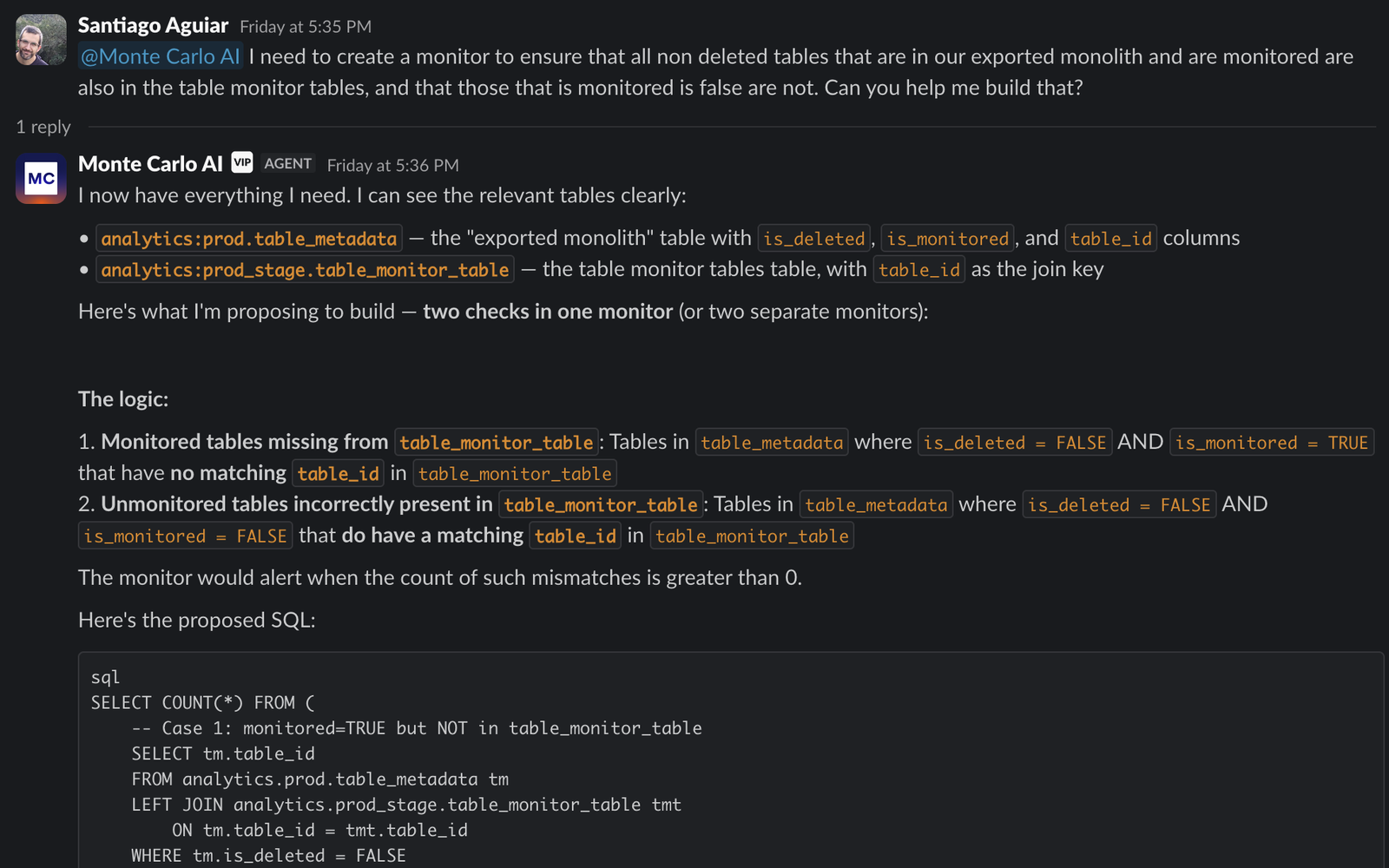
Slack AI proposing monitor logic and SQL in response to a plain-language request in Slack
Requirements
You can use Monte Carlo AI on any Slack plan — @mention it in channels, send it direct messages, and receive Monte Carlo notifications and alert actions on both free and paid workspaces. Slack reserves its dedicated agents & assistants panel (the assistant side view) for paid Slack plans, so on a free workspace you interact with Monte Carlo AI through @mentions and direct messages rather than that panel.
AI-generated contentMonte Carlo AI is powered by large language models and may occasionally produce inaccurate or incomplete responses. Verify important results in Monte Carlo before acting on them.
You will also need permission to add integrations in Monte Carlo (or an administrator who can complete the install), and permission to install apps in your Slack workspace — you may need your Slack administrator to approve the request.
Set up Slack AI
Installing Slack AI requires a Monte Carlo account, since the install starts from Monte Carlo's Settings page and redirects to Slack from there.
- Go to Settings > Integrations.
- Click the Add button
- In the Collaboration section, click Slack AI.
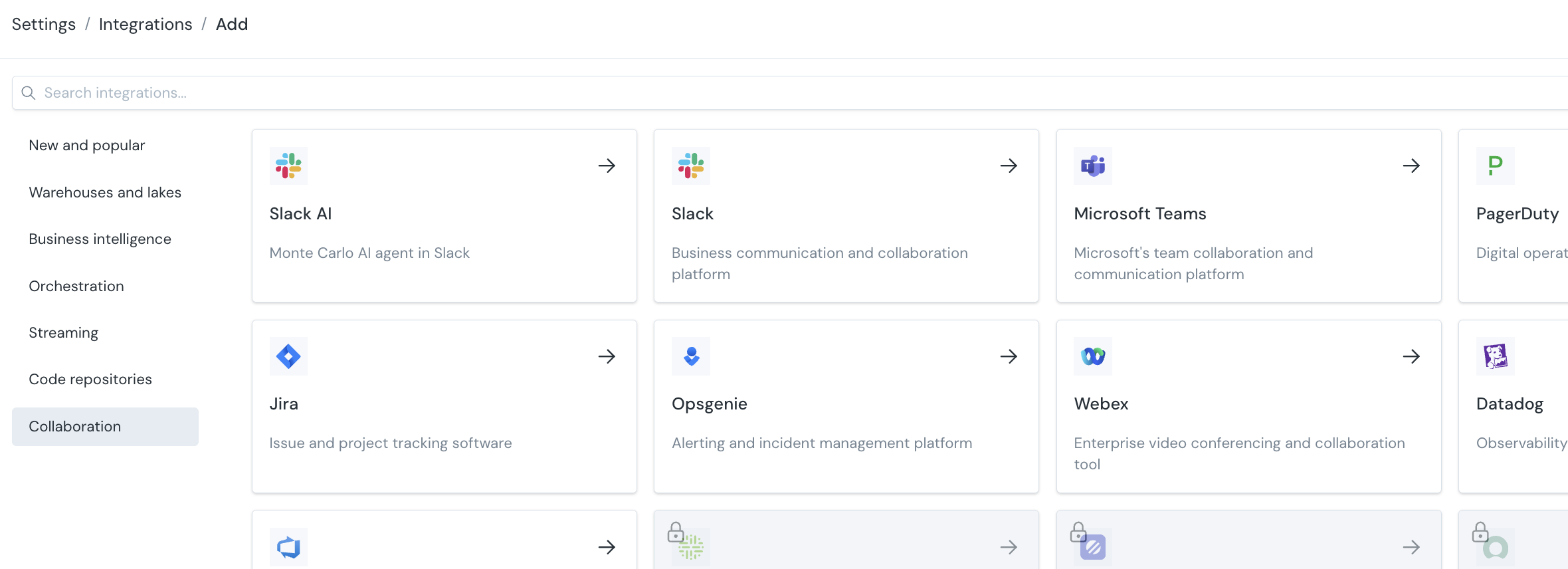
The Add Integration page, showing Slack AI as an available integration
- You will be redirected to Slack to install and authorize the Monte Carlo app. Review the requested permissions and approve them. You may need to wait for your Slack administrator to approve the request.
- After you authorize the app, Slack confirms the installation and you are returned to Monte Carlo, where the new Slack AI connection appears in your integrations list.
Once connected, the app's Home tab in Slack confirms your account is linked and shows how to start.
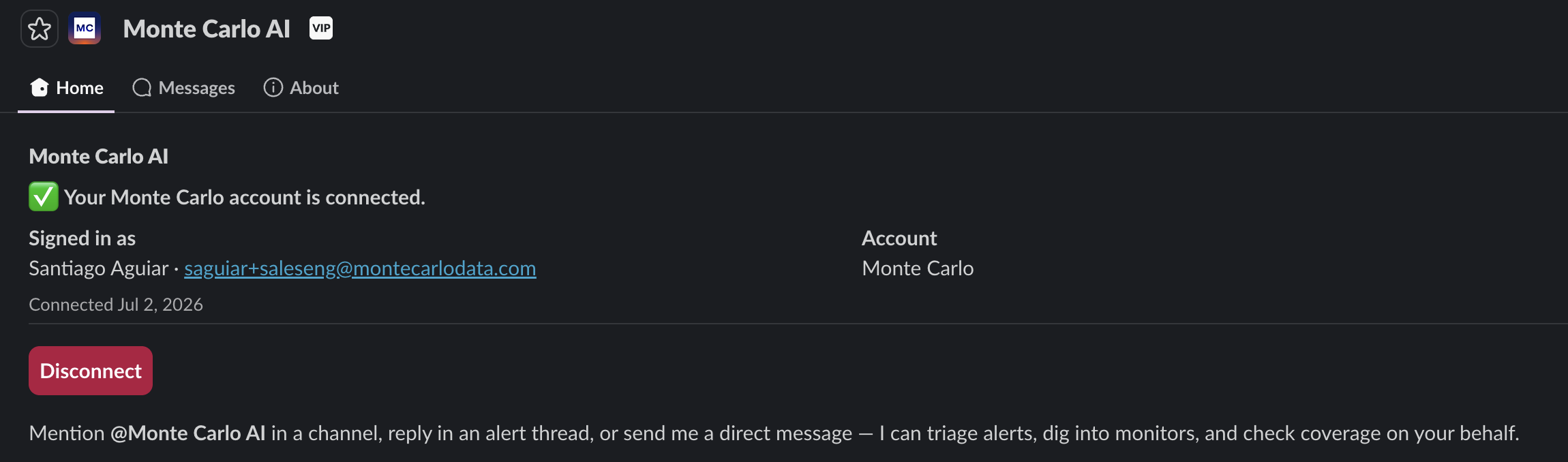
The Monte Carlo AI app Home tab in Slack, confirming the account is connected and explaining how to start a conversation
Each Slack user can be linked to one Monte Carlo account installation at a time. Use Disconnect on the Home tab to unlink before connecting a different account.
Start using it in Slack
Once the app is installed:
- In Slack, open a direct message with the Monte Carlo AI app, or invite it to a channel with
/invite @Monte Carlo AI. - Ask a question or describe what you need — for example, "Troubleshoot the freshness alert on
analytics.orders." You can also reply directly in an alert thread. - The agent replies in the thread. For deeper investigations it includes a link to open the full findings in Monte Carlo.
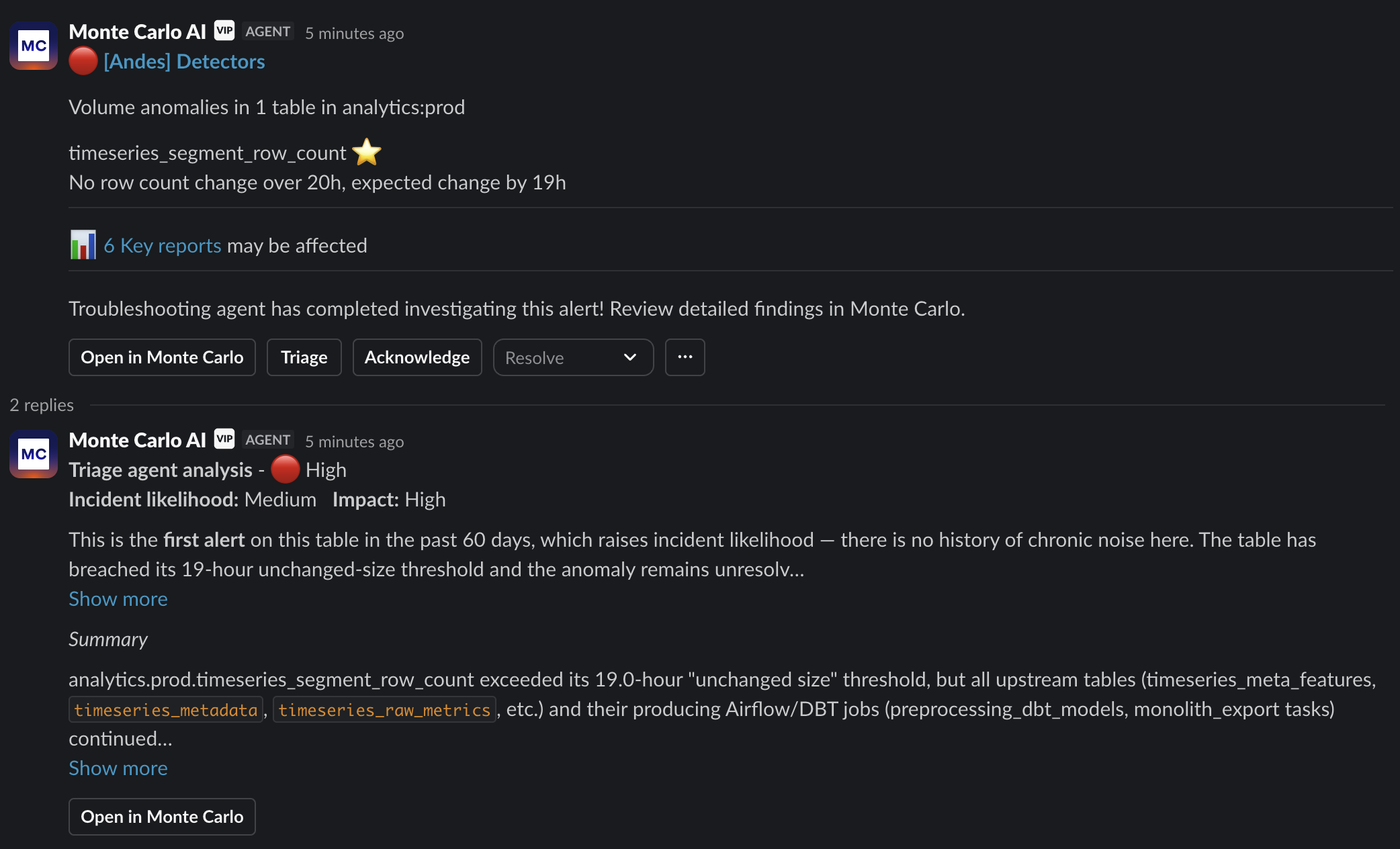
A Monte Carlo alert in Slack with Triage, Acknowledge, and Resolve buttons, and the Triage agent's prioritized analysis posted in the thread
Workspace settings
Each connected Slack workspace has its own settings. Open Settings > Integrations, click the Slack AI connection, and find them under Integration details. Changing them requires permission to edit integrations.
Deliver alerts
Controls which Slack app delivers this workspace's Monte Carlo notifications.
This setting only appears when the workspace also has the classic Slack app installed, because that is the only case where there is a choice to make. When Slack AI is the only Monte Carlo app in the workspace, it delivers notifications automatically and there is nothing to configure.
Turn it on to have Slack AI deliver the notifications for every audience pointed at this workspace, replacing the classic app. Alerts arrive with the same Triage, Acknowledge, and Resolve buttons, plus the agent's conversational layer in the thread.
Turning it on is a request rather than an immediate switch. Delivery also depends on the feature being enabled for your account, on the workspace's connection health, and on Slack having granted the app permission to join channels. Until those are satisfied, alerts keep arriving through the classic app and Monte Carlo shows a warning next to the setting. Contact Support if the warning persists.
Sample data
Controls whether the agent may read sample rows from your warehouse while answering in this workspace.
This setting is on by default. Sample rows help the agent explain a data quality issue concretely — for example, showing which values broke a validation rule instead of only reporting that one did.
Turn it off if you would rather no raw row values reach Slack from this workspace. The agent then answers from metadata, monitor results, and aggregates alone, and the restriction applies for the whole conversation, including any specialized agent or tool the request is routed to.
Two things this setting does not change:
- It does not stop Monte Carlo from collecting samples. What Monte Carlo samples is governed by your warehouse and table configuration, independently of Slack. This setting governs whether the Slack agent may read those samples.
- It does not widen anyone's access. It can only restrict. A user who cannot see sample data in Monte Carlo still cannot see it through Slack AI, whatever this setting says.
The setting is per workspace, so you can connect a workspace for a team that should see sample values and another that should not.
Permissions and data
The agent runs with the same permissions as the person interacting with it — it cannot access data or take actions that the user could not perform in Monte Carlo directly.
Raw sample rows are covered by an additional workspace-level control; see Sample data.
Slack scopes requested
When you install the app, Slack asks you to approve the bot token scopes below. Monte Carlo only ever reads content in conversations the app has been added to.
| Scope | What Slack grants | Why Monte Carlo needs it |
|---|---|---|
app_mentions:read | View messages that directly mention @Monte Carlo AI | Detect when you mention the agent so it can respond to your prompt. |
assistant:write | Act as a Slack App Agent | Show progress while the agent works on your request, including which tools it is running. |
channels:history | View messages in public channels the app is in | Read the current thread for context when you ask the agent for help. |
channels:read | View basic information about public channels | List channels so you can pick a notification destination, and confirm the bot can post there before delivering alerts. |
chat:write | Send messages as @Monte Carlo AI | Post agent responses and alert notifications to channels, threads, and DMs. |
groups:history | View messages in private channels the app is in | Read the current thread for context in private channels. |
im:history | View messages in direct messages with the app | Read the current conversation for context in DMs. |
reactions:read | View emoji reactions in conversations the app is in | Let you give the agent input and feedback through reactions. |
reactions:write | Add and edit emoji reactions | Acknowledge prompts and confirm actions — for example, marking a SQL query request as checked. |
users:read | View people in a workspace | Resolve Slack user IDs to display names when authorizing your connection and when the agent refers to teammates. |
users:read.email | View email addresses of people in a workspace | Attribute actions in the Monte Carlo timeline to users who are not registered in Monte Carlo. |
These scopes are optional — the app works without them, with the noted feature unavailable:
| Scope | What Slack grants | Why Monte Carlo needs it |
|---|---|---|
channels:join | Join public channels in a workspace | Join only the public channels you select as notification targets in Monte Carlo (and, during migration, channels already configured for the classic Slack app). The app never joins channels you have not designated. |
files:read | View files shared in conversations the app is in | Let you attach files as context for an agent request, matching the agent's behavior in the Monte Carlo UI. |
links:read | View URLs in messages | Slack notifies Monte Carlo only when a getmontecarlo.com link is posted, so the app can unfurl it with relevant context. Scoping to our own links keeps event volume and data access to a minimum. |
For details on what data Monte Carlo collects and how it is used, retained, and deleted — and how to make access or deletion requests — see the Monte Carlo Privacy Policy.
For details on how Monte Carlo secures and governs its AI features — including data handling and the models used — see AI Security & Governance.
Support
Need help? Reach the Monte Carlo team through the Support Agent.
Remove Slack AI
To disconnect Slack AI, go to Settings > Integrations, open the Slack AI connection, and remove it. You can also uninstall the Monte Carlo app from your Slack workspace's app management settings.
Updated 25 days ago