
Triage agent
The Triage Agent automatically prioritizes and scores Monte Carlo alerts, helping data teams cut through alert noise and focus on the incidents that matter most. It evaluates each alert on two dimensions, incident likelihood (how likely is this a real problem?) and alert impact (how large is the downstream blast radius?), and assigns a HIGH, MEDIUM, or LOW score to each.
By default, the Triage Agent runs automatically on every new alert. Automatic triage can be turned off, restricted, or overridden per domain from your settings (see Configuring the Triage Agent). You can also run triage on demand from the alerts feed, the Operations Agent, or through the MCP server with the Agent Toolkit.
How it works
When triggered, the Triage Agent runs a multi-step pipeline for each alert:
-
Assessment — The agent gathers context about the alert in parallel: anomaly data, failed or futile queries, downstream impact via lineage, 60-day alert history, business criticality of affected assets, recent query changes, orchestrator issues (Airflow, dbt, Databricks), and monitor configuration details.
-
Scoring — Using the gathered context, the agent scores the alert on two axes:
- Incident likelihood — Is this anomaly likely to be a real data quality issue? (HIGH / MEDIUM / LOW)
- Alert impact — If this is a real issue, how large is the downstream blast radius? (HIGH / MEDIUM / LOW)
-
Optional deep investigation — The Triage Agent can chain the Troubleshooting Agent for deeper root cause analysis. This is controlled by the Automated troubleshooting setting, which is off by default. When you enable it, you choose the minimum priority that triggers an investigation: high priority alerts, high and medium priority alerts, or all triaged alerts. See Configuring the Triage Agent.
-
Results — The agent stores the priority score and rationale directly on the alert. You'll see the score in the alerts feed, and can open View triage reasoning on any triaged alert for the full assessment.
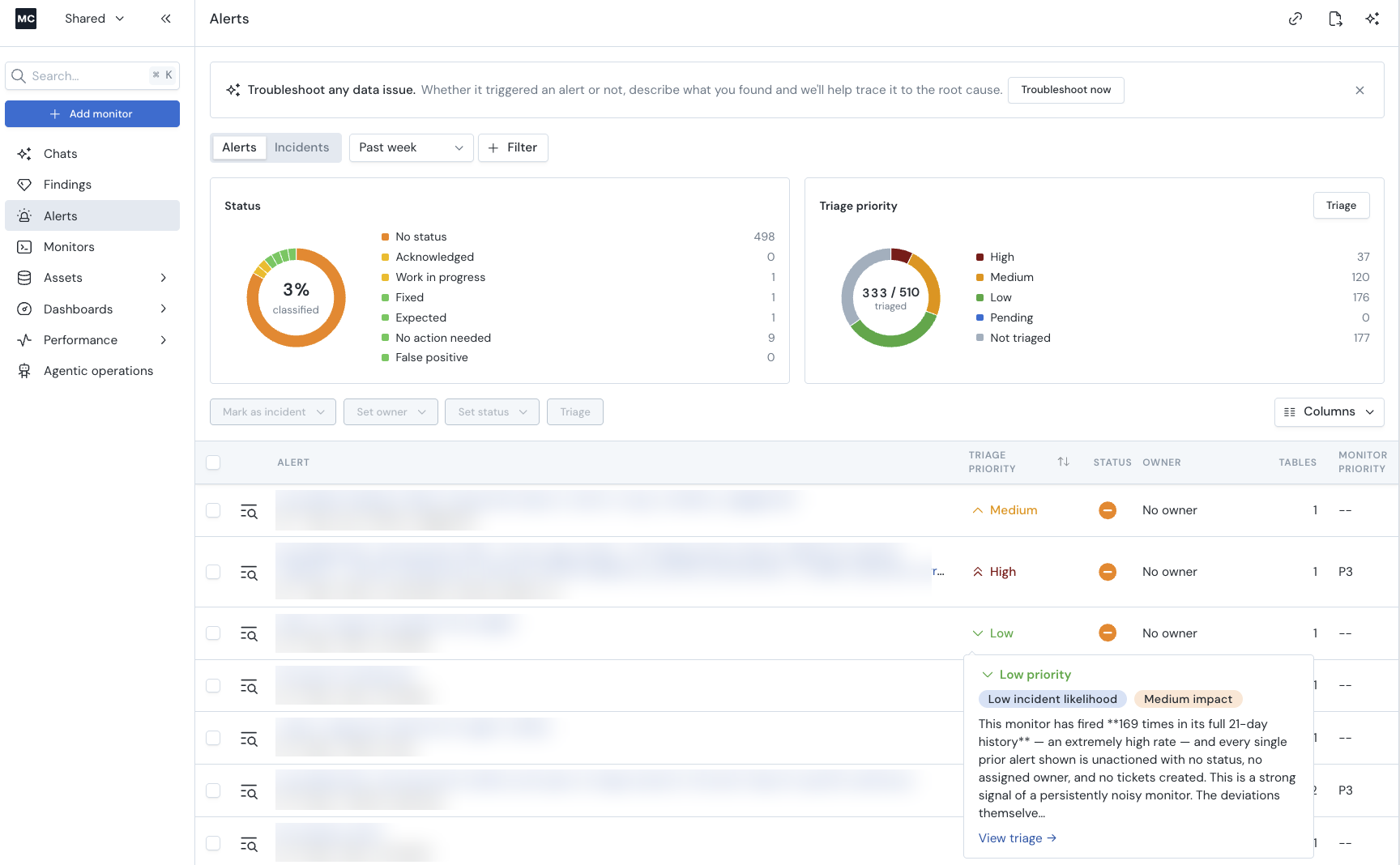
Automatic triage
Automatic triage is on by default. Every new alert is triaged as it arrives, so priorities are already scored by the time your team looks at the feed. Triaged alerts show their score in the alerts feed — high, medium, and low priority are color-coded red, orange, and green.
Re-assessment when an alert changes
An alert's priority reflects what the agent knew when it ran. Alerts don't stand still: an alert can keep grouping new anomalies after it was scored, or it can go back to normal on its own. Automatic triage re-assesses an alert when either happens, so the priority in your feed keeps describing the alert as it stands now.
An automatically triaged alert is re-assessed when:
- It grows — new anomalies are grouped into the alert after it was triaged. A larger, still-firing alert may deserve a higher priority than the single anomaly first scored.
- It goes back to normal — every one of its anomalies is resolved. An alert that has resolved itself rarely still deserves the priority it was given while firing.
The new score replaces the old one everywhere the alert appears: the alerts feed, the priority filter, and View triage reasoning, which shows the latest assessment.
Re-assessment applies to alerts the agent scored directly. Alerts you triage yourself — from the alerts feed, the Operations Agent, or the Agent Toolkit — keep the score from the run you asked for and are never updated behind your back. Alerts that inherited their score from an earlier alert are also not re-assessed; see Repeat alerts reuse a recent verdict.
Re-assessment does not consume additional creditsAn alert is metered once, the first time it is triaged. Re-assessing it later never counts as another Alert Triaged and never consumes credits, no matter how many times the alert changes. This is the same rule that already applies when you run triage on the same alert more than once.
Because nothing is metered, re-assessment also keeps working for an account that has reached its monthly triage limit: alerts you already paid to triage stay up to date, even while new alerts wait for the next month's allowance.
To keep re-assessment predictable and quiet, it is bounded:
- An alert is re-assessed at most twice for new anomalies, and at most once for going back to normal.
- Changes settle first. An alert is re-assessed once its anomalies stop arriving — roughly 30 minutes of quiet — so a burst of related anomalies produces a single re-assessment rather than one per anomaly.
- Only alerts triaged in the last 12 hours are re-assessed. An alert that changes days after it was triaged keeps its original score.
Re-assessment in Slack and Microsoft Teams
If you receive alerts in Slack or Microsoft Teams, a re-assessment updates the alert message only when the priority actually changes. When it does, the priority marker on the alert message is updated and a short reply is added to the alert's thread explaining the new score and what prompted the re-assessment.
When the agent re-assesses an alert and reaches the same priority as before, nothing is sent to Slack or Microsoft Teams — no edited message, no new reply. The result is still recorded in Monte Carlo, so View triage reasoning shows the latest assessment either way. This keeps a changing alert from repeatedly notifying your channel to tell you nothing changed.
Repeat alerts reuse a recent verdict
One broken job produces the same alert again and again. Rather than pay for the agent to reach the same conclusion each time, an alert whose content matches one scored in the last 24 hours inherits that verdict — the same priority, and the same rationale under View triage reasoning. So a new alert may read word-for-word like an earlier one. That is deliberate.
Matching is exact and deterministic, and happens within a single account: alerts are compared on the failure's source assets and error signature, so a materially different failure is always triaged on its own. This applies today to ETL job failures, dbt failures, and custom rule alerts (custom SQL, volume, and freshness). Every other alert type is triaged individually, every time.
An inherited verdict does not consume creditsAn alert that inherits a recent verdict is not counted as an Alert Triaged and consumes no credits. Only the alert the agent actually scored is metered.
Two limits worth knowing:
- An inherited alert gets no Slack or Microsoft Teams thread reply, and is never re-assessed. Its priority is still recorded, and visible in the alerts feed and View triage reasoning.
- Not every repeat is deduplicated. Repeats more than 24 hours apart are each triaged, so how much you save tracks how often the underlying job runs.
Configuring the Triage Agent
You control automatic triage in two places: account-wide settings, and per-domain overrides.
Account-wide settings
Go to Settings > AI Agents (getmontecarlo.com/settings/ai-agents). Under Triage agent:
- On / off toggle — Turn automatic triage on or off for the whole account. This sets the default — see Domain-level overrides below for how domain overrides interact with it.
- Usage restrictions — Choose by:
- Do not restrict (the default)
- Limit to free usage only, which caps automatic triage at the free monthly allowance of triaged alerts (20 alerts).
- Restrict to a monthly limit, which allows you to designate the maximum amount of alerts that can be triaged per month.
These limits apply account-wide, across every domain: once your account's monthly allowance is used, automatic and manual triages are paused.
- Automated troubleshooting — Choose whether the Troubleshooting Agent runs automatically on triaged alerts, and at what minimum priority:
- Do not troubleshoot automatically (default)
- High priority alerts
- High and medium priority alerts
- All triaged alerts
A cost estimate based on your last 30 days of alerts is shown on the page to help you gauge the impact of your settings before you save.
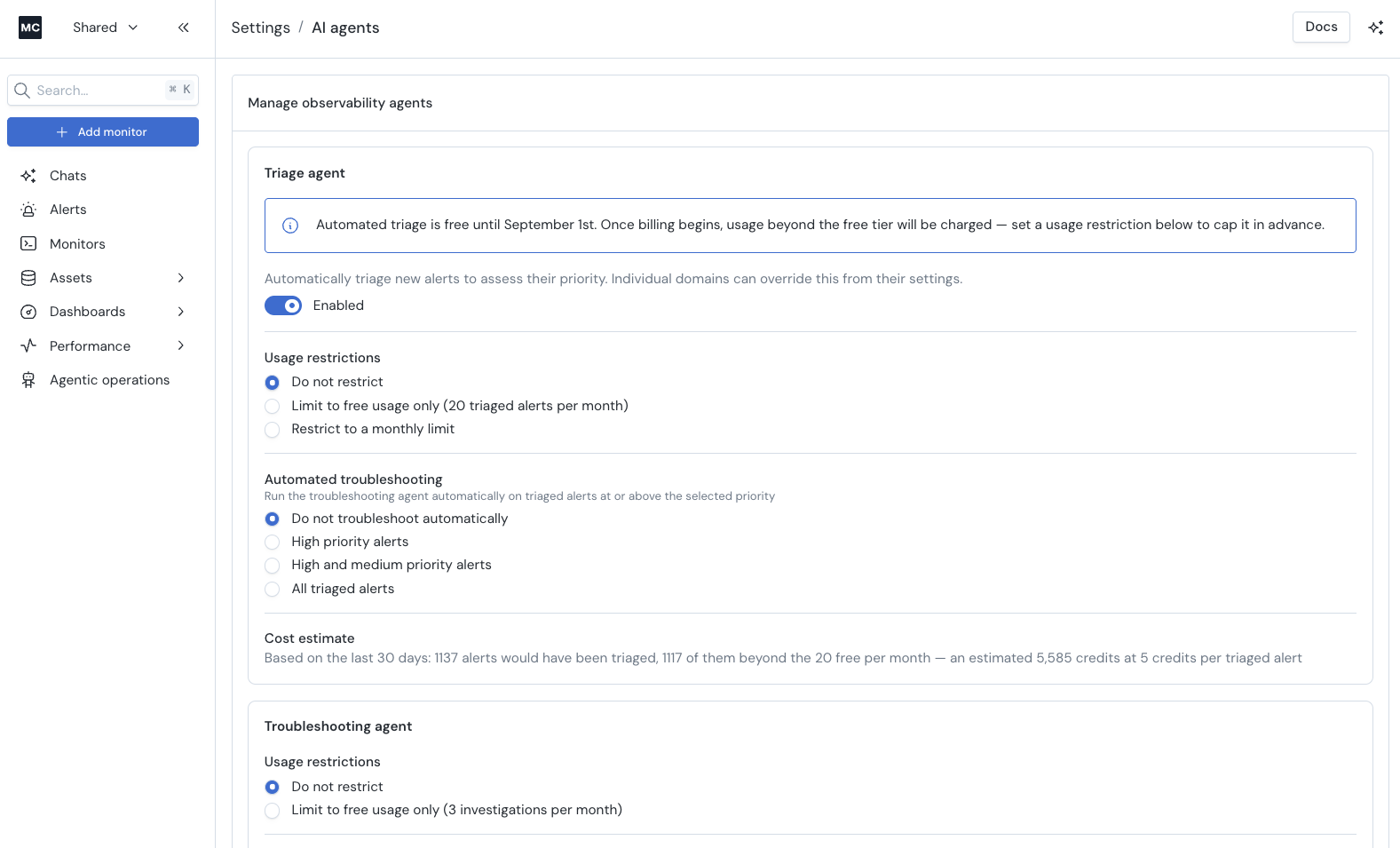
The Troubleshooting Agent has its own usage restrictions in Settings > AI Agents, under Troubleshooting agent. These apply whenever it runs, including when it is chained to triage.
Domain-level overrides
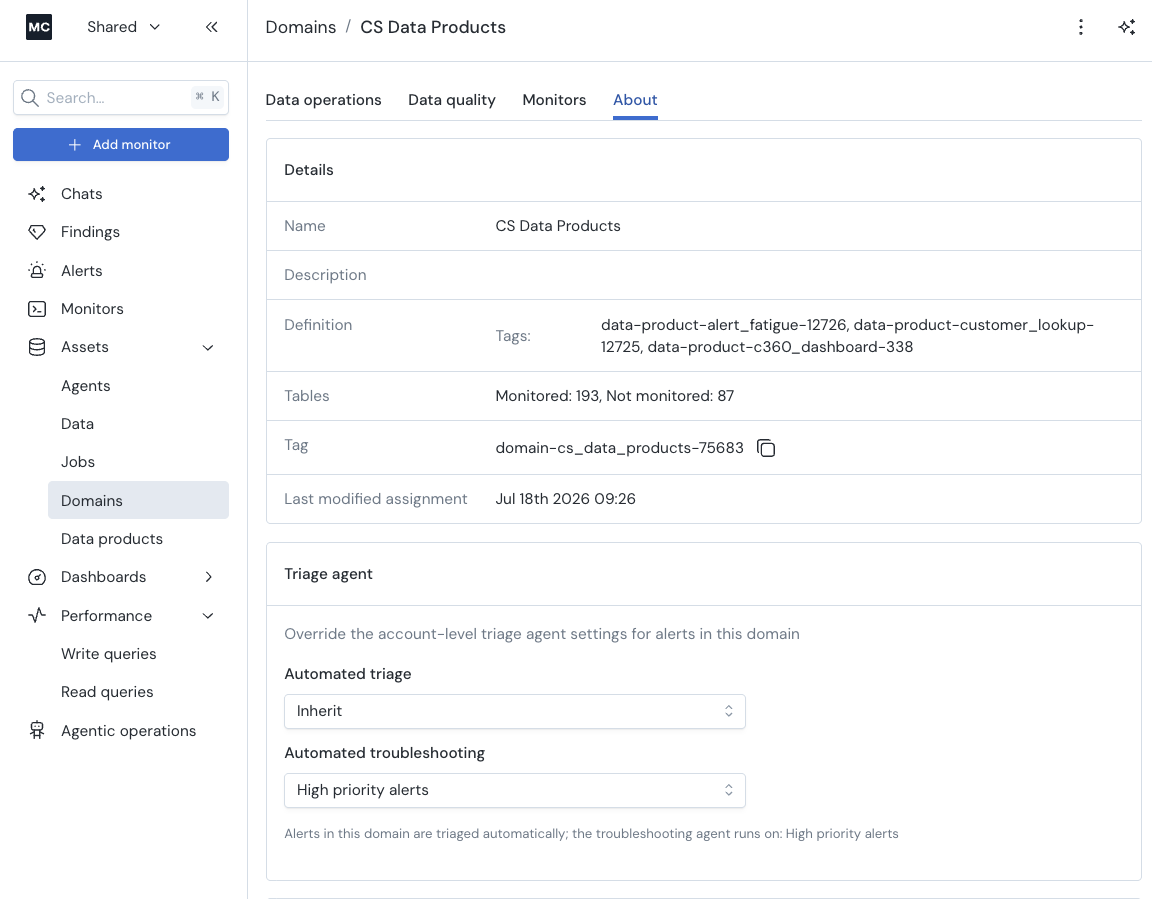
Any domain can override the account-level triage automation settings for the alerts it contains. Open the domain, go to its About tab, and find the Triage agent section:
- Automated triage — Inherit the account setting (default), or override it on or off for this domain.
- Automated troubleshooting — Inherit the account setting, or override the minimum priority that triggers an investigation for this domain.
Leaving the domain settings to "inherit" will keep that domain in line with the account setting defaults. This lets you, for example, keep automatic triage on account-wide but turn off automated troubleshooting for a specific domain, or vice versa.
Per-monitor override
Whether automatic triage runs is normally controlled by the account-wide setting that each domain can override. You can also override it on an individual monitor — useful when you want to carve out a single monitor without changing its domain or account default.
The monitor-level setting is a tri-state:
- On — force automatic triage on for this monitor, even when its domain or account default is off.
- Off — force automatic triage off for this monitor, even when its domain or account default is on.
- Inherit (default) — no monitor-level override; the monitor follows its domain or account default.
Permission. Setting a monitor-level override requires both the settings/ai-agents/edit permission (see access control below) and edit access to the monitor itself.
Setting the override
- In the Monte Carlo UI — open the monitor's settings and use the automated-triage toggle in the Add details section.
- In Monitors as Code — set the monitor's
auto_triagefield (trueorfalse) on the monitor definition.
The override is replaced in full on every update. An update that omits it clears any previously set override — including a deliberate Off — back to Inherit. Include the field each time you update the monitor if you want to keep the override.
Routing notifications by priority
A monitor's audiences can be narrowed so each one is only notified about the priorities it cares about — on-call for High, a team channel for everything else. That is configured per monitor, in Send alerts to; see Routing alerts by triage priority for how to set it up.
It is worth knowing how it depends on this agent:
- A narrowed audience waits for a score. Audiences notified about every priority go out as soon as the alert fires. A narrowed one is held until the Triage Agent has scored the alert, so it arrives a little later.
- Turning automatic triage off changes who gets paged. With no automatic triage, alerts resolve to Not triaged. Audiences narrowed to High, Medium or Low will never fire; only audiences covering Not triaged are notified. This is why every monitor using priority routing must have some audience covering Not triaged.
- The same applies when your monthly allowance runs out. Triage pauses account-wide, so alerts from that point on resolve to Not triaged until the allowance resets or is raised.
- Domain overrides apply. A monitor in a domain where triage is turned off behaves as if triage were off for that monitor, whatever the account default is.
When re-assessment changes a priority, notifications follow it upwards only. An alert re-assessed into a higher priority notifies the audiences for that higher priority. An alert re-assessed into a lower one notifies nobody new, because someone has already been paged — the existing notification is updated instead.
Running triage on demand
Automatic triage covers new alerts, but you can also run the Triage Agent yourself at any time.
In the Monte Carlo UI
- Alerts page — Click the Triage alerts button to run the agent on your currently filtered alerts (up to 50 at a time). The agent processes alerts in batch and buckets them into high, medium, and low priority groups. Each triaged alert gets a View triage reasoning icon showing the agent's scoring rationale.
- Operations Agent — Ask the Operations Agent to triage your alerts in natural language, and it routes to the Triage Agent automatically.
Results appear the same way as automatic triage: as a priority score on each alert, with the full rationale available via View triage reasoning.
Via the Agent Toolkit (MCP)
The automated-triage skill in the Agent Toolkit exposes triage through MCP tools in AI coding agents like Claude Code and Cursor. You can trigger it with natural language:
- "Triage my alerts"
- "What alerts are firing?"
- "Triage alert
<uuid>"
The skill provides these MCP tools: get_alerts, alert_assessment, run_troubleshooting_agent, get_troubleshooting_agent_results, update_alert, set_alert_owner, create_or_update_alert_comment, and mark_event_as_normal.
Access control
Two different permissions apply to the Triage Agent, and they are deliberately distinct:
- May run triage on demand —
ai-agents/triage/edit. Every built-in role grants it by default exceptmcd/viewer— because running triage updates alerts, it is a write operation. Viewers can still see triage priority scores and reasoning; only the ability to run triage is withheld. This permission gates the on-demand surfaces only (the Triage alerts button, the Operations Agent, and the Agent Toolkit). - May administer its settings —
settings/ai-agents/access(read) andsettings/ai-agents/edit(write). Govern who can open Settings > AI Agents and view or change the Triage Agent's configuration: the automatic-triage on/off toggle, usage restrictions and limits, and automated troubleshooting. This is separate from running triage: a user can run triage on demand without being able to change these account-wide settings, or vice versa.
Automatic triage is not gated by either run permission. It is account-level and system-initiated: once enabled, a background service user runs it on every new alert, gated by the account settings and budget — not by any individual user's permissions. So the lever that controls whether automatic triage executes account-wide is the Settings > AI Agents toggle, which means it is governed by settings/ai-agents/edit (who may flip the toggle), not by ai-agents/triage/edit (who may run triage by hand). A user who can edit that page can turn automatic triage on for the entire account — triggering background runs whose cost applies to the account — even if they cannot run triage on demand themselves. See Configuring the Triage Agent.
To restrict who can run triage on demand, or who can administer its settings, see Controlling access to the AI agents in the custom role recipes.
FAQ
How do I restrict access to the Triage Agent?
Running triage on demand is controlled by the ai-agents/triage/edit permission, which every built-in role grants by default except mcd/viewer (running triage updates alerts, so it is a write operation). To restrict who can run it, combine a custom role that denies the permission with your authorization groups. This gates only the on-demand surfaces — automatic triage runs account-wide and is controlled in Settings > AI Agents, not by per-user permissions. To control who can administer those settings — including who can turn automatic triage on or off for the account — restrict the settings/ai-agents permissions instead; this is a separate lever from the run permission. See Access control above, and the Controlling access to the AI agents recipe for the exact policy (deny both settings/ai-agents/access and settings/ai-agents/edit, not the wildcard).
Security & data privacy
For more detail on security and data privacy, see the AI Features and Technical Information documentation.
Updated about 1 month ago