
Bitbucket (public preview)
Integrate Monte Carlo with Bitbucket Cloud to gain visibility into code impact on your data
In previewThis feature is in preview. See Integration & Feature Lifecycles documentation for more information on what this means.
Overview
The Bitbucket integration lets Monte Carlo read pull requests from the Bitbucket Cloud repositories you select, so code changes become part of how you investigate data issues.
-
Root-cause incidents faster. The Troubleshooting agent reviews pull requests merged around the time of an incident, reads their diffs, and explains which changes could plausibly have caused it.
-
See code change context on a table. Recent pull request history appears on the asset page, so you can tell what changed in the code behind a table.
Bitbucket Cloud onlyThis integration supports Bitbucket Cloud (
bitbucket.org). Bitbucket Data Center and the end-of-life Bitbucket Server are not supported.
Setup Instructions
Permissions required
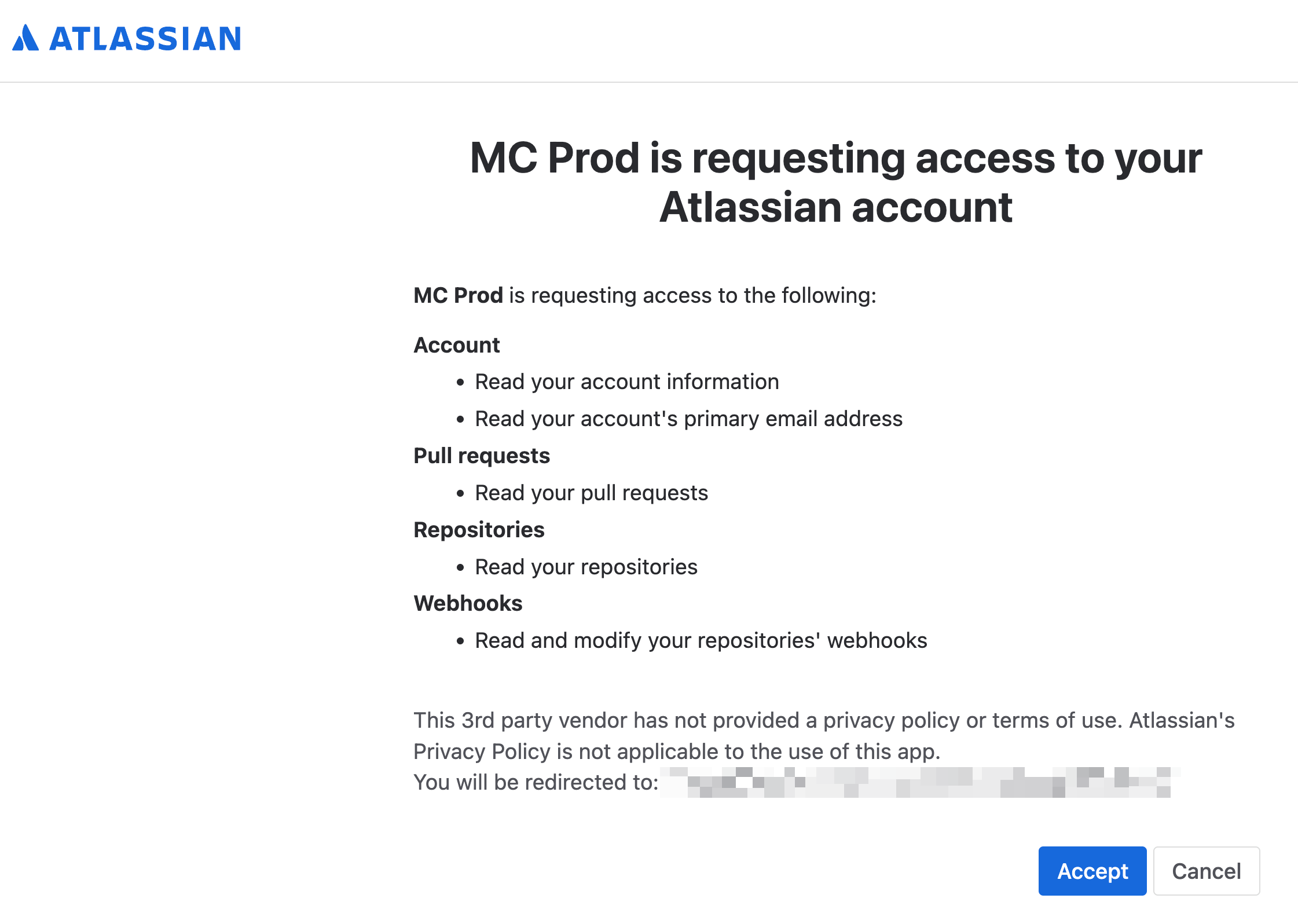
Authorizing Monte Carlo grants the following Bitbucket OAuth scopes. You are shown these on Bitbucket's authorization screen before you approve.
Scope How Monte Carlo uses it accountIdentify the authorizing user so the connection can be attributed and refreshed. repositoryList the repositories in the workspace you name, so you can choose which ones Monte Carlo observes, and read file content within them. pullrequestRead pull request details, changed files, and diffs so Monte Carlo can relate code changes to your data. webhookCreate and delete pull request webhooks on the repositories you select, so Monte Carlo is notified when a pull request changes. Monte Carlo does not request write access to your code. It does not push commits, open pull requests, or comment on them.
The user who authorizes must be able to administer the repositories they select - Bitbucket requires repository admin permission to create webhooks.
The connection is bound to the authorizing userBitbucket OAuth tokens are user-scoped: Monte Carlo can only see what the authorizing user can see, and if that user loses access or is deactivated, the connection stops ingesting pull requests. For a durable setup, authorize with a dedicated Bitbucket service account that has access to exactly the repositories you want Monte Carlo to observe.
1. Start the Bitbucket integration
Go to Settings → Integrations. Under Code repositories, click Create and select Bitbucket.
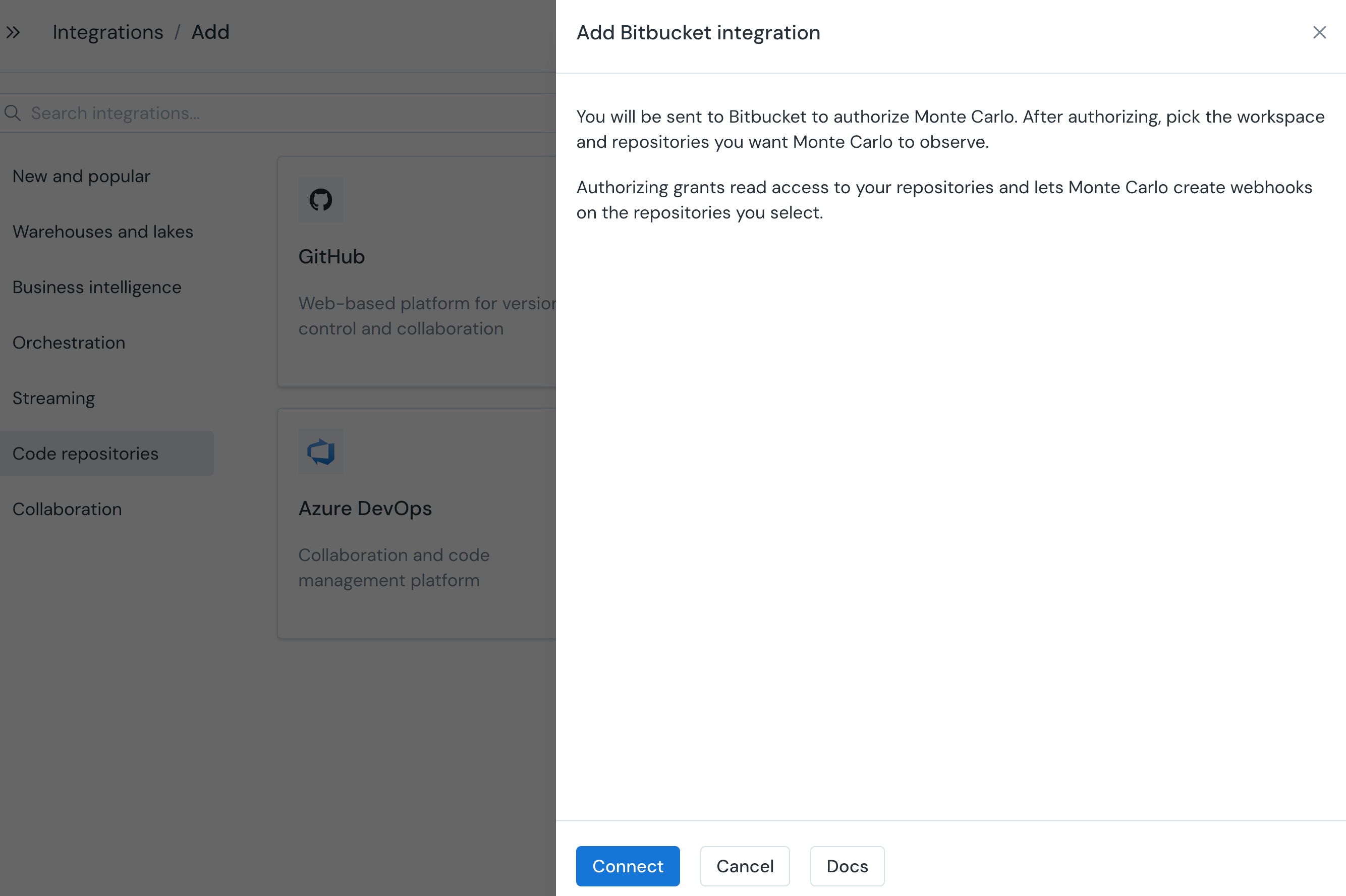
There is no Bitbucket app for you to createUnlike the GitHub and GitLab integrations, you do not register an OAuth application or copy a client ID and secret. Monte Carlo owns the Bitbucket OAuth consumer, so the only thing you do is authorize it. There are no fields to fill in on this screen.
2. Authorize Monte Carlo in Bitbucket
Click Connect. You are sent to Bitbucket to sign in and grant access. Review the requested scopes and click Grant access.
You are then returned to Monte Carlo to choose what to observe.
3. Choose a workspace and repositories
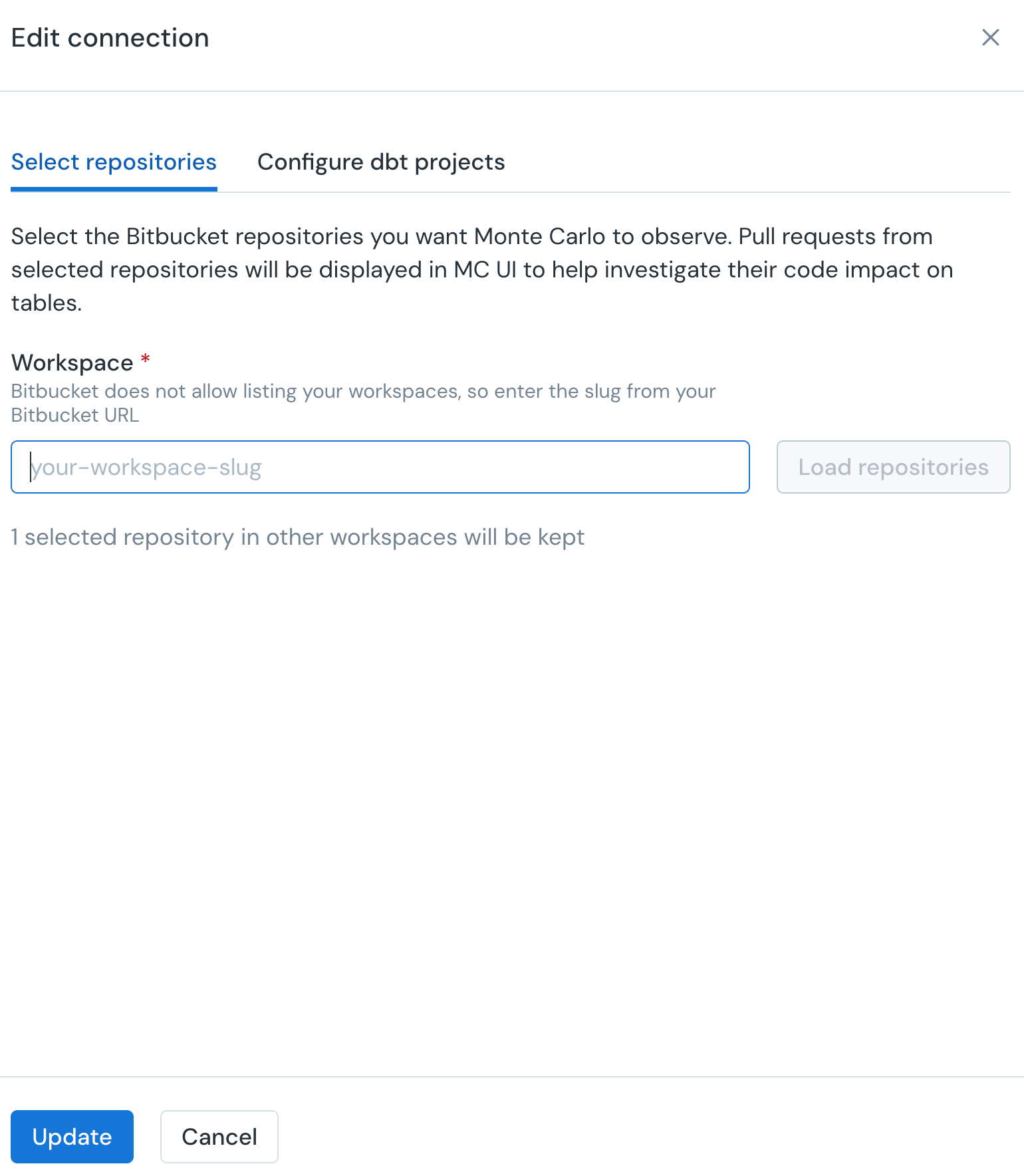
Enter your workspace slug, then click to load its repositories.
Bitbucket no longer offers an API that lists the workspaces a user belongs to, so Monte Carlo cannot populate this for you. Take the slug from your Bitbucket URL - in https://bitbucket.org/acme-data/analytics, the workspace slug is acme-data.
Select the repositories you want Monte Carlo to observe and save. Pull requests from those repositories will appear in Monte Carlo.
A few things worth knowing:
- Monte Carlo creates one pull request webhook per selected repository. Removing a repository from the selection deletes its webhook.
- Pull requests already synced from a repository remain in Monte Carlo after you remove that repository from the selection. Deleting the whole connection removes them.
- To observe repositories in more than one workspace, enter the next workspace slug and select from it. Selections in workspaces you are not currently viewing are preserved, even though they are not listed on screen.
- Renaming a repository in Bitbucket does not break the connection. Monte Carlo tracks repositories by their Bitbucket UUID, not their name.
4. [Recommended] Map pull requests to tables with dbt
On its own, the integration gives you pull requests you can search and correlate by timing. To let Monte Carlo tie a pull request to the specific tables it updates, add the dbt integration.
If you use dbt Cloud, setting up the dbt integration is enough - the mapping is automatic.
If you use dbt Core, open the Bitbucket integration and go to the Configure dbt projects tab. For each dbt connection, select the dbt project to map and provide:
- Remote URL - the Bitbucket repository the dbt project lives in, in the form
https://bitbucket.org/<workspace>/<repo>. - Project subdirectory - the directory containing the dbt project, needed only when it is not at the repository root. If a model path is
analytics/models/foo/bar.sql, the subdirectory isanalytics. If it ismodels/foo/bar.sql, leave it empty.
Take the subdirectory from the file tree, not the browser URLBitbucket's file browser shows URLs like
https://bitbucket.org/<workspace>/<repo>/src/main/services/dwh/snowflake, wheresrcand the branch name (main) are part of the page route, not directories. The subdirectory here isservices/dwh/snowflake- everything aftersrc/<branch>/.
Click Update when done.
Removing the integration
Deleting the Bitbucket connection removes the webhooks Monte Carlo created, deletes the stored access token, and removes the pull requests Monte Carlo had synced from it.
You can also revoke Monte Carlo's access from Bitbucket directly, under your account's authorized applications. Doing that stops ingestion but leaves the connection in place in Monte Carlo, where it will report errors until you delete or re-authorize it.
Limitations
- Bitbucket Cloud only. Data Center and Server are not supported.
- Monte Carlo does not comment on your pull requests. The impact-report comment available for GitHub and GitLab is not part of the Bitbucket integration.
- The connection depends on the authorizing user's access, as described above.
Updated about 2 months ago